EducationSoftwareStrategy.com
StrategyCommunity

Knowledge Base

Product

Community

Knowledge Base

TopicsBrowse ArticlesDeveloper Zone

Product

Download SoftwareProduct DocumentationSecurity Hub

Education

Tutorial VideosSolution GalleryEducation courses

Community

GuidelinesGrandmastersEvents
x_social-icon_white.svglinkedin_social-icon_white.svg
Strategy logoCommunity

© Strategy Inc. All Rights Reserved.

LegalTerms of UsePrivacy Policy
  1. Home
  2. Topics

KB32647: How to upgrade MicroStrategy 10.x metadata repository and project definitions to a newer version


Stefan Zepeda

Salesforce Solutions Architect • Strategy


This article describes how to upgrade the Microstrategy 10.x metadata repository to a newer version
  1. Before the upgrade, ensure that the local Intelligence Server definition is configured to access the Strategy metadata that is to be updated.
  2. From the Start menu, go to Program Files > Strategy > Configuration Wizard.
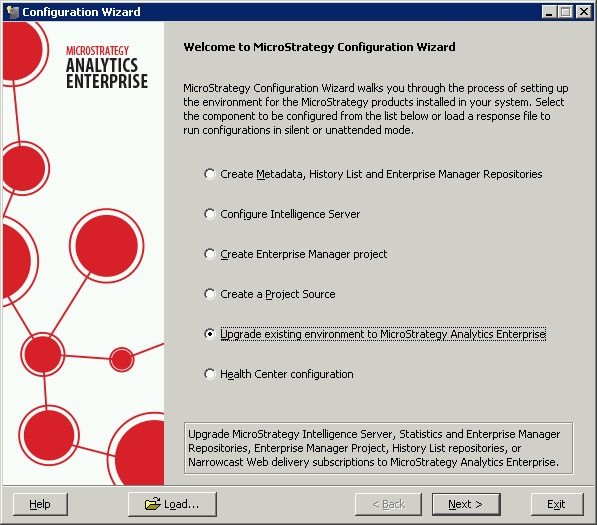
  3. Select Upgrade existing environment to Strategy Analytics Enterprise and select the Intelligence Server components option as shown below. Click "Next".
ka02R000000kVc7QAE_0EM440000002NJ5.jpeg

      4. On the Strategy Authentication page, enter the username and password of a Strategy user with administrative privileges. Click "Next".
      5. On the Select Components page, select the system components to be upgraded (the option below should be selected to upgrade the metadata):
      6. Select each project to upgrade and choose the project level upgrade options. Click "Next".
Upgrade metadata repository: The metadata repository contains the definitions of your Strategy applications and supporting objects. An upgrade of your metadata is required to provide support for all new and updated features in the most recent version of Strategy.
      7. On the Metadata Connection page, type the DSN, database login, and database password to access the Strategy metadata. Click "Next".
      8. Provide additional configuration details. For example, the login information for the History List database. Click "Next".
      9. On the Summary page, review the upgrade choices and click "Update" to update the metadata.
NOTES:

  • Strategy requires projects to be upgraded through an Intelligence Server (3-tier) connection. Upgrading your project using a direct ODBC connection (2-tier) is not supported. Only projects that are loaded into Intelligence Server can be upgraded.
  • Multiple projects can be upgraded at once using the Configuration Wizard. This method also allows you to make updates to configuration objects.
  • If projects are not chosen to be upgraded through the Configuration Wizard at this time, they can be updated at a later time through StrategyDeveloper. Before a project can be updated through Developer, the metadata repository must be upgraded through the Configuration Wizard.
  • For more information, see the Strategy 10.x Upgrade Guide

Comment

0 comments

Details

Knowledge Article

Published:

May 31, 2017

Last Updated:

May 31, 2017