EducationSoftwareStrategy.com
StrategyCommunity

Knowledge Base

Product

Community

Knowledge Base

TopicsBrowse ArticlesDeveloper Zone

Product

Download SoftwareProduct DocumentationSecurity Hub

Education

Tutorial VideosSolution GalleryEducation courses

Community

GuidelinesGrandmastersEvents
x_social-icon_white.svglinkedin_social-icon_white.svg
Strategy logoCommunity

© Strategy Inc. All Rights Reserved.

LegalTerms of UsePrivacy Policy
  1. Home
  2. Topics

KB32648: How to customize error messages coming from the Intelligence Server in MicroStrategy Web.


Community Admin

• Strategy


How to customize error messages coming from the Intelligence Server in MicroStrategy Web.

The following section in the MSDL contains information on how to customize errors in Strategy Web:
 
Home > Web SDK > Customizing Strategy Web > Part I: Fundamentals of Customization > Scenarios: Altering Application Workflow and Navigation > Customizing Error Messages
 
Using the Strategy Web SDK 9.3.x, it is possible to customize error messages sent to Strategy Web by the Intelligence Server.
 
For this technical note we will take the following error message as an example:

 

ka04W00000148buQAA_0EM440000002Gut.jpeg


(Maximum number of result rows retrieved per report was exceeded.Error in Process method of Component: AnalyticalEngineServer, Project Strategy Tutorial, Job 253, Error Code= -2147205488.) (com.Strategy.webapi.MSTRWebAPIException) 


The above error message was generated by the Intelligence Server and was sent to Strategy Web for display.
 
Although the WebAPIErrors message bundles contain error message definitions, the Intelligence Server sends an error ID and description in the XML it returns. The error message definition returned by the Intelligence Server is the error message actually displayed to the user. To customize the error message that the end user sees, customize the errors.xml file, rather than the WebAPIErrors message bundles. To accomplish this, modify the appropriate error message definition within the Web Customization Editor.
 
The error ID sent by the intelligence server is not -2147205488 as in the above error but what gets logged in the application server error log. For the above error message the application server logged the following error:


[com.Strategy.webapi SEVERE] [02/17/2010 11:41:39:277] [0] [Administrator] [192.168.1.33] [CDSSXMLReportServer.GetExecutionResultsEx] 
(Maximum number of result rows retrieved per report was exceeded.[3]Error in Process method of Component: AnalyticalEngineServer, 
Project Strategy Tutorial, Job 253, Error Code= -2147205488.) (com.Strategy.webapi.MSTRWebAPIException) 0x80043e90:  
[com.Strategy.webapi.MSTRWebAPIException: (Maximum number of result rows retrieved per report was exceeded.[3]Error in Process 
method of Component: AnalyticalEngineServer, Project Strategy Tutorial, Job 253, Error Code= -2147205488.)


In the above error message, notice the Error ID = 0x80043e90 and the error message: Maximum number of result rows retrieved per report was exceeded.Error in Process method of Component: AnalyticalEngineServer, Project Strategy Tutorial, Job 253, Error Code= -2147205488.)
 
It is important not to confuse the message with the ID for this customization to function properly.
 
Now using the Web Customizations Editor, modify the default behaviour and customize how and what we want to display to the end user.
 
The error ID obtained above is in hexadecimal format and has to be converted to its Decimal Code form. Technical Support has tools able to convert the hexadecimal error ID, please contact technical support to convert any Error IDs.


For this example the Error ID 0x80043E90 has a Dec code = -2147205488
 
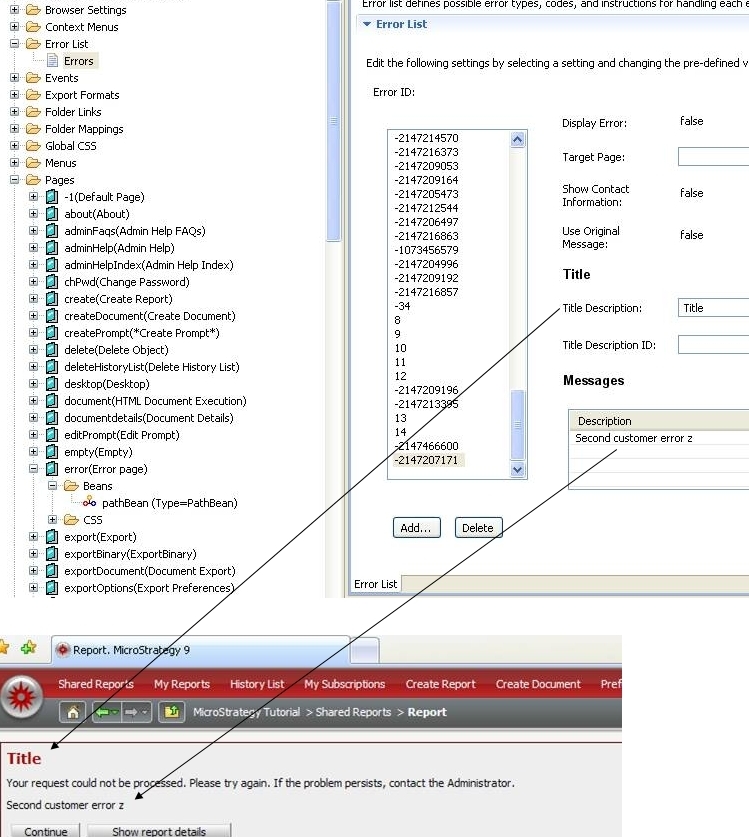
In the Web Customizations Editor expand the Error List and open the Errors page. For more information about the Error List, navigate to the following link in the MSDL:
 
Home > Web SDK > Customizing Strategy Web > Web Customization Editor > Features and Customizable Settings > Application Settings > Error List
 
Click add and enter in the dialog the converted error ID -2147205488
 
Once the new entry has been added the properties can be modified using the editor.
 

ka04W00000148buQAA_0EM440000002Guq.jpeg


CUSTOMIZATION WARNING:
This customization is provided as a convenience to Strategy users and is only directly applicable to the version stated. While this code may apply to other releases directly, Strategy Technical Support makes no guarantees that the code provided will apply to any future or previous builds. In the event of a code change in future builds, Strategy Technical Support makes no guarantee that an updated version of this particular customization will be provided. In the event of a code change in future builds, Strategy may not be able to provide additional code on this matter even though this customization is provided at this time for this specific build. For enhancements to this customization or to incorporate similar functionality into other versions, contact your Account Executive to inquire about Strategy Consulting assistance.


Comment

0 comments

Details

Knowledge Article

Published:

June 15, 2017

Last Updated:

June 15, 2017