EducationSoftwareStrategy.com
StrategyCommunity

Knowledge Base

Product

Community

Knowledge Base

TopicsBrowse ArticlesDeveloper Zone

Product

Download SoftwareProduct DocumentationSecurity Hub

Education

Tutorial VideosSolution GalleryEducation courses

Community

GuidelinesGrandmastersEvents
x_social-icon_white.svglinkedin_social-icon_white.svg
Strategy logoCommunity

© Strategy Inc. All Rights Reserved.

LegalTerms of UsePrivacy Policy
  1. Home
  2. Topics

KB330356 : How to configure custom area maps for MicroStrategy Web 10.6 and above


Community Admin

• Strategy


How to configure custom area maps for MicroStrategy Web 10.6 and above

Symptom:
Starting in Strategy 10.6 there have been changes to how GIS connectors for mapping are configured in Strategy Web. In order to configure custom area shapes in ESRI the following must be changed in the web application. 
 
Action:
The following steps assume ESRI is already configured in the user's environment.
 

  • Create the following folder structure within the plugins folder: ConnectorForMap>WEB-INF>xml>config
  • Create a folder named 'kml' within the newly created ConnectorForMap folder. Plugins>ConnectorForMap>kml This is where the .kml files will be placed. 
  • place the mapConfig.xml as configured below inside the config folder.
    
    <mc>
    <ec>
    <apps> 
    <key>type your esri key here</key>
    </apps> 
    </ec>
    <gc>
    <mk isPremier="true">InvalidPremierKey</mk> 
    </gc> 
    </mc>

  • Conigure the mstrGeoShapesConfig.xml file like below and place inside the same config folder
    
    <shape-config>
    <layers>
    <layer id="111"  title="US STATES VIEW" ml="kml/US-States-View.kml"></layer>
    </layers>
    <shapes>                
    <shape id="111" 
                custom="true" 
                plugin="ConnectorForMap"
                default="false" 
                desc="US STATES VIEW" 
                roleId="2" 
                type="Polygon" 
                descWeb="mstrweb.9229" 
                descFlash="mstr.1622" 
                descDesktop="26973"
                layerId="111" />
    </shapes>
    </shape-config>
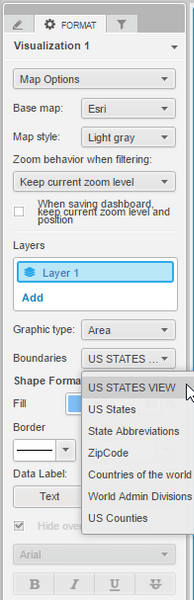
  • layer id = a unique number that will be used in the shape tag to reference the kml file.
    title = name of the boundary the way you would like it to appear in the web interface.
    ml = references the location of the .kml file like so: kml/Name_Of_the_kmlfile.kml
    shape id = a unique  number, but not necessary to be the same as layer id. 
    plugin = references the folder created in step 1.
    default = value is set to "false"
    desc = value is the same as title set in the layers tag.
    layerid = value is the same as value id set in laters tag.
     
  • Save the changes made to the mstrGeoShapesConfig.xml and restart the web server. 
  • You should now see the custom area map as a boundary in the Strategy web interface. 
ka04W000000OamvQAC_0EM440000002Smt.jpeg


KB330356


Comment

0 comments

Details

Knowledge Article

Published:

June 27, 2017

Last Updated:

October 26, 2018