EducationSoftwareStrategy.com
StrategyCommunity

Knowledge Base

Product

Community

Knowledge Base

TopicsBrowse ArticlesDeveloper Zone

Product

Download SoftwareProduct DocumentationSecurity Hub

Education

Tutorial VideosSolution GalleryEducation courses

Community

GuidelinesGrandmastersEvents
x_social-icon_white.svglinkedin_social-icon_white.svg
Strategy logoCommunity

© Strategy Inc. All Rights Reserved.

LegalTerms of UsePrivacy Policy
  1. Home
  2. Topics

KB33120: How to perform a silent upgrade of MicroStrategy metadata.


Community Admin

• Strategy


This article explains how to perform a silent upgrade of MicroStrategy metadata in MicroStrategy 9.2.x and above.

The technical note outlines the steps to perform a silent upgrade of a Strategy metadata.
 
Step 1.    Create the response file
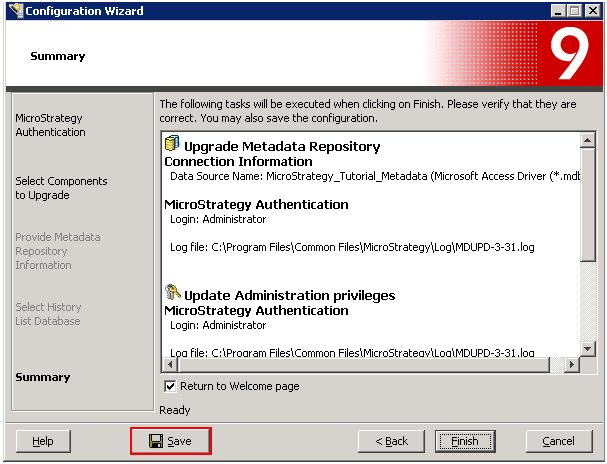
Strategy recommends that you create the response file through the GUI mode of the Configuration Wizard. Step through the Configuration Wizard to make your selections. Then, at the end of the Configuration Wizard, do no click Finish. Instead, click Save. User will be prompted to save the selections in a response file.
ka04W000000OekhQAC_0EM440000002HSm.png

 
User can also create or modify a response file with a text editor. A blank response file template can be found in the Common Files folder of Strategy installation. By default, this folder is C:\Program Files\Common Files\Strategy. For more information on the parameters in the response file, please see the Strategy Upgrade Guide.
  
 
Step 2.    Execute the response file in command line
 
 -  To use a response file through the Windows command line

  1. Type the following command in the Windows command line:
    macfgwiz.exe -r "Path\response.ini"
    Where Path\ is the fully qualified path to the response file. For example, the common location of a response file is  C:\Program Files\Common Files\Strategy\RESPONSE.INI

 
 -  To use a response file through the Configuration Wizard command line mode in UNIX or Linux

  1. From a UNIX or Linux console window, browse to <HOME_PATH> where <HOME_PATH> is the directory you specified as the Home Directory during installation.
  2. Browse to the folder bin.
  3. Type mstrcfgwiz-editor, and then press ENTER. The Configuration Wizard opens with the Welcome page displayed.
  4. Press ENTER.
  5. Type 1 to select to use a response file, and then press ENTER.
  6. Type the full qualified path to the response.ini file and then press ENTER. For example:  /home/username/Strategy/RESPONSE.INI


Comment

0 comments

Details

Knowledge Article

Published:

June 7, 2017

Last Updated:

June 7, 2017