EducationSoftwareStrategy.com
StrategyCommunity

Knowledge Base

Product

Community

Knowledge Base

TopicsBrowse ArticlesDeveloper Zone

Product

Download SoftwareProduct DocumentationSecurity Hub

Education

Tutorial VideosSolution GalleryEducation courses

Community

GuidelinesGrandmastersEvents
x_social-icon_white.svglinkedin_social-icon_white.svg
Strategy logoCommunity

© Strategy Inc. All Rights Reserved.

LegalTerms of UsePrivacy Policy
  1. Home
  2. Topics

KB33131: Filters applied to an attribute through a hierarchy are not fully applied when the hierarchy is used in a prompt in MicroStrategy Developer 9.x - 10.x


Stefan Zepeda

Salesforce Solutions Architect • Strategy


This technical note outlines an issue where Filters applied to an attribute through a hierarchy are not fully applied when the hierarchy is used in a prompt in MicroStrategy Developer.

SYMPTOM:
When applying a filter to an attribute through a hierarchy, it does not get applied when used in a hierarchy prompt in Strategy Developer 9.x - 10.x.
 
STEPS TO REPRODUCE:

  • Create a filter to be applied to the attribute.
     
ka02R000000kXQrQAM_0EM440000002E6o.jpeg
  • Open the hierarchy editor for the hierarchy that the attribute belongs to.
  • Right click on the attribute and select "Define Attribute Filters" and then browse and select the filter previously created. Then save.
     
ka02R000000kXQrQAM_0EM440000002E6l.jpeg
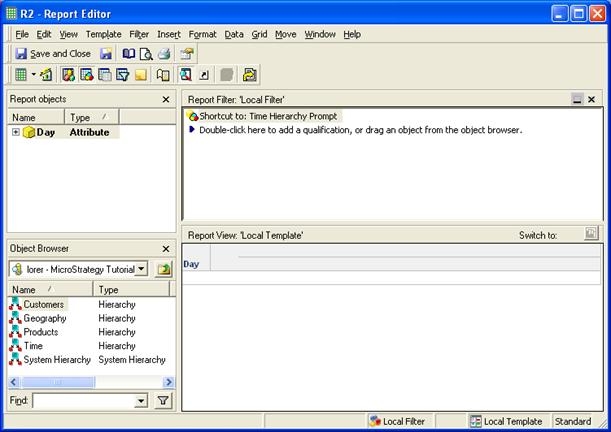
  • Create a hierarchy prompt based off of the previously edited hierarchy.
  • Create a new report, and add the new hierarchy prompt.
     
ka02R000000kXQrQAM_0EM440000002E6S.jpeg


CAUSE:
This is a known issue with Strategy Developer 9.x - 10.x.
 
ACTION:
Strategy is investigating this issue and will continue posting updates as soon as they become available.
 
WORKAROUND:
To see the attribute elements with the filter applied to it, instead of dragging the Month attribute to the Definition window do the following:

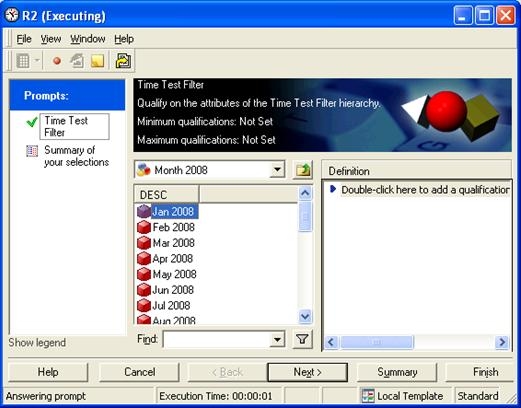
  • Run the report to get the prompt window. From here, drag the Month from the Object Browser to the Definition window, and click Add.
     
ka02R000000kXQrQAM_0EM440000002E6m.jpeg
  • When the object selection window opens, the attribute elements do not get filtered as defined in the attribute filter. 
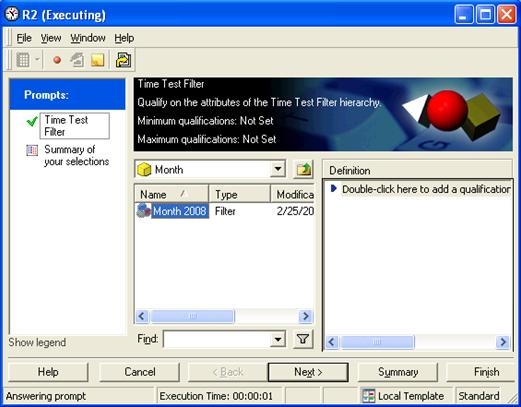
    • Double click on the Month attribute on the Object Browser side.
       
ka02R000000kXQrQAM_0EM440000002E6n.jpeg


  • Double click on the filter shown in the Object Browser.
     
ka02R000000kXQrQAM_0EM440000002E6q.jpeg


  • All of the elements displayed will have the filter applied to it.

Comment

0 comments

Details

Knowledge Article

Published:

June 15, 2017

Last Updated:

June 15, 2017