EducationSoftwareStrategy.com
StrategyCommunity

Knowledge Base

Product

Community

Knowledge Base

TopicsBrowse ArticlesDeveloper Zone

Product

Download SoftwareProduct DocumentationSecurity Hub

Education

Tutorial VideosSolution GalleryEducation courses

Community

GuidelinesGrandmastersEvents
x_social-icon_white.svglinkedin_social-icon_white.svg
Strategy logoCommunity

© Strategy Inc. All Rights Reserved.

LegalTerms of UsePrivacy Policy
  1. Home
  2. Topics

KB33157: What is quick switch and how to enable it in MicroStrategy Report Services Documents 9.X?


Community Admin

• Strategy


What is quick switch and how to enable it in MicroStrategy Report Services Documents 9.X?

Quick switch is a feature in Strategy Report Services Documents which is used to switch a dataset report between grid view and graph view in interactive mode or flash mode. A quick switch button will be displayed on left top corner of dataset report when hovering the mouse on top of the dataset report. The report switches to grid view (if it's in graph view currently) or graph view (if it's in grid view currently) when clicking on the the quick switch button, as shown below:
 

ka04W000000OgchQAC_0EM44000000281C.jpeg

 
Note
"Web change view mode" privilege under "Web Reporter" should be assigned for a user to be able to see quick switch button in Web.
 
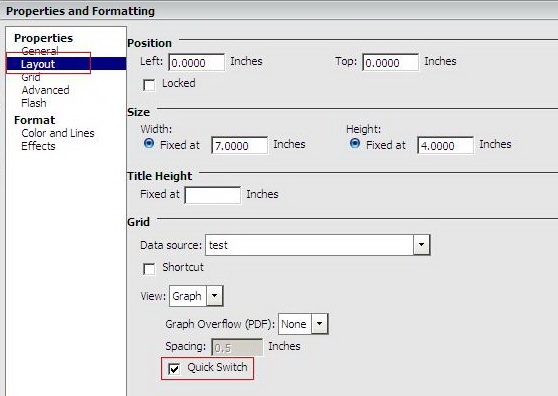
Follow the steps below to enable quick switch for a dataset report in Strategy Report Services Documents 9.x:
 

  • In Desktop 
    • Right click on the dataset report in document editor.
    • Navigate to "Properties"  and swtitch to the  "Grid" tab.
    • Check the "Quick switch" check box, as shown below:  
                                   
ka04W000000OgchQAC_0EM44000000280x.jpeg
  • In Web
    • Right click on the dataset report in document design mode.
    • Click on "Properties and Formatting..." on the menu.
    • Click on "Layout" in the popped out dialog.
    • Check the "Quick switch" check box, as shown below:                             
                     
ka04W000000OgchQAC_0EM44000000281E.jpeg

Comment

0 comments

Details

Knowledge Article

Published:

June 13, 2017

Last Updated:

June 13, 2017