EducationSoftwareStrategy.com
StrategyCommunity

Knowledge Base

Product

Community

Knowledge Base

TopicsBrowse ArticlesDeveloper Zone

Product

Download SoftwareProduct DocumentationSecurity Hub

Education

Tutorial VideosSolution GalleryEducation courses

Community

GuidelinesGrandmastersEvents
x_social-icon_white.svglinkedin_social-icon_white.svg
Strategy logoCommunity

© Strategy Inc. All Rights Reserved.

LegalTerms of UsePrivacy Policy
  1. Home
  2. Topics

KB33212: There is no option to disable MicroStrategy 2021 Distribution Services subscriptions as an Administrator.


Community Admin

• Strategy


When troubleshooting issues in MicroStrategy Distribution Services, there may be a situation where a subscription or set of subscriptions will need to be temporarily disabled. Currently there is no direct method to suspend or mark a subscription or set of subscriptions as 'disabled'.

Symptom

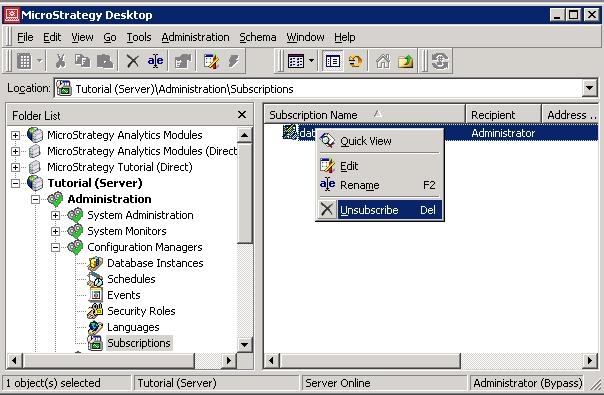
When troubleshooting issues in Strategy 2021 Distribution Services, there may be a situation where a subscription or set of subscriptions will need to be temporarily disabled. However, in Strategy Developer, the only option when right-clicking on the subscription is to unsubscribe it. Choosing to unsubscribe the subscription will remove it permanently.
ka0PW000000152TYAQ_0EM440000002Aqy.jpeg


Action

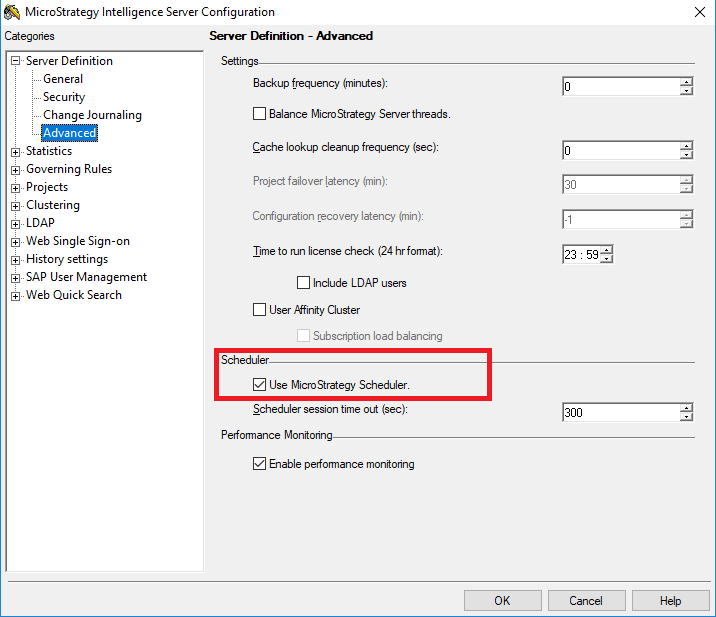
While individual subscriptions cannot be temporarily disabled, it is possible to temporarily disable the Strategy scheduler. The Distribution Services subscriptions will not run when the scheduler is disabled. The scheduler can be disabled by navigating to 'Configure Intelligence Server' in Developer and selecting Server Definition > Advanced. Here there will be an option a check box for "use Strategy Scheduler". To disable the scheduler, un-check the following option:
ka0PW000000152TYAQ_0EM44000000QhLt.png


Workaround

The following workaround can be used to temporarily disable individual subscriptions rather than disabling the Strategy scheduler. One way to simulate a subscription being disabled is to expire the subscription. Expiring the subscription will stop it from running on the Strategy Intelligence Server, but will keep it available for modification later. The subscription will still appear in the Subscriptions Manager in Developer.
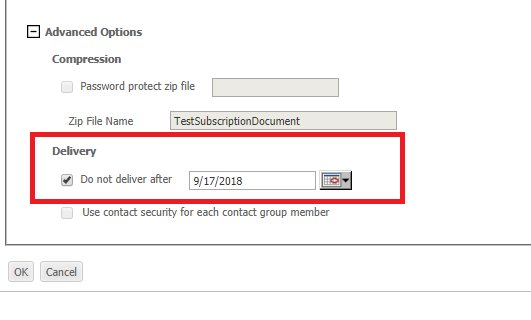
Users can 'expire' their own individual subscriptions by navigating to 'My Subscriptions' in Strategy Web, editing their subscription, enabling the setting 'do not deliver after' and setting this to the current date. This will stop the subscription from delivering until the 'do not deliver after' setting is disabled. 
ka0PW000000152TYAQ_0EM44000000Qpil.png

If the Administrator has a requirement to expire individual subscriptions that are owned by other users, the following instructions can be followed:
Cache Update, Mobile, and History List Subscriptions
Cache Update, Mobile, and History List subscriptions can be individually expired using Strategy Developer.
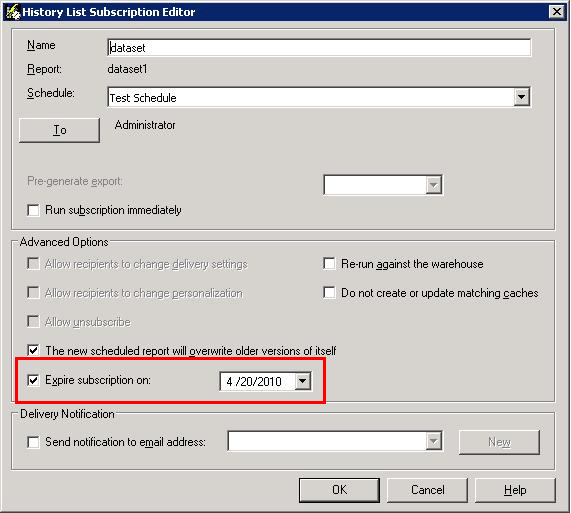
  1. Browse to the Subscriptions manager in Strategy Developer and edit the subscription.
  2. Check 'Expire subscription on' and set the expiration to the current date. Click 'OK' to save.
    To later re-enable the subscription, edit it and un-check 'Expire subscription on'.
ka0PW000000152TYAQ_0EM440000002Aqw.png

Email and File Subscriptions
Email and File Subscriptions cannot be created or edited using Strategy Developer. This means that the Administrator will not be able to directly modify the subscriptions to set them as expired. These types of subscriptions will need to be expired using Command Manager using the steps below.

  1. Open Strategy Command Manager and connect to the correct project source.
  2. If necessary, run the following command to list all the properties for the subscription

    
    LIST ALL PROPERTIES FOR SUBSCRIPTION "TestSubscription" FOR PROJECT "Strategy Tutorial";


    It will be seen that by default, there is no expiration date set for the subscription. 
  3. Run the alter subscription command to set the expiration date for the desired subscription(s) to the current date.
    Example:


    ALTER EMAILSUBSCRIPTION "TestSubscription" EXPIRATIONDATE 9/17/2018 IN PROJECT "Strategy Tutorial";


    Make sure to set the value for EXPIRATIONDATE to the current date and not an earlier date. Providing an earlier date will cause the command to fail with the following error message:


The expiration date can't be earlier than today.

Running the command  "LIST ALL PROPERTIES FOR SUBSCRIPTION" will show that the expiration date is now set for the subscription. 
The following steps are required in order to re-enable the subscription after setting the expiration date. 

  1. Open Strategy Command Manager and connect to the project source
  2. Run the alter subscription command to set the subscription to an expiration date far into the future. 

Example:


ALTER EMAILSUBSCRIPTION "TestSubscription" EXPIRATIONDATE 9/17/3000 IN PROJECT "Strategy Tutorial";

This will re-enable the subscription. There is currently no way for the Administrator to remove the expiration date after modifying the subscription to add the expiration date; however, this change will ensure that the subscription is re-enabled.


Comment

0 comments

Details

Knowledge Article

Published:

May 26, 2017

Last Updated:

March 4, 2024