EducationSoftwareStrategy.com
StrategyCommunity

Knowledge Base

Product

Community

Knowledge Base

TopicsBrowse ArticlesDeveloper Zone

Product

Download SoftwareProduct DocumentationSecurity Hub

Education

Tutorial VideosSolution GalleryEducation courses

Community

GuidelinesGrandmastersEvents
x_social-icon_white.svglinkedin_social-icon_white.svg
Strategy logoCommunity

© Strategy Inc. All Rights Reserved.

LegalTerms of UsePrivacy Policy
  1. Home
  2. Topics

KB33429: How to use the Windows Server 2008 Windows Error Reporting (WER) feature with MicroStrategy Intelligence Server


Community Admin

• Strategy


Starting with the release of Microsoft Windows Server 2008, the Windows Error Reporting (WER) feature can be configured to obtain a full user-mode memory dump after a user-mode application crashes

Starting with the release of Microsoft Windows Server 2008, the Windows Error Reporting (WER) feature can be configured to obtain a full user-mode memory dump after a user-mode application crashes. Refer to the following Microsoft document for more details:
http://msdn.microsoft.com/en-us/library/bb787181%28VS.85%29.aspx
The following steps provide instructions on how to utilize WER to capture debugging information for a Strategy Intelligence Server process (64-bit) running on a Microsoft Windows Server 2008 operating system:
 
NOTE: Administrator privileges are required to perform actions described below.

  1. Open the Windows registry (Start > Run > regedit) and navigate to the following key:
  2. HKEY_LOCAL_MACHINE\SOFTWARE\Microsoft\Windows\Windows Error Reporting\

 
These registry values represent the global settings (i.e. will apply to all applications). It is possible to also provide per-application settings that override the global settings.
 
To create a per-application setting for the Strategy Intelligence Server:
 
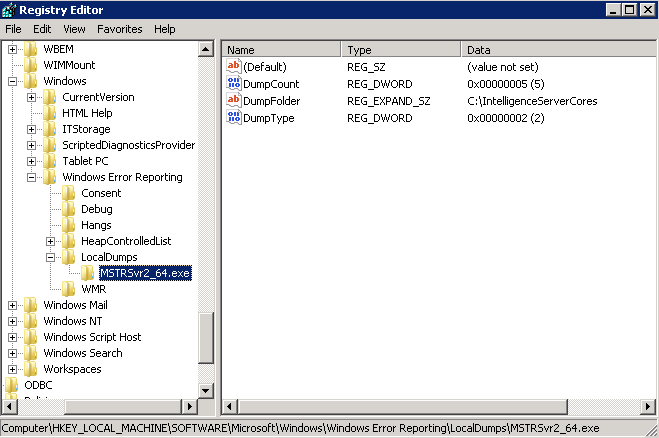
If the Strategy Intelligence Server crashes, WER will first read the global settings, and then will override any of the settings with the Intelligence Server application-specific settings.
 
After the problem has been reproduced, zip the dump file created along with the DSSErrors.log and DSSErrors.log.bak files from the Intelligence Server machine (located by default in C:\Program Files\Common Files\Strategy\Log), and send the zip file to Strategy Technical Support for further investigation.
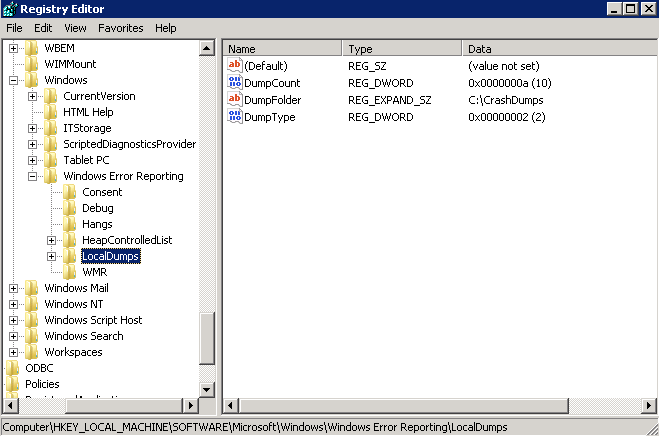
  • Create a new key named LocalDumps under the Windows Error Reporting key.
  • Create a new  Expandable String value (REG_EXPAND_SZ) named DumpFolder under LocalDumps, and specify the path where the dump files are to be stored.
  • Create a new DWORD value (REG_DWORD) named DumpCount under LocalDumps, and specify a value representing the maximum number of dump files in the folder. When the maximum value is exceeded, the oldest dump file in the folder will be replaced with the new dump file.
  • Create a new DWORD value (REG_DWORD) named DumpType under LocalDumps, and specify a value of 2 to collect a Full dump when the Intelligence Server process crashes
  • The LocalDumps key will appear as follows at the end of the procedure:
     
ka04W000000OhcIQAS_0EM440000002AqC.jpeg
    • Create a new key for the Intelligence Server application under HKEY_LOCAL_MACHINE\Software\Microsoft\Windows\Windows Error Reporting\LocalDumps (for example, HKEY_LOCAL_MACHINE\Software\Microsoft\Windows\Windows Error Reporting\LocalDumps\MSTRSVR2_64.exe).
       
    • Add the application dump settings, as specified in the first set of steps above, under the key created in step 1 (e.g. MSTRSVR2_64.exe).
       
ka04W000000OhcIQAS_0EM440000002Aq9.jpeg

Comment

0 comments

Details

Knowledge Article

Published:

May 8, 2017

Last Updated:

May 8, 2017