Users with Trusted Authentication enabled may want to execute a report by calling the executeReport task.
Here are the steps to accomplish this:
1.- Go to the Task Administrator Page. For example, in a asp Strategy Web installation: //TaskAdmin.aspx?pg=builder
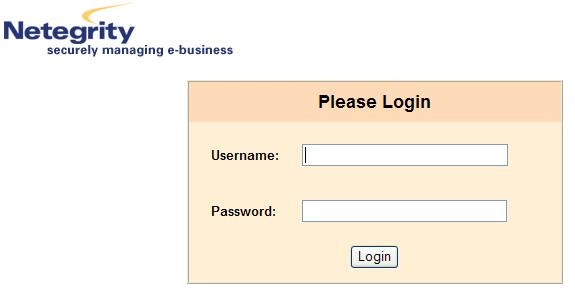
Note: Because trusted authentication is enabled, user will be challenge by their authentication provider:
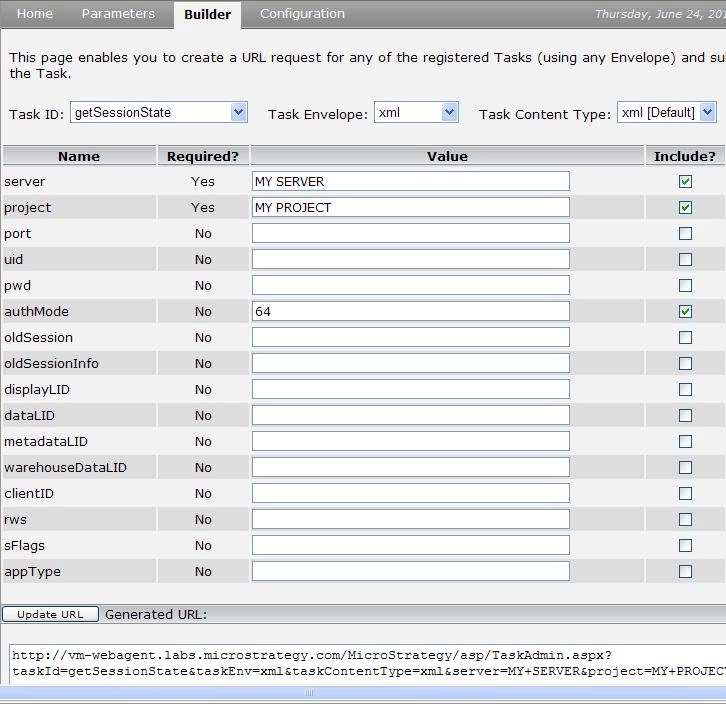
2.- In the task administrator builder page, select the getSessionState task and fill the Server, Project and AuthMode parameters.
Note: Because the trusted session has been already established, the AuthMode value should be 64.
3.- Update the URL and Invoke it to get a valid session state.

4.- Copy the Max-State value from the task response and change to task id to be reportExecute.
5.- In the Reportexecute task, fill the Style, Session State and Report Id parameters.
Note: Use the Session State obtained from the getSessionState task.

6.- Update the URL and Invoke it to get the report xml.
