There may be situations in which it may be necessary to test issues using the 3rd party Virtual Machine provided by a consultant during the course of troubleshooting an issue. Oracle VM VirtualBox virtual machine software may be one of the VM applications used by consultants.
Perform the following instructions to install and configure the Oracle VirtualBox environment:
1. Download the install from the following location: http://www.virtualbox.org/wiki/Downloads
2. Click to start the application, then go to FIle > Virtual Media Manager.
3. The consultant will most likely provide a vdi file. Click to Add a new Hard Disk and location the vdi and click Open.
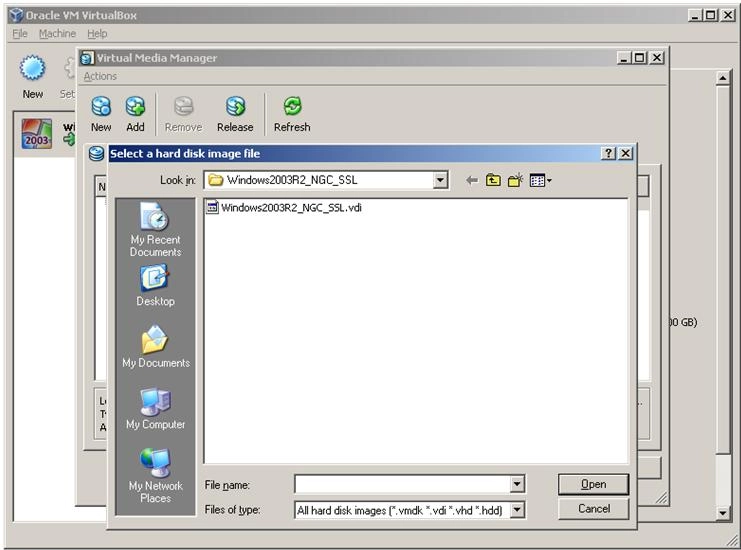
4. Once that is done, it will appear in the list of available hard disks.
5. Close the Media manager window.
6. From the main screen, click `New` button. The 'New Virtual Machine' wizard will start:
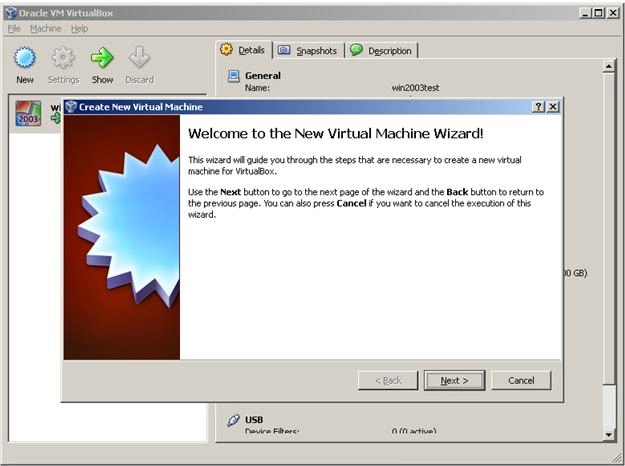
7. Choose a name for the VM and select the Operating system that is being tested.

8. When prompted to either create new hard disc or link to existing, choose to link to existing and choose the hard disc added from the previous step.

9. Once finished, click start to launch the new VM.
For more information about using Oracle VM VirtualBox, see the user manual located here:
http://www.virtualbox.org/wiki/Downloads#manual
Third Party Software Installation:
WARNING:
The third-party product(s) discussed in this technical note is manufactured by vendors independent of Strategy. Strategy makes no warranty, express, implied or otherwise, regarding this product, including its performance or reliability.
