EducationSoftwareStrategy.com
StrategyCommunity

Knowledge Base

Product

Community

Knowledge Base

TopicsBrowse ArticlesDeveloper Zone

Product

Download SoftwareProduct DocumentationSecurity Hub

Education

Tutorial VideosSolution GalleryEducation courses

Community

GuidelinesGrandmastersEvents
x_social-icon_white.svglinkedin_social-icon_white.svg
Strategy logoCommunity

© Strategy Inc. All Rights Reserved.

LegalTerms of UsePrivacy Policy
  1. Home
  2. Topics

KB33862: How to create nested or cascading selectors and avoid getting blank selections in MicroStrategy Web 9.4.1


Community Admin

• Strategy


Users notice that when switching elements on cascading or nested Attribute selectors, the lower level selectors turn blank and the grid shows ‘No data returned for this view’ in several versions of MicroStrategy Web 9.4.1. This technical note describes how to successfully implement this functionality.

SYMPTOM
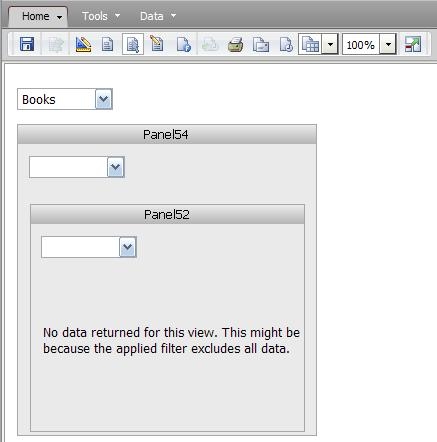
Users notice that when switching elements on cascading or nested Attribute selectors, the lower level selectors turn blank and the grid shows ‘No data returned for this view’ in several versions of Strategy Web 9.4.1, like shown in the image below:
ka04W000001MKv8QAG_0EM4400000027vq.jpeg


No data returned for this view. This might be because the applied filter excludes all data.
 
CAUSE
In order for one selector to target another selector to mimic a Parent – Child relationship, the child selector needs to be inside a panel stack and the Parent selector has to target that panel stack.  To avoid the blank selector, the selector targets have to be applied to it in hierarchical order, from the highest to the lowest attribute. In addition to this, some settings need to be adjusted.
 
ACTION
The simplest way to design nested or cascading selectors is to design the entire dashboard first and leave the creation of the selectors to the very end. Then modify each selector’s targets, one by one, in hierarchical order.
 
The following steps will create a set of 3 nested selectors.

  • Create the report with 3 attributes and 1 metric. The attributes should belong to the same hierarchy, e.g. Category, Subcategory, and Item.
  • Convert the report into a document, and add the report into a panel stack (Child).
  • Create another panel stack (Parent) and place the Child panel stack within it.
  • Create the Grand selector outside both panel stacks.
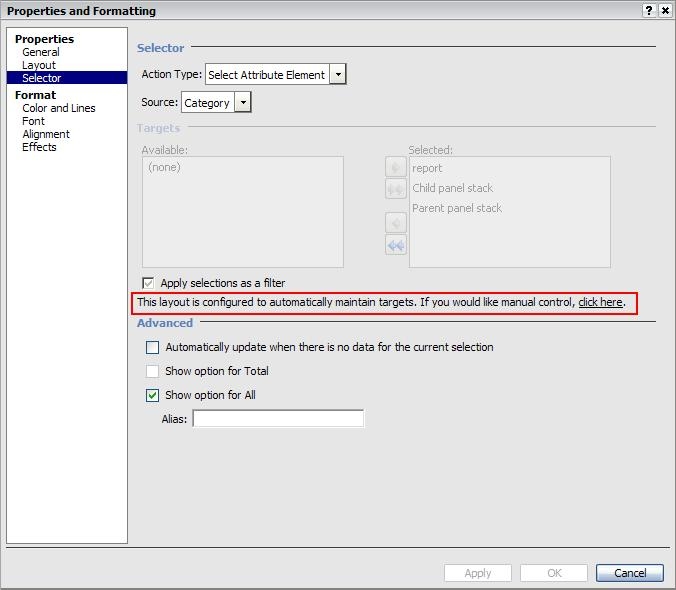
  • Edit the Grand selector.  Undo the automatic layout by clicking in the ‘click here’ link, like shown in the image below.
ka04W000001MKv8QAG_0EM4400000027vo.jpeg


This layout is configured to automatically maintain targets. If you would like manual control, click here.
Note: This setting only has to be changed once and it will be applied for every selector.  

  1. Choose to target all available objects.
  2. Uncheck ‘Apply selection as filter’.
  3. Create a Parent selector inside the Parent panel stack.
  4. Edit the Parent selector.  Target the grid report and the child panel stack.
  5. Uncheck ‘Apply selection as filter’, and enable ‘Automatically update when there is no data for the current selection’.
  6. Create a Child selector inside the Child panel stack.
  7. Edit the Child selector, and target only the grid.
  8. Uncheck ‘Apply selection as filter’, and enable ‘Automatically update when there is no data for the current selection’.
  9. Save the document while still in design mode, and execute to test.

Notes:

  1. If any of the selectors is applied as a filter, the ‘Automatically update when there is no data for the current selection’ option will not be applied. This option must be turned off.
  2. If the selector targets change, e.g. the user adds a new target, the option ‘Apply selection as filter’ will automatically be turned on again, interfering with the ‘Automatically update when there is no data for the current selection’.

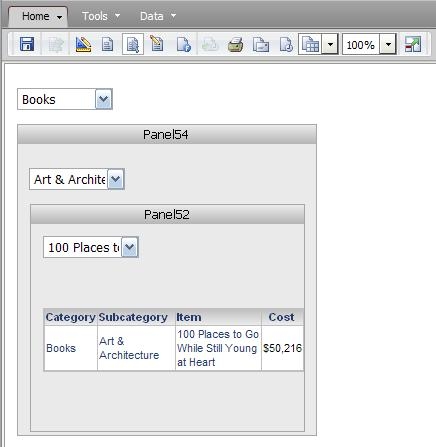
If all the steps were followed correctly, the resulting dashboard will never show a blank selection or the warning No data is returned for this view, like shown in the image below.
ka04W000001MKv8QAG_0EM4400000027vm.jpeg

If a dashboard already shows the blank selection, an incorrect order of applying the targets to the selectors was followed. To workaround this issue, recreate all the selectors and apply their targets in hierarchical order.


Comment

0 comments

Details

Knowledge Article

Published:

April 3, 2017

Last Updated:

April 3, 2017