EducationSoftwareStrategy.com
StrategyCommunity

Knowledge Base

Product

Community

Knowledge Base

TopicsBrowse ArticlesDeveloper Zone

Product

Download SoftwareProduct DocumentationSecurity Hub

Education

Tutorial VideosSolution GalleryEducation courses

Community

GuidelinesGrandmastersEvents
x_social-icon_white.svglinkedin_social-icon_white.svg
Strategy logoCommunity

© Strategy Inc. All Rights Reserved.

LegalTerms of UsePrivacy Policy
  1. Home
  2. Topics

KB33900: How to keep the formatting of an existing Excel sheet when updating a report in MicroStrategy Office 9.4.1 and above.


Community Admin

• Strategy


How to keep the formatting of an existing Excel sheet when updating a report in MicroStrategy Office 9.4.1 and above.

After executing a Strategy report in Excel, users can modify its format using Office Excel formatting features. By default, if the user refreshs the report the Excel sheet formatting is lost and replaced by the original report format.
 
If the users want to keep their customized Excel format, they have to follow these steps:
ka04W000000OePZQA0_0EM4400000027vQ.jpeg
ka04W000000OePZQA0_0EM4400000027vS.jpeg
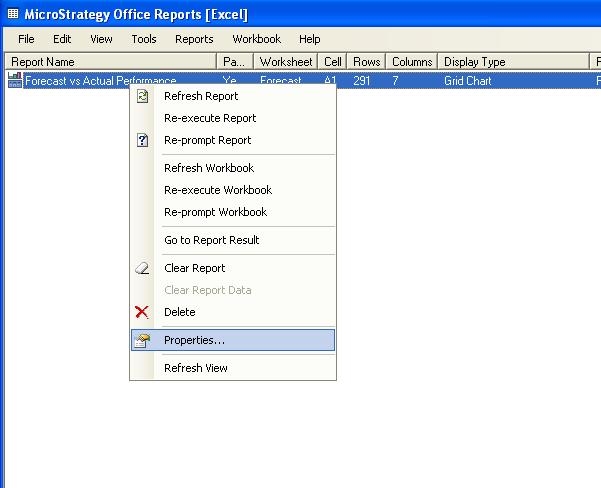
  1. In the Strategy Office Report window, where all the reports are listed, right-click the report that the user wants to keep the customized format.
  2. Select Properties.
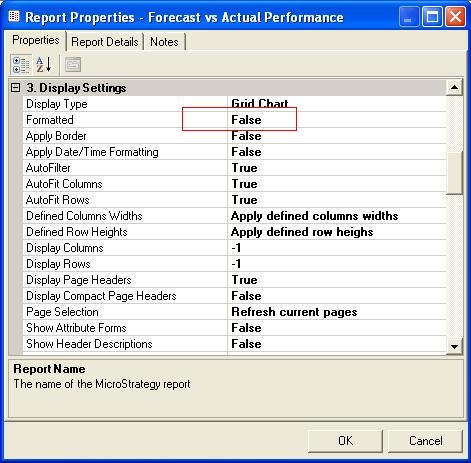
  3. In the Report properties window, look for the "3. Display Settings" section.
  4. Change the Formatted setting from True to False.
  5. Click OK.

With this new setting, user's format will be persisted after a refresh action.


Comment

0 comments

Details

Knowledge Article

Published:

June 9, 2017

Last Updated:

June 9, 2017