EducationSoftwareStrategy.com
StrategyCommunity

Knowledge Base

Product

Community

Knowledge Base

TopicsBrowse ArticlesDeveloper Zone

Product

Download SoftwareProduct DocumentationSecurity Hub

Education

Tutorial VideosSolution GalleryEducation courses

Community

GuidelinesGrandmastersEvents
x_social-icon_white.svglinkedin_social-icon_white.svg
Strategy logoCommunity

© Strategy Inc. All Rights Reserved.

LegalTerms of UsePrivacy Policy
  1. Home
  2. Topics

KB33910: How to create a dynamic filter to filter out the attribute element with maximum ID in MicroStrategy Developer 9.4.x-10.x?


Stefan Zepeda

Salesforce Solutions Architect • Strategy


As the data in a warehouse table is updated, the requirement is to create a dynamic filter to filter out the attribute element with the maximum ID

As the data in a warehouse table is updated, the requirement is to create a dynamic filter to filter out the attribute element with the maximum ID. For instance, as the data in a warehouse table is updated each month, the user wants to create a dynamic month filter to get the data of the latest month instead of modifying the filter manually each month.
Using the "Month" attribute as an example, follow the steps below to create a dynamic filter in the Strategy Tutorial project:
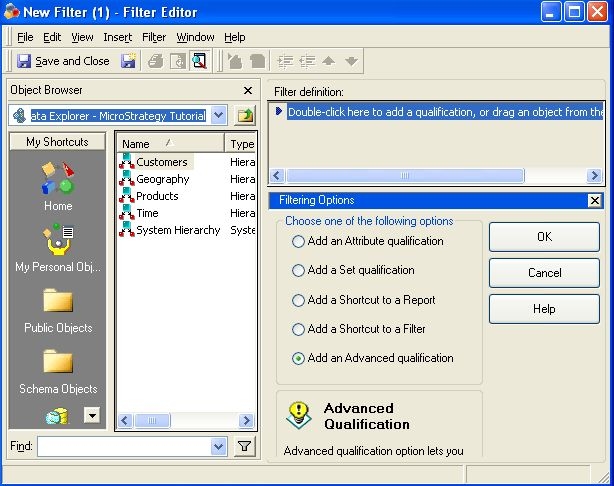
  • Create a filter from Developer and select "Add an advanced qualification", as shown below:
     
ka02R000000kcS4QAI_0EM440000002E11.jpeg
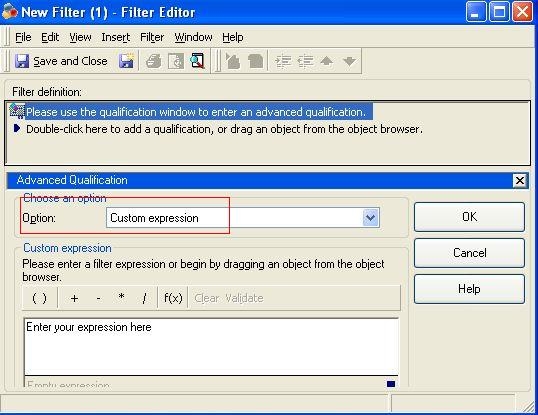
  • Select "Custom expression" under "option" drop-down list, as shown below:
ka02R000000kcS4QAI_0EM440000002E13.jpeg
  • Enter the following expression to the "Custom expression" field:

    Sample Code/Error
    ApplyComparison("#0=(select max(MONTH_ID) from LU_MONTH)",Month@ID)

    Note: The "LU_MONTH" above is the lookup table of "Month" attribute, "MONTH_ID" is the ID column of "LU_MONTH" table and "Month@ID" is the ID form of "Month" attribute.
  • Click on "OK" button and save the filter.

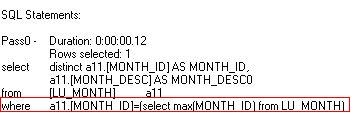
The following SQL will be generated to filter out the latest month when adding the filter above to a report:
ka02R000000kcS4QAI_0EM440000002E0o.jpeg

Comment

0 comments

Details

Knowledge Article

Published:

April 19, 2017

Last Updated:

April 19, 2017