EducationSoftwareStrategy.com
StrategyCommunity

Knowledge Base

Product

Community

Knowledge Base

TopicsBrowse ArticlesDeveloper Zone

Product

Download SoftwareProduct DocumentationSecurity Hub

Education

Tutorial VideosSolution GalleryEducation courses

Community

GuidelinesGrandmastersEvents
x_social-icon_white.svglinkedin_social-icon_white.svg
Strategy logoCommunity

© Strategy Inc. All Rights Reserved.

LegalTerms of UsePrivacy Policy
  1. Home
  2. Topics

KB33919: How to use the MicroStrategy Mobile Configuration for the Connectivity Settings in MicroStrategy Mobile 9.4.x and 10.x


Community Admin

• Strategy


The following is an explanation of the fields used to setup the Connectivity Settings for MicroStrategy Mobile 9.4.x and 10.x

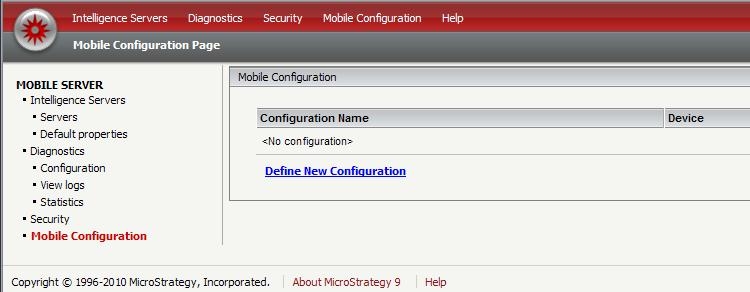
The following is an explanation of the fields used to setup the Connectivity Settings for the Strategy 9.4.x and 10.x iPhone/iPad/Android app, located by default at:
http://localhost/MicroStrategyMobile/asp/Admin.aspx?evt=3004&src=Admin.aspx.3004&target=mobileList
ka04W000001MKyaQAG_0EM440000002ATM.jpeg
  • Define a New Configuration.
  • Select iPhone or iPad as the Device.
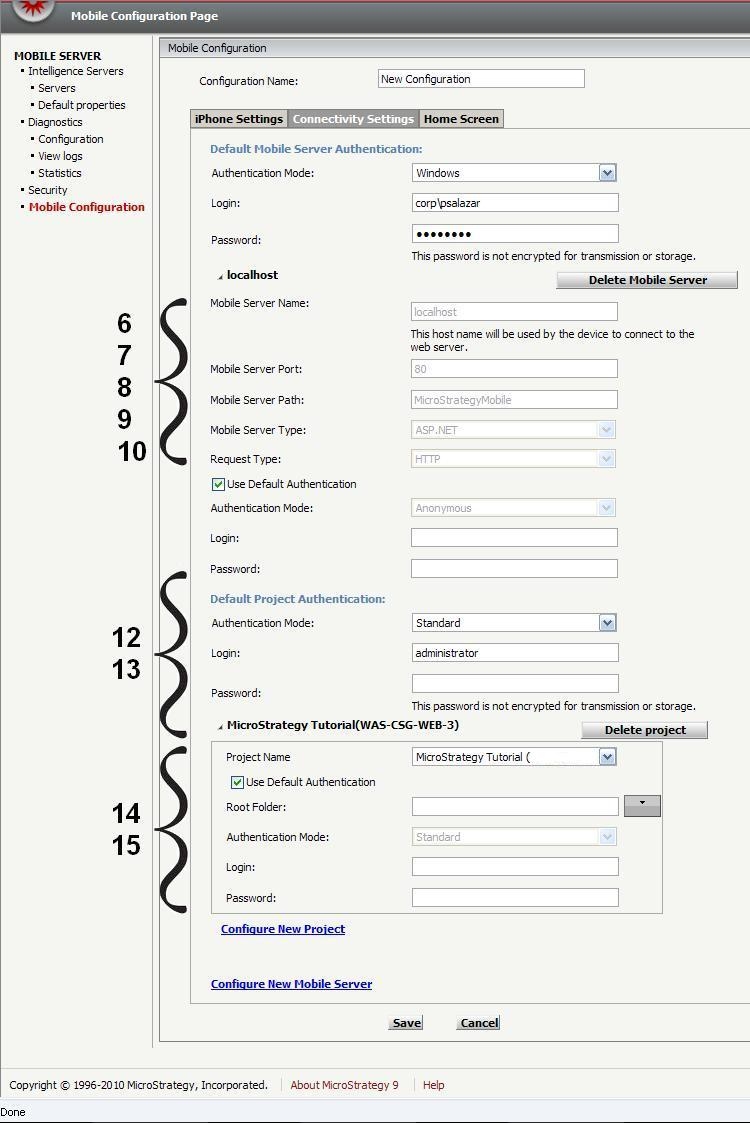
  • Move to the Connectivity Settings tab. The following page will be displayed. The sections have been marked to reference the numbered list in this tech note.
ka04W000001MKyaQAG_0EM440000002ATQ.jpeg
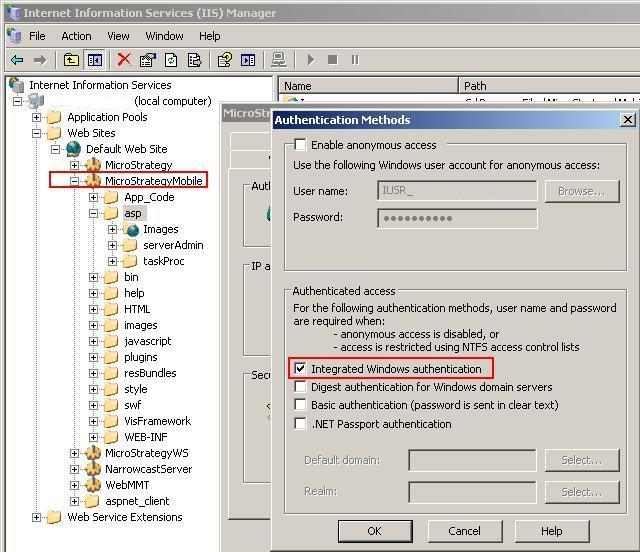
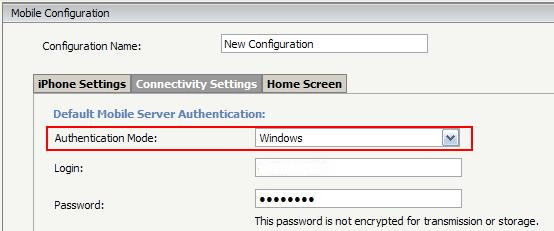
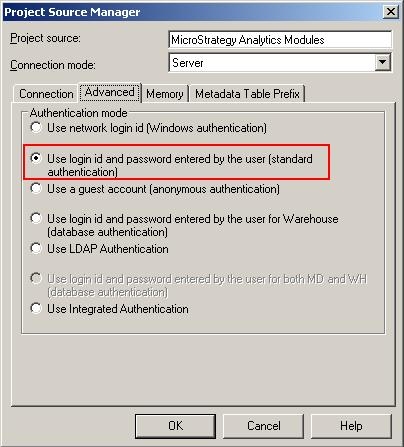
  • The Mobile Server Authentication, whether the Default or the one under Mobile Server, refers to the authentication setup on the Web Server. In this example, IIS is used:
ka04W000001MKyaQAG_0EM440000002AT9.jpeg
ka04W000001MKyaQAG_0EM440000002ATE.png
  •  
    Note: The login will require domain\username depending on the authentication mode used.
  • Click on Configure New Mobile Server.
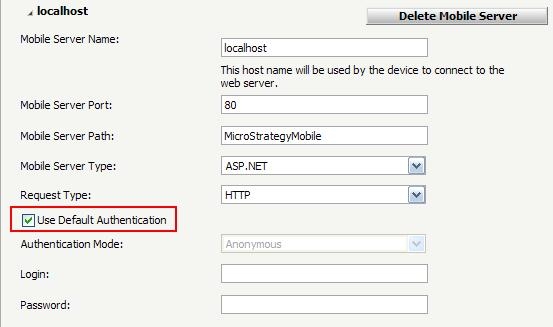
  • The Mobile Server name refers to the server name that the Strategy Mobile server machine has mapped to its IP address in the hosts file.
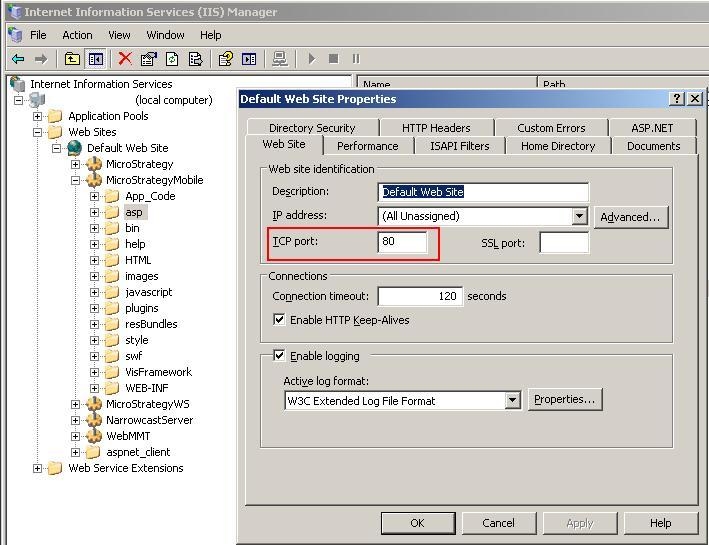
  • The Mobile Server port is the port that the web server uses to create connections to the Strategy Mobile virtual directory. In this case, IIS is configured to port 80.
ka04W000001MKyaQAG_0EM440000002ATU.jpeg
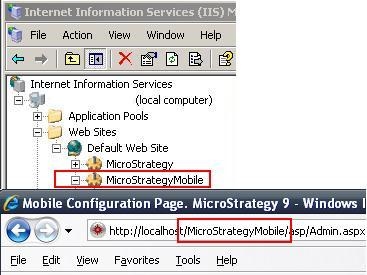
  • The Mobile Server path refers to the name of the virtual directory for Strategy Mobile. By default it will be StrategyMobile.
ka04W000001MKyaQAG_0EM440000002ATD.jpeg
  • The Mobile Server type, refers to the type of application of Strategy Mobile being used. IIS is the only one that uses ASP.NET.
  • Request type refers to the encryption used between the Mobile Server and the client machine. For information an HTTPS restriction refer to tech note KB33779.
  • If the Default authentication has been set up, keep ‘Use Default Authentication’ checked. If a different authentication than the default should be used, uncheck it and refer to step 4.
ka04W000001MKyaQAG_0EM440000002ATW.jpeg
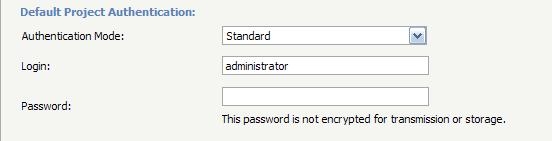
  • The Project Authentication, whether the Default or the one under New Project, refers to the authentication setup on the Intelligence Server.
ka04W000001MKyaQAG_0EM440000002ATJ.jpeg
ka04W000001MKyaQAG_0EM440000002ATF.jpeg
  • Click on Configure New Project.
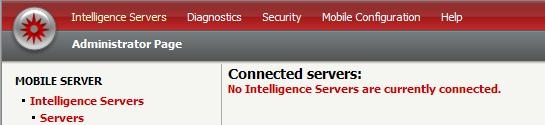
    Note: If the following message is encountered, ensure an Intelligence Server is connected to the Strategy Mobile server.
ka04W000001MKyaQAG_0EM440000002ATB.jpeg
  •  
    
    No projects available for this Mobile Server.


ka04W000001MKyaQAG_0EM440000002ATK.jpeg
  •  
    Note: Make sure to verify this using a separate browser tab, as if navigating away from the Configuration page without saving it, all changes will be lost.
  • From the next set of configurations, nothing is required if Default authentication is used. Otherwise, refer to step 12 to set up the authentication mode.
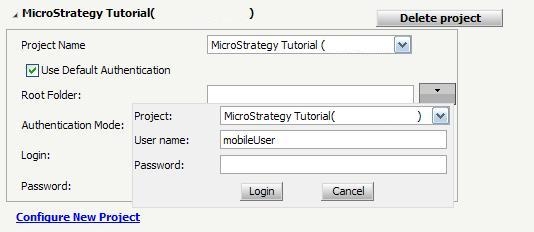
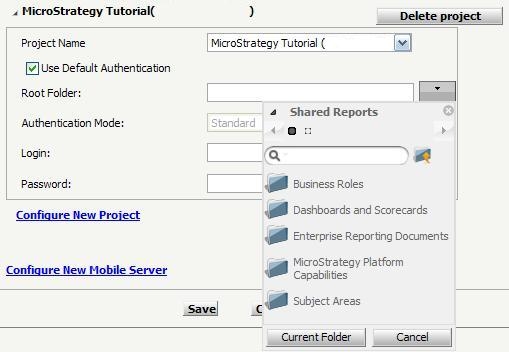
  • The Root Folder dropdown menu will require an authentication again, this does not have to be the same login used during step 12, but the user will require access to the project selected with the Project Name dropdown menu.
ka04W000001MKyaQAG_0EM440000002ATA.jpeg
  • This will allow selecting a root folder (i.e. the folder under Shared Library) such as Shared Reports.
ka04W000001MKyaQAG_0EM440000002ATC.jpeg
  •  
    Note: This is mostly used for setting up individual mobile phones, rather than project level settings, as the users that set this configuration up should have access to the folder selected here.
  • Save the configuration.
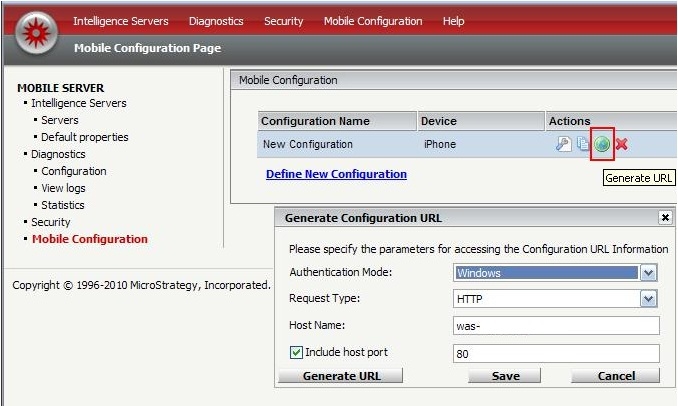
  • Use the Generate URL action button to prepare the URL to be sent to the mobile phones.
ka04W000001MKyaQAG_0EM440000002AT4.jpeg
  • Make sure the Authentication Mode matches the one setup in step 4.
  • Click Generate URL.
  • Send this URL to the mobile devices.
  • Access the URL by pasting it into a Safari browser.
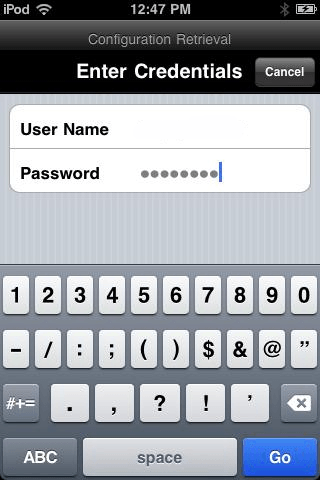
  • The Strategy Mobile app for the iPhone will automatically launch and prompt for credentials.
ka04W000001MKyaQAG_0EM440000002ATH.png
  •  
    Note: this authentication does not need to match the one used in step 4 and will only be prompted once to allow access to the setup from the Strategy Mobile Admin page.

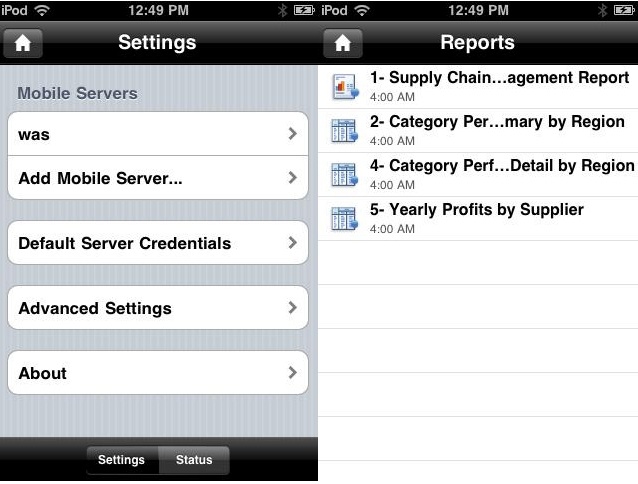
Once this has been finished, the iPhone will have the same configuration settings as the Strategy Mobile Admin page.
ka04W000001MKyaQAG_0EM440000002ATS.jpeg

Comment

0 comments

Details

Knowledge Article

Published:

March 31, 2017

Last Updated:

March 31, 2017