EducationSoftwareStrategy.com
StrategyCommunity

Knowledge Base

Product

Community

Knowledge Base

TopicsBrowse ArticlesDeveloper Zone

Product

Download SoftwareProduct DocumentationSecurity Hub

Education

Tutorial VideosSolution GalleryEducation courses

Community

GuidelinesGrandmastersEvents
x_social-icon_white.svglinkedin_social-icon_white.svg
Strategy logoCommunity

© Strategy Inc. All Rights Reserved.

LegalTerms of UsePrivacy Policy
  1. Home
  2. Topics

KB33950: What is the VLDB setting "Custom Group Interaction with Report Filter" and how it works in MicroStrategy SQL Generation Engine


Community Admin

• Strategy


This article describes how the custom group interaction VLDB property functions

In Strategy SQL Engine, a VLDB setting "Custom Group Interaction with Report Filter" exists to manage different situations in which a Custom Group interacts with the report filter. This is a database instance level VLDB setting.
There are three options available:

  • No interaction - static custom group
  • Apply report filter to custom group
  • Apply report filter to custom group, but ignore related elements from the report filter
ka04W000000OfB6QAK_0EM440000002E1F.png

 
The steps below show how different options of this VLDB setting work with different results of the same report in Strategy Tutorial project.

  • Navigate to Strategy Tutorial project->Public Objects->Custom Groups folder. Edit the custom group "Top 5 Contributors vs. All", change the definition as below and save it as "Top 5 customers".
ka04W000000OfB6QAK_0EM440000002E1G.png
  • Create a new report. Add the custom group "Top 5 customers" in the row and the metric "Revenue" in the column. Run the report, it returns the result for top five customers over all the time and the corresponding revenue, as shown below:
ka04W000000OfB6QAK_0EM440000002E1V.png
  • Add a filter as below to the report. The filter definition is as shown below:
ka04W000000OfB6QAK_0EM440000002E1K.png
  •  
    Note: The report filter excludes the customer "Fyk Selby" and only focuses on year 2008.
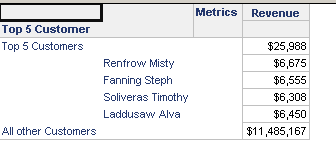
  • With the VLDB setting as "No interaction - static custom group", i.e. the default one, the report is running is running as shown below:
ka04W000000OfB6QAK_0EM440000002E1U.png
  •  
    Only four elements are displayed for the top five customers. The report results show the top five customers over all the time's revenue in year 2008 without displaying "Fyk Selby". Neither the filter "customer no in Fyk Selby" nor the "Year in 2008" impact the generation of the top 5 customers. Instead, the report filter impacts the report output after the custom group element is generated.
     
  • With the VLDB setting as "Apply report filter to custom group", the report is running as below:
    ;
ka04W000000OfB6QAK_0EM440000002E1I.png
  •  
    This grid shows top 5 customers excluding "Fyk Selby" in year 2008 and the corresponding revenue in year 2008. The report filters, both  "customer not in Fyk Selby" and "year in 2008", are taken into consideration when generating the list for the top 5 customers.
     
  • With the VLDB setting to "Apply report filter to custom group, but ignore related elements from the report filter", the output is as below:
     
ka04W000000OfB6QAK_0EM440000002E1O.png
  •  
    In the grid, only four elements are displayed for the custom group. This report result shows the top five customers in year 2008's revenue without showing customer "Fyk Selby". Only the filter "year=2008" is taken into consideration in the custom group element generation but not the filter "customer not in Fyk Selby" since "customer not in Fyk Selby" has related element for the custom group element.

As a conclusion, for this VLDB setting:

  • No interaction - static custom group: Report filter qualifications are not applied to custom groups that use metric qualifications or banding qualifications. Filtering is only applied after the custom group has been evaluated.
  • Apply report filter to custom group: Report filter qualifications are applied to custom groups and are used to determine the values for each custom group element.
  • Apply report filter to custom group, but ignore related elements from the report filter: Report filter qualifications that do not qualify on attribute elements that are used to define the custom group elements are applied to custom groups. These filter qualifications are used to determine the values for each custom group element. For example, a report filter that qualifies on the Customer attribute is not applied to a custom group that also uses the Customer attribute to define its custom group elements.


Comment

0 comments

Details

Knowledge Article

Published:

May 11, 2017

Last Updated:

May 11, 2017