The following customization shows how to add a column to the folder browsing page when viewed in List mode with check boxes for each report.
The customization can be used to illustrate:
- How to add a column to the folder browsing page
- How to add an HTML component with the report ID as a parameter
- How to distinguish between reports and other objects when working with layout files
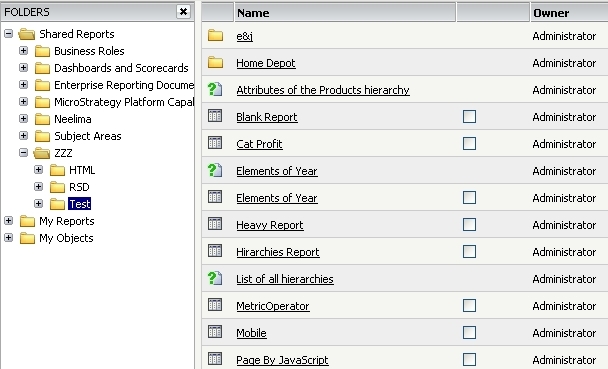
After completing the customization, Strategy Web will display the folder browsing page as follows:
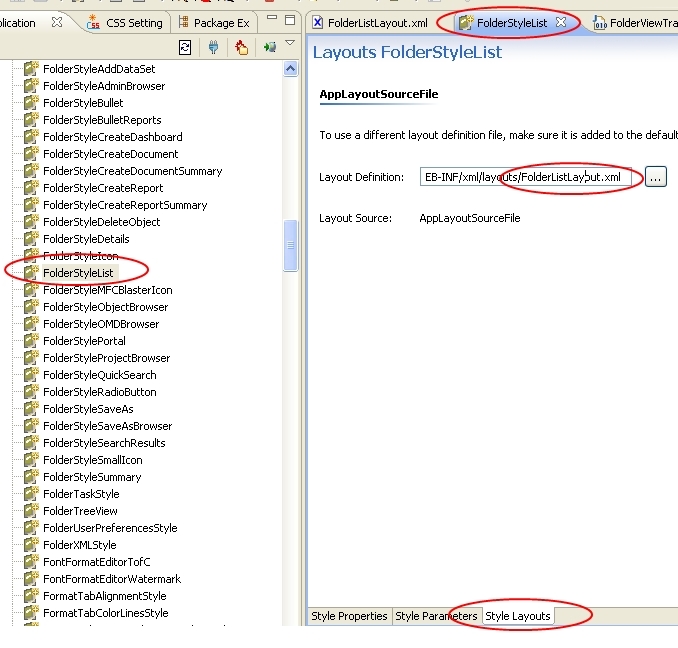
1) Using the customizations editor, edit FolderStyleList style, select the “Style Layout” tab at the bottom and edit the layout file FolderListLayout.xml
2) Use the contents of the attached Layout File.

FolderListLayout
The custom layout file adds three pieces of code
a) Extra column to display the checkboxes
<!-- Custom column with checkboxes -->
<col class="checkBox" />
<!-- END Custom column with checkboxes -->
b) Blank column header
<!-- Custom column with checkboxes Header -->
<td scope="col">
<div>
</div>
</td>
<!-- END Custom column with checkboxes -->
c) The checkboxes when the object type for that row is of type 3 Report.
<!-- Custom column with checkboxes -->
<td>
<mstrlayout:if method="getType" value="3" base="FolderObjects">
<mstrlayout:then>
<input type="checkbox" name="checkBox" ><mstrlayout:attr attribute="value" method="getID" base="FolderObjects"/>
</input>
</mstrlayout:then>
</mstrlayout:if>
</td>
<!-- END Custom column with checkboxes -->
When creating the checkboxes we added a parameter <mstrlayout:attr attribute="value" method="getID" base="FolderObjects"/> so the report ID is added to the HTML to be able to distinguish the check boxes.

3) Restart the web server for the changes to take effect.
CUSTOMIZATION WARNING
This customization is provided as a convenience to Strategy users and is only directly applicable to the version stated. While this code may apply to other releases directly, Strategy Technical Support makes no guarantees that the code provided will apply to any future or previous builds. In the event of a code change in future builds, Strategy Technical Support makes no guarantee that an updated version of this particular customization will be provided. In the event of a code change in future builds, Strategy may not be able to provide additional code on this matter even though this customization is provided at this time for this specific build. For enhancements to this customization or to incorporate similar functionality into other versions, contact your Account Executive to inquire about Strategy consulting assistance.
