The following code creates a user and sets the language preferences for the user in Desktop as shown below,
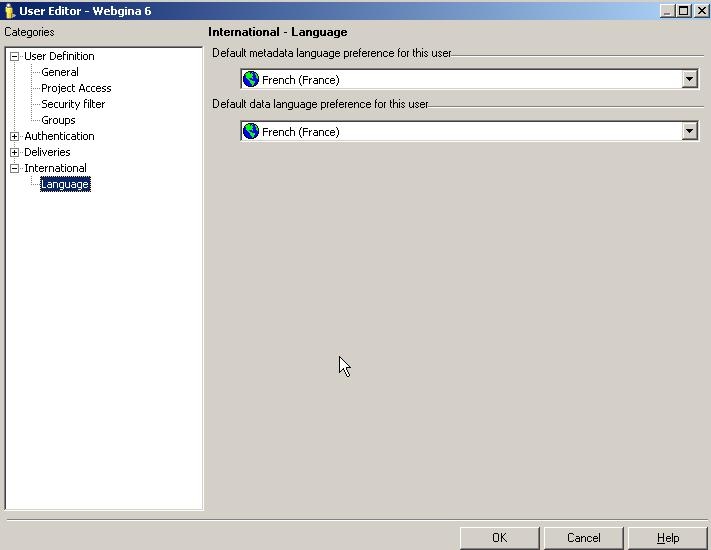
CODE:
Const DataSourceName As String = "SERVERNAME"
Private sServerName As String
Private lPort As Long
Private sProject As String
Private sUid As String
Private sPwd As String
Private MyProject As DSSDataSource
Private MyProjectList As DSSDataSourceEnumerator
Private MySession As IDSSSession
Private MySource As IDSSSource
Private oObjSource As IDSSSource
Private strMessage As String
Private AcctSvcs As IDSSUserAcctSvcs
Private NewUser As IDSSUserAccount
Private FullName As String
Private LoginName As String
Private oProject As IDSSProject
Private oGroup As IDSSUserAccount
Private oUserGroup As IDSSUser
Private strProjectName As String
Private strProjectID As String
Private MyDataSource As New DSSDataSource
Private objUser As IDSSUser
Private Sub createUser_Click()
Dim objDSSlink As IDSSLink
Dim objDSSLinkitems As IDSSLinkItems
Dim objDSSLinkItem As IDSSLinkItem
On Error Resume Next
MyDataSource.Type = DssDataSourceTypeServer
MyDataSource.Location = DataSourceName
MyDataSource.Mode = DssConnectionModeServerAccess
'log in to Project Source
MyDataSource.AuthMode = DssAuthStandard
MyDataSource.login = "Administrator"
MyDataSource.Passwd = ""
MyDataSource.Init
'Find the project
Set MyProjectList = MyDataSource.Enumerator
Set MyProject = MyProjectList.ItemByProjectName("Strategy Tutorial")
ProjectName = MyProject.Name
MyProject.Init
'Create the session
Set MySession = MyProject.CreateSession
strMessage = "Login Successful. Project: " & ProjectName & ". Welcome " & MyDataSource.login
txtXML.Text = strMessage
Set MySource = MySession.ObjectSource
'Get Project info
strProjectName = MyProject.ProjectName
strProjectID = MyProject.ProjectId
Dim strProjectType As String
strProjectType = MyProject.Type
Dim oProject As IDSSObjectInfo
Set oProject = MySource.FindObject(strProjectID, DssTypeProject)
Debug.Print "Project Name: " & oProject.Description
Set oGroup = MySource.FindObject("C82C6B1011D2894CC0009D9F29718E4F", DssTypeUser)
Set oUserGroup = oGroup.User
MsgBox oUserGroup.IsGroup
'Get the UserAcctSvcs from the Session
Set AcctSvcs = MySession.Component(DssRoleClientServices)
'Set the name of the user and the password
FullName = "Webgina 6"
LoginName = "webgina6"
'Create the user using the Account Services
Set NewUser = AcctSvcs.createUser(FullName, LoginName)
NewUser.Enabled = True
NewUser.StandardAuthAllowed = True
'save the object
NewUser.Info.Save
'Getthe user object from the user account
Set objUser = NewUser.User
'Find the WebUSerPreferences link object
Set objDSSlink = MySource.FindObject("19B3954CFD524E5F9E204D6A54DF729E", DssTypeLink)
'Define and set the configuration object
Dim config As IDSSConfiguration2
Set config = MySource.Configuration
'Add a new collection of DSSLinks with the objects you want to link: User and Configuration
Set objDSSLinkitems = objDSSlink.NewLinkItems
'Add the user and the Configuration objects
objDSSLinkitems.Uses.Clear
objDSSLinkitems.Uses.Add objUser
objDSSLinkitems.Uses.Add config
'Add a new DSSLinkItem
Set objDSSLinkItem = objDSSLinkitems.AddItem
Dim val As Long
val = 1036
'Assign a values to the already existing properties - LocaleForMD and LocaleForData
objDSSLinkItem.PropertySets(1).Item(4).UseDefault = False
objDSSLinkItem.PropertySets(1).Item(4).Value = val
objDSSLinkItem.PropertySets(1).Item(5).UseDefault = False
objDSSLinkItem.PropertySets(1).Item(5).Value = val
'Save all the items and the user
objDSSLinkItem.SaveItem
objDSSLinkitems.SaveItems
objDSSlink.SaveAllItems
objUser.Info.Save
End Sub
ADDITIONAL INFORMATION:
The Strategy SDK allows you to customize the standard Strategy Web interface, and extend and integrate the Strategy business intelligence functionality into other applications. However, before changing the way Strategy Web products look or behave, it is helpful to understand how the application is built. For more information regarding the Strategy Web architecture or the process of customizing Strategy Web, please refer to Strategy Developer Zone (https://resource.microstrategy.com/msdz/).
To access the Strategy Developer Zone, you must have access to the Strategy Knowledge Base, you must have purchased the Strategy SDK, and you must be current on your Strategy maintenance agreement. If you are a US-based business and believe that you satisfy all three of these conditions but you do not have access to the Strategy Developer Zone, please contact Strategy Technical Support at support@microstrategy.com or at (703) 848-8700. If you are an international business, please contact Strategy Technical Support at the appropriate email address or phone number found at http://www.microstrategy.com/Support/ContactUs.asp.
CUSTOMIZATION WARNING:
This customization is provided as a convenience to Strategy users and is only directly applicable to the version stated. While this code may apply to other releases directly, Strategy Technical Support makes no guarantees that the code provided will apply to any future or previous builds. In the event of a code change in future builds, Strategy Technical Support makes no guarantee that an updated version of this particular customization will be provided. In the event of a code change in future builds, Strategy may not be able to provide additional code on this matter even though this customization is provided at this time for this specific build. For enhancements to this customization or to incorporate similar functionality into other versions, contact your Account Executive to inquire about Strategy Consulting assistance.
