EducationSoftwareStrategy.com
StrategyCommunity

Knowledge Base

Product

Community

Knowledge Base

TopicsBrowse ArticlesDeveloper Zone

Product

Download SoftwareProduct DocumentationSecurity Hub

Education

Tutorial VideosSolution GalleryEducation courses

Community

GuidelinesGrandmastersEvents
x_social-icon_white.svglinkedin_social-icon_white.svg
Strategy logoCommunity

© Strategy Inc. All Rights Reserved.

LegalTerms of UsePrivacy Policy
  1. Home
  2. Topics

KB34054: How to create an alert-based subscription in MicroStrategy 9.x-10.x Distribution Services


Community Admin

• Strategy


In MicroStrategy 9.x-10.x Distribution Services, it is possible to create an email subscription to a report which will be executed when a certain conditional threshold is met based on another executing report.

In Strategy 9.x-10.x Distribution Services, it is possible to create an email subscription to a report or Report Services document which will be executed when a certain conditional threshold is met based on another executing report. For example, a scheduled report executes which shows the Revenue by day for the past week. If the Revenue on any one day falls below a certain value, a subscription to another report or Report Services document can be triggered and delivered to a recipient. An alert based subscription can only be created directly on a report; however, another report or Report Services document can be delivered when the alert based subscription is triggered.
 
The following example will walk through the basic steps on how to setup a subscription based on an alert like this:
ka04W000000OheGQAS_0EM440000002AnW.png


ka04W000000OheGQAS_0EM440000002AnT.png


ka04W000000OheGQAS_0EM440000002AnR.png


ka04W000000OheGQAS_0EM440000002AnO.png


  1. In Strategy Web, edit or execute a report.
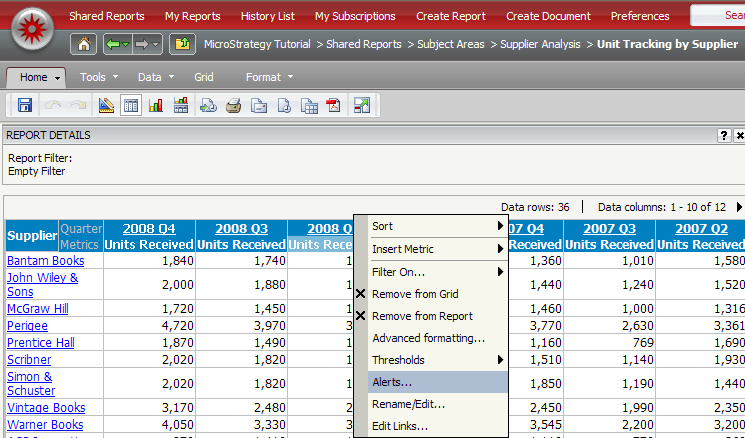
  2. Right-click on the metric header to apply the condition or threshold and select 'Alerts':
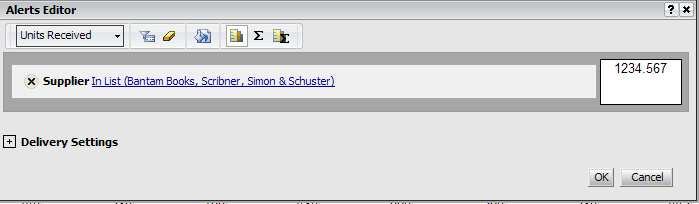
  3. Specify the conditions to meet for the delivery to be triggered in the filter editor:
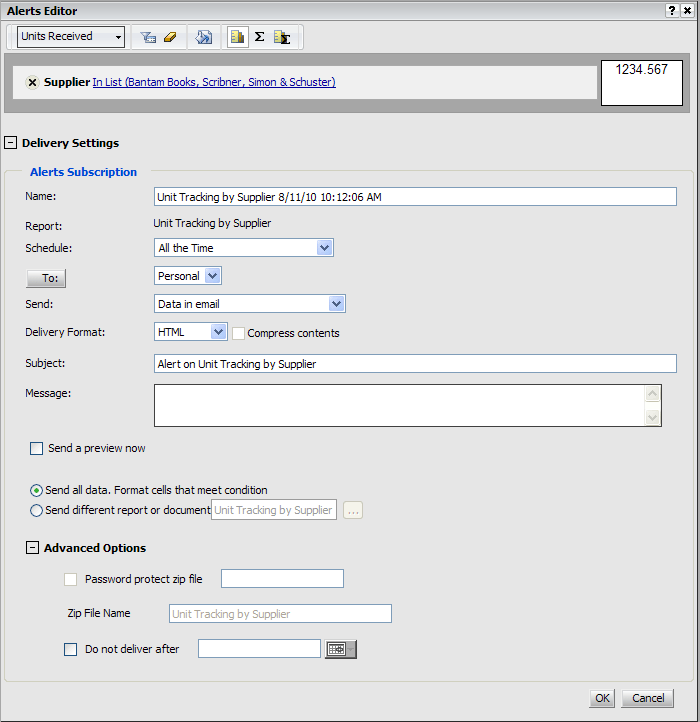
  4. Expand the Delivery Settings section.
  5. Specify the desired delivery options including recipient address, subscription name, delivery format, compression options and the schedule to run the report and check the condition.
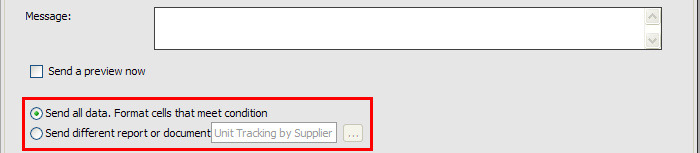
  6. To deliver the same report when the condition is met, select the 'Send all data. Format cells that meet condition' option. To deliver a different report or document when the condition is met, select the 'Send different report or document' and select the report/document to deliver:
  7. Click OK to save the alert subscription.


KB34054


Comment

0 comments

Details

Knowledge Article

Published:

May 4, 2017

Last Updated:

May 4, 2017