EducationSoftwareStrategy.com
StrategyCommunity

Knowledge Base

Product

Community

Knowledge Base

TopicsBrowse ArticlesDeveloper Zone

Product

Download SoftwareProduct DocumentationSecurity Hub

Education

Tutorial VideosSolution GalleryEducation courses

Community

GuidelinesGrandmastersEvents
x_social-icon_white.svglinkedin_social-icon_white.svg
Strategy logoCommunity

© Strategy Inc. All Rights Reserved.

LegalTerms of UsePrivacy Policy
  1. Home
  2. Topics

KB34105: How to change the user password settings when there is a minimum length enforced in MicroStrategy Developer 9.4.x-10.x


Stefan Zepeda

Salesforce Solutions Architect • Strategy


This technote explains how to change the user password settings when there is a minimum length enforced in MicroStrategy Developer 9.4.x-10.x

This technote explains how to change the user password settings when there is a minimum length enforced in Strategy Developer 9.4.x-10.x.
 
In 2-tier mode:
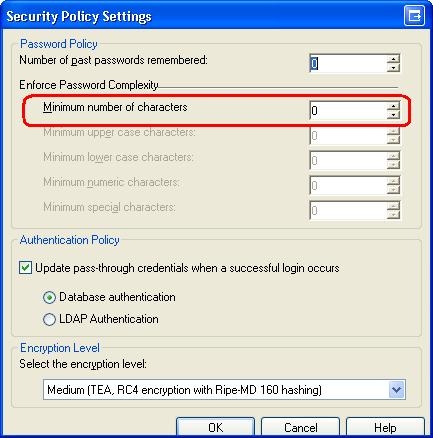
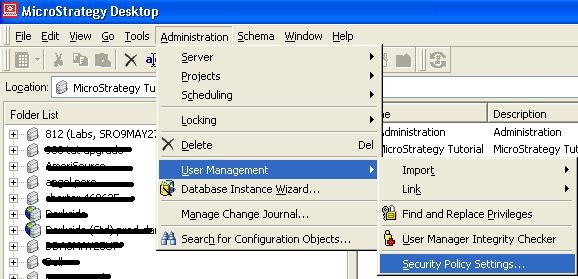
Open the 2-tier connection and go to Administration-> User Management-> Security Policy Settings.
ka02R000000kWFLQA2_0EM440000002E0O.jpeg

 
Then switch the settings as needed:

ka02R000000kWFLQA2_0EM440000002E0M.jpeg


In 3-tier mode:
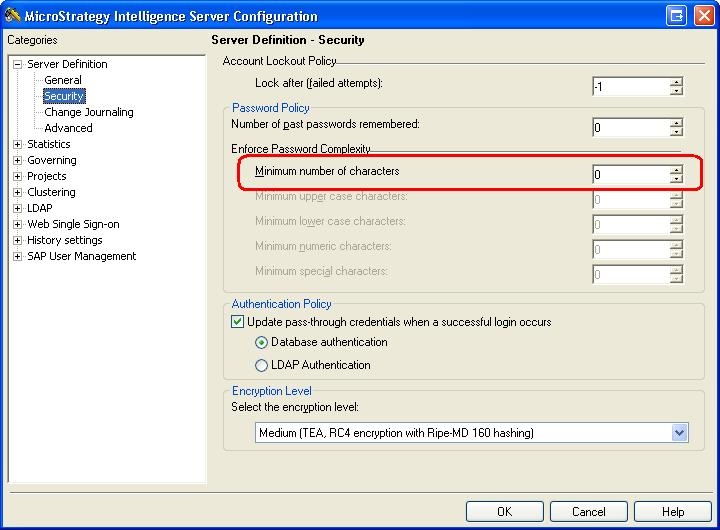
Right-click on the Project Source and select ‘Configure Intelligence Server’-> Security.  Make the changes as needed.
ka02R000000kWFLQA2_0EM440000002E0K.jpeg


Comment

0 comments

Details

Knowledge Article

Published:

April 20, 2017

Last Updated:

April 20, 2017