Having two documents Document A which belongs to project Strategy Tutorial and Document B which belongs to project Customer Analysis Module

When creating the link in Document A to Document B if the link is created using a link with the following format the link will fail
mstrWeb?Server=WAS-APS-WEB-2&Project=Customer+Analysis+Module&Port=0&evt=2048001&src=mstrWeb.2048001¤tViewMedia=1&visMode=0&documentID=A54F66ED412D6881FD1ABA89FCAE975D
The Strategy iPhone Application will throw the following error after clicking on he link in Document A
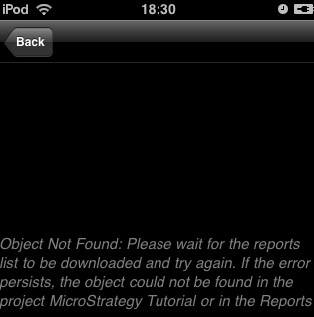
Object not found:
Please wait for the reports list to be downloaded and try again. If the error persists, the object could not be found in the project Strategy Tutorial or in the Reports.
To avoid the above error message the following prerequisites must be meet:
a) Both projects have to be configured in the device
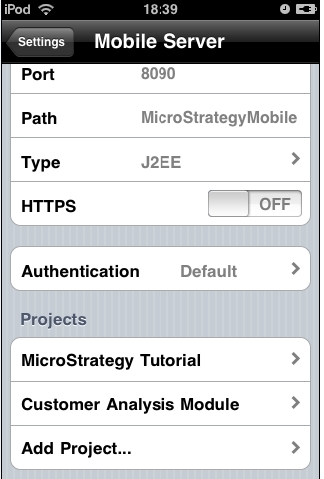
b) The two projects have to be registered in the iPhone via a configuration link (we need to do this to store the project ID in the configuration of the iPhone application)

c) When creating the link to go from Document in Project A to Document in Project B use the projectID parameter instead of the project name
After following the above three prerequisites the URL to link Document A to Document B becomes:
mstrWeb?Server=WAS-APS-WEB-2&projectID=F15FD1C743A55199D8FD919CA3143474&Port=0&evt=2048001&src=mstrWeb.2048001¤tViewMedia=1&visMode=0&documentID=A54F66ED412D6881FD1ABA89FCAE975D
