SYMPTOM:
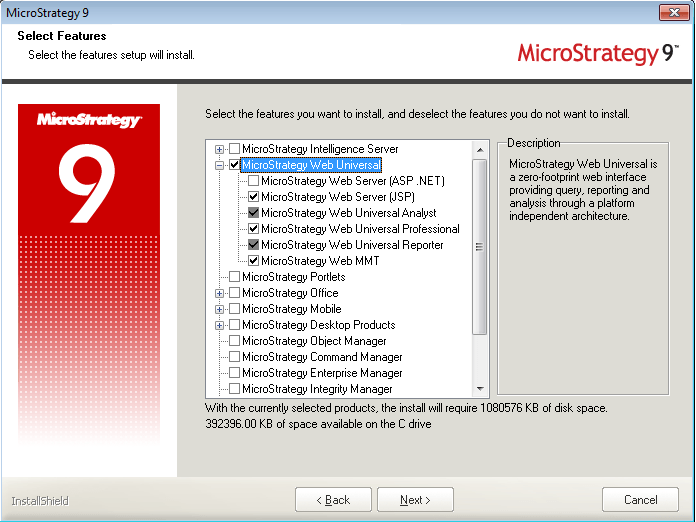
When attempting to install Strategy Web 9.x and higher on Windows 7 the installation does not advance although IIS appears to be configured correctly. The following warning is seen even though "Request Filtering" is checked in IIS components:
Sample Code/Error
"MISSING Feature: Internet Information Services\World Wide Web Services\Security\Request Filtering"

CAUSE:
The setup wizard looks at the applicationHost.config file to check if the proper components are present on the machine at the time of installation. This problem occurs when an operating system or user security issue prevents the configuration file from being properly updated. When looking at the applicationHost.config file, found in C:\Windows\System32\inetsrv\config, RequestFilteringModule is missing from the <Global Modules> section:
Sample Code/Error
<globalModules>
<add name="UriCacheModule" image="%windir%\System32\inetsrv\cachuri.dll" />
<add name="FileCacheModule" image="%windir%\System32\inetsrv\cachfile.dll" />
<add name="TokenCacheModule" image="%windir%\System32\inetsrv\cachtokn.dll" />
<add name="HttpCacheModule" image="%windir%\System32\inetsrv\cachhttp.dll" />
<add name="StaticCompressionModule" image="%windir%\System32\inetsrv\compstat.dll" />
<add name="DefaultDocumentModule" image="%windir%\System32\inetsrv\defdoc.dll" />
<add name="DirectoryListingModule" image="%windir%\System32\inetsrv\dirlist.dll" />
<add name="ProtocolSupportModule" image="%windir%\System32\inetsrv\protsup.dll" />
<add name="StaticFileModule" image="%windir%\System32\inetsrv\static.dll" />
<add name="AnonymousAuthenticationModule" image="%windir%\System32\inetsrv\authanon.dll" />
<add name="BasicAuthenticationModule" image="%windir%\System32\inetsrv\authbas.dll" />
<add name="WindowsAuthenticationModule" image="%windir%\System32\inetsrv\authsspi.dll" />
<add name="CustomErrorModule" image="%windir%\System32\inetsrv\custerr.dll" />
<add name="HttpLoggingModule" image="%windir%\System32\inetsrv\loghttp.dll" />
<add name="RequestMonitorModule" image="%windir%\System32\inetsrv\iisreqs.dll" />
<add name="IsapiModule" image="%windir%\System32\inetsrv\isapi.dll" />
<add name="IsapiFilterModule" image="%windir%\System32\inetsrv\filter.dll" />
<add name="ConfigurationValidationModule" image="%windir%\System32\inetsrv\validcfg.dll" />
<add name="ManagedEngine64" image="%windir%\Microsoft.NET\Framework64\v2.0.50727\webengine.dll" preCondition="integratedMode,runtimeVersionv2.0,bitness64" />
<add name="ManagedEngine" image="%windir%\Microsoft.NET\Framework\v2.0.50727\webengine.dll" preCondition="integratedMode,runtimeVersionv2.0,bitness32" />
</globalModules>
ACTION:
Use the following steps to manually add the RequestFiltering module to the configuration file:

4. Select "Register..." and enter "RequestFilteringModule" under Name and browse to C:\Windows\System32\inetsrv\modrqflt.dll for the Path field.

5. Click OK.
6. Restart IIS from the command line or IIS Manager.
7. Open the Setup wizard and attempt the installation again.
WORKAROUND:
As a workaround, the JSP version of Strategy Web can be installed with a third-party Web Application Server (such as Tomcat) which doesn't have the same requirements as IIS.