EducationSoftwareStrategy.com
StrategyCommunity

Knowledge Base

Product

Community

Knowledge Base

TopicsBrowse ArticlesDeveloper Zone

Product

Download SoftwareProduct DocumentationSecurity Hub

Education

Tutorial VideosSolution GalleryEducation courses

Community

GuidelinesGrandmastersEvents
x_social-icon_white.svglinkedin_social-icon_white.svg
Strategy logoCommunity

© Strategy Inc. All Rights Reserved.

LegalTerms of UsePrivacy Policy
  1. Home
  2. Topics

KB34262: How to create an update package from the command line in MicroStrategy Object Manager 9.4.x-11.x?


Community Admin

• Strategy


This knowledge base article documents how to create an update package from the command line in MicroStrategy Object Manager 9.4.x-11.x.

In Strategy Object Manager 9.4.x-11.x, the user can choose to create an update package from the command line by specifying values in an XML file. This document is divided into two parts:

  • How to create a project update package from the command line
  • How to create a configuration update package from the command line

​​How to create a project update package from the command line
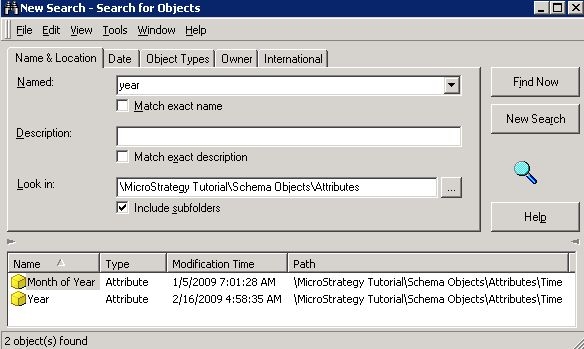
  • Create a search object in Strategy Developer containing the objects desired to be in the update package.
     
ka0PW000000191FYAQ_0EM440000002Dyh.jpeg
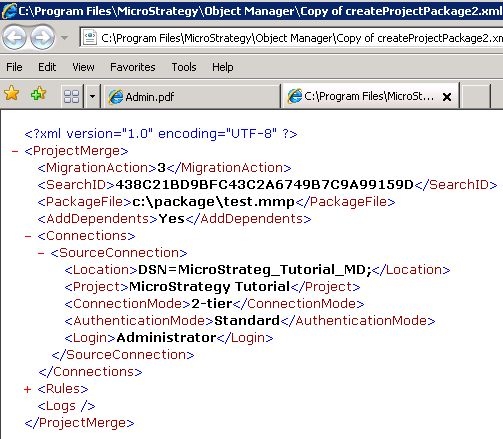
  • Create a copy of the sample XML file called "createProjectPackage2.xml". The file can be found under "C:\Program Files\Strategy\Object Manager".
     
  • Edit the copy of the XML file to include the following information, in the appropriate XML tags:
    • SearchID: the GUID of a search object that returns the objects to be added to the project update package.
    • PackageFile: The name and path of the update package. If a package with this name already exists in this path, the creation timestamp is appended to the name of the package created by this file.
    • AddDependents:
      - Yes for the package to include all dependents of all objects in the package.
      - No for the package to only include the specified objects.
    • Location:
      - the DSN used to connect to the project source for a direct (2-tier) project source connection.
      - the Intelligence Server name for a server (3-tier) project source connection.
    • Project: the project containing the objects to include in the update package.
    • ConnectionMode:
      - 2-tier for a direct (2-tier) project source connection.
      - 3-tier for a server (3-tier) project source connection.
    • AuthenticationMode: the authentication mode used to connect to the project source, either Standard or Windows.
    • Login: The user name to connect to the project source. You must provide a password for the user name when you run the XML file from the command line.
       
ka0PW000000191FYAQ_0EM440000002Dyj.jpeg
  • For a project update package, the user can specify conflict resolution rules for individual objects. In an Operation block, specify the ID (GUID) and Type of the object, and the action to be taken.
     
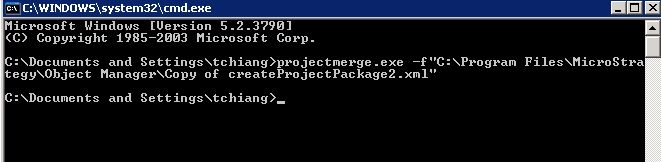
  • Call the Project Merge executable, projectmerge.exe, with the XML file as the -f parameter. For more details, please refer to the product manual - System Administrator Guide.
     
ka0PW000000191FYAQ_0EM440000002Dyl.jpeg

 
How to create a configuration update package from the command line
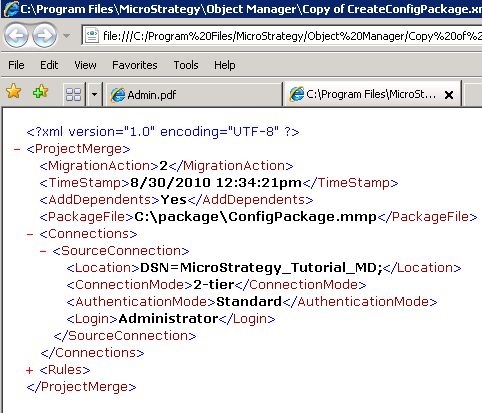
  • Create a copy of the sample XML file called "CreateConfigPackage.xml". The file can be found under "C:\Program Files\Strategy\Object Manager".
     
  • Edit the copy of the XML file to include the following information, in the appropriate XML tags:
    • TimeStamp: a timestamp, of the form MM/DD/YYYY hh:mm:ss (am/pm). All configuration objects modified after that timestamp are included in the update package.
    • PackageFile: The name and path of the update package. If a package with this name already exists in this path, the creation timestamp is appended to the name of the package created by this file.
    • AddDependents:
      - Yes for the package to include all dependents of all objects in the package.
      - No for the package to only include the specified objects.
    • Location:
      - the DSN used to connect to the project source for a direct (2-tier) project source connection.
      - the Intelligence Server name for a server (3-tier) project source connection.
    • ConnectionMode:
      - 2-tier for a direct (2-tier) project source connection.
      - 3-tier for a server (3-tier) project source connection.
    • AuthenticationMode: the authentication mode used to connect to the project source, either Standard or Windows.
    • Login: The user name to connect to the project source. You must provide a password for the user name when you run the XML file from the command line.
       
ka0PW000000191FYAQ_0EM440000002Dyf.jpeg
  • Call the Project Merge executable, projectmerge.exe, with the XML file as the -f parameter. For more details, please refer to the product manual - System Administrator Guide. 
     
ka0PW000000191FYAQ_0EM440000002Dyc.jpeg


Comment

0 comments

Details

Knowledge Article

Published:

April 10, 2017

Last Updated:

March 7, 2024