SYMPTOM:
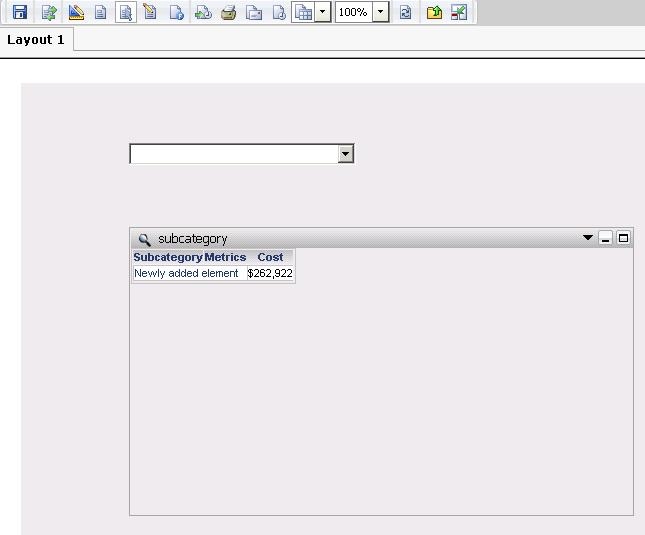
If warehouse data is updated and the original default element for a selector is not available any more, a blank selector is displayed.
STEPS TO REPRODUCE:
1) Create a dashboard with a selector and save the default selector answer as "Books - Miscellaneous":
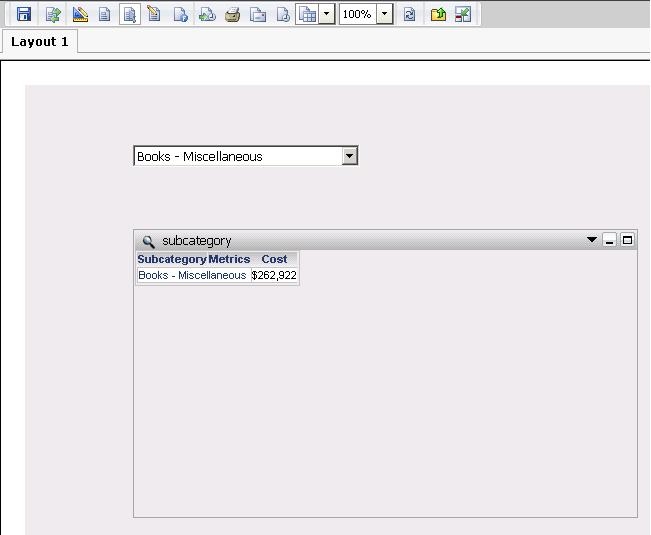
2) Remove "Books - Miscellaneous" from warehouse the table.
3) The dashboard will display a blank selector answer
CAUSE:
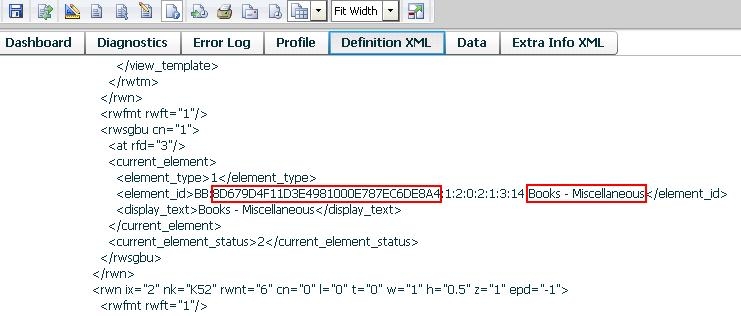
This is by design. If an element is set to be the default prompt answer, it will be linked in the dashboard's definition xml file, even the element is been removed.
To confirm if the blank selector is tied to an invalid warehouse element, users can search the Definition XML file in the Flash debugger window (CTRL + ALT + SHIFT + D) for the previous attribute element or the selector attribute ID, for example:
ACTION:
There are two solutions for this issue:
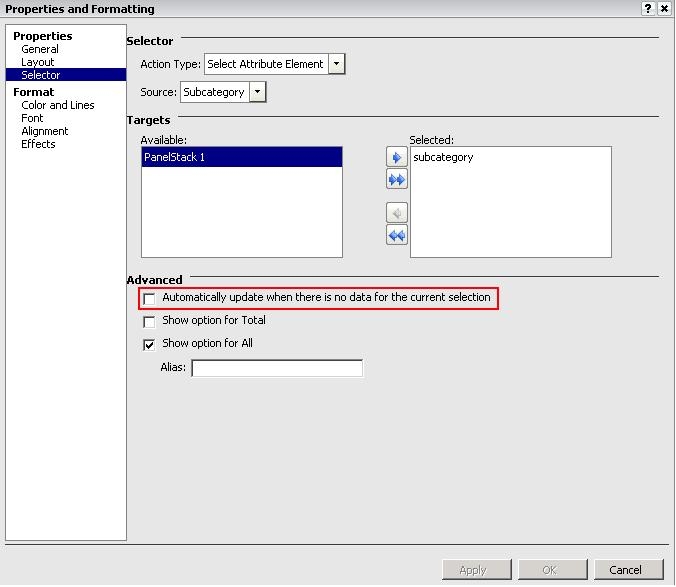
Solution 1: Check the option "Automatically update when there is no data for the current selection" in the selector properties:
Solution 2: Re-map the selector to refresh the definition xml file entry
1) Edit the selector.
2) Remove the selector target.
3) Save the dashboard.
4) Edit the selector again, and choose a different attribute.
5) Re-save the dashboard.
