EducationSoftwareStrategy.com
StrategyCommunity

Knowledge Base

Product

Community

Knowledge Base

TopicsBrowse ArticlesDeveloper Zone

Product

Download SoftwareProduct DocumentationSecurity Hub

Education

Tutorial VideosSolution GalleryEducation courses

Community

GuidelinesGrandmastersEvents
x_social-icon_white.svglinkedin_social-icon_white.svg
Strategy logoCommunity

© Strategy Inc. All Rights Reserved.

LegalTerms of UsePrivacy Policy
  1. Home
  2. Topics

KB34461: How to keep the translations of the objects in a destination project when migrating objects in Object Manager 9.4.x-10.x?


Community Admin

• Strategy


Some users add objects translations by themselves in a Production environment and do not want these translations to be overwritten when migrating objects from a Development environment. Follow the steps below to keep the translations of the objects in the destination project but use the object definition in source project when migrating objects in Object Manager

Some users add objects translations by themselves in a Production environment and do not want these translations to be overwritten when migrating objects from a Development environment. Follow the steps below to keep the translations of the objects in the destination project but use the object definition in source project when migrating objects in Object Manager:

  • Open Object Manager and click on "Object Manager Preferences" under "Tool" menu, as shown below:
ka04W000000OhffQAC_0EM440000002Dy2.png
  • Expand "International" tab and select "Translation" in the pop-up dialog.
  • Check "Enable advanced conflict resolution for names, descriptions and translations" check box and select "Keep Existing" as shown below:
ka04W000000OhffQAC_0EM440000002Dxv.png
  • Click on "OK" button.

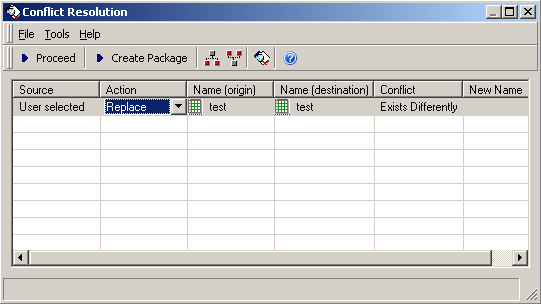
After configuring Object Manager as the steps above, the translations in the destination project will remain even if the "Replace" conflict resolution is selected during object migration (Only the object definition will be replaced):
ka04W000000OhffQAC_0EM440000002Dxx.png

Comment

0 comments

Details

Knowledge Article

Published:

April 28, 2017

Last Updated:

April 28, 2017