EducationSoftwareStrategy.com
StrategyCommunity

Knowledge Base

Product

Community

Knowledge Base

TopicsBrowse ArticlesDeveloper Zone

Product

Download SoftwareProduct DocumentationSecurity Hub

Education

Tutorial VideosSolution GalleryEducation courses

Community

GuidelinesGrandmastersEvents
x_social-icon_white.svglinkedin_social-icon_white.svg
Strategy logoCommunity

© Strategy Inc. All Rights Reserved.

LegalTerms of UsePrivacy Policy
  1. Home
  2. Topics

KB34669: How to modify the ACL of a Server Definition in MicroStrategy Desktop 9.x - 10.x


Stefan Zepeda

Salesforce Solutions Architect • Strategy


This technical document explains how to update the Access Control List (ACL) of a Server Definition in MicroStrategy Developer 9.x - 10.x

SUMMARY:
This technical document explains how to update the Access Control List (ACL) of a Server Definition in Strategy Developer 9.x - 10.x. In most cases, changing the ACL of a Server Definition should not be necessary.  Please contact Strategy Technical Support if there are questions.
In Strategy 9.x - 10.x:
  • Launch Strategy Developer and log in a 3-tier project source which points to the Intelligence Server with the Server Definition the user would like to modify its ACL.
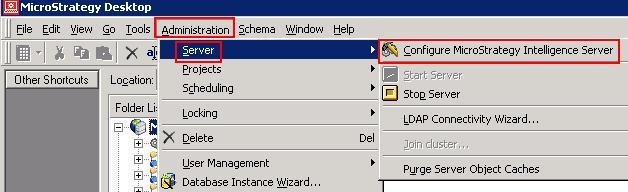
  • Go to menu > Administration > Server > Configure Strategy Intelligence Server
     
ka02R000000kcgVQAQ_0EM440000002Dwg.jpeg
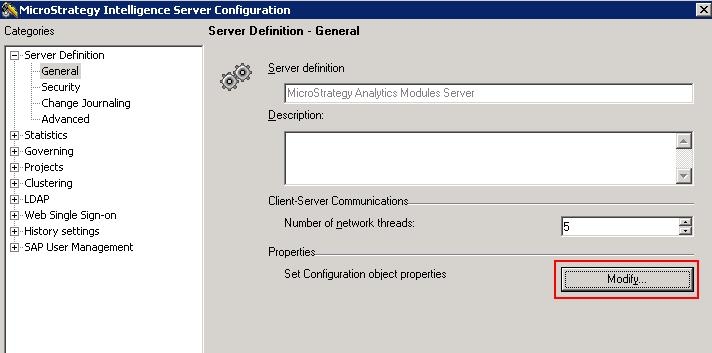
  • Navigate to Server Definition > General, under "Properties" section, click "Modify"
     
ka02R000000kcgVQAQ_0EM440000002Dwa.jpeg
  • The ACL is under Properties > Security


Comment

0 comments

Details

Knowledge Article

Published:

April 4, 2017

Last Updated:

April 4, 2017