EducationSoftwareStrategy.com
StrategyCommunity

Knowledge Base

Product

Community

Knowledge Base

TopicsBrowse ArticlesDeveloper Zone

Product

Download SoftwareProduct DocumentationSecurity Hub

Education

Tutorial VideosSolution GalleryEducation courses

Community

GuidelinesGrandmastersEvents
x_social-icon_white.svglinkedin_social-icon_white.svg
Strategy logoCommunity

© Strategy Inc. All Rights Reserved.

LegalTerms of UsePrivacy Policy
  1. Home
  2. Topics

KB34781: How to pivot attribute rows to display on right side of a metric in MicroStrategy Developer 9.x


Stefan Zepeda

Salesforce Solutions Architect • Strategy


How to pivot attribute rows to display on right side of a metric in MicroStrategy Developer 9.x

The following procedure describes how to pivot attribute rows to display to the right side of a metric, when using only one metric in Strategy Developer 9.x
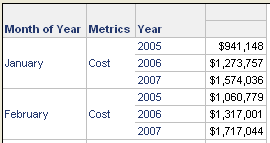
  • Create a new report and place all attributes and the one metric in the rows.
  • Right click on each attribute or the metric to move to the right or left to display as desired . In the image below, note that the attribute year is positioned to the right of the metrics column.
     
ka02R000000kcbQQAQ_0EM440000002Dvr.png

 
Note: At this moment,  it is not possible to pivot multiple metrics to display side by side when attributes are displayed to the right of the metrics. Instead, the metrics display in the same column as shown below. 
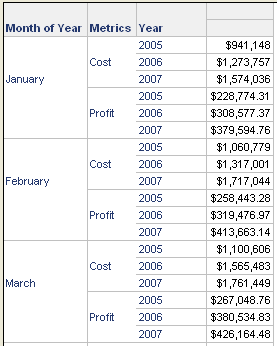
 

ka02R000000kcbQQAQ_0EM440000002Dvt.png

 
There is an existing Enhancement Request to provide this functionality. Strategy will continue to investigate and post updates as soon as they are available.


Comment

0 comments

Details

Knowledge Article

Published:

April 11, 2017

Last Updated:

April 11, 2017