EducationSoftwareStrategy.com
StrategyCommunity

Knowledge Base

Product

Community

Knowledge Base

TopicsBrowse ArticlesDeveloper Zone

Product

Download SoftwareProduct DocumentationSecurity Hub

Education

Tutorial VideosSolution GalleryEducation courses

Community

GuidelinesGrandmastersEvents
x_social-icon_white.svglinkedin_social-icon_white.svg
Strategy logoCommunity

© Strategy Inc. All Rights Reserved.

LegalTerms of UsePrivacy Policy
  1. Home
  2. Topics

KB34871: Object Browser cannot be displayed by default in MicroStrategy Web SDK versions 9.2.0 and Later


Community Admin

• Strategy


The following settings in browserSettings.xml are used to set the Object Browser as the default tab in MicroStrategy Web: accordionReportView and obView. However, in 9.2.0 and later, the following settings are no longer taking effect

SYMPTOM:
 
The following settings in browserSettings.xml are used to set the Object Browser as the default tab in Strategy Web: accordionReportView and obView.  However, in 9.2.0 and later, the following settings are no longer taking effect
 
STEPS TO REPRODUCE:
 
Using the Web Customization Editor to create a plug-in
 
Strategy SDK provides a Web Customization Editor that can be used to create a customization plug-in. The following steps show how to create the plug-in and deploy.

  1. Launch the Web Customization Editor.
  2. Create a new plug-in and give it a meaningful name. For example: SettingObjectBrowserAsDefaultTab. (For step by step instructions on creating a new plug-in, please navigate to Home > Web SDK > Customizing Strategy Web > Web Customization Editor > Features and Customizable)
  3. Click in Strategy Web Configuration inside the Application Settings view to expand the hierarchical tree. The expanded list comprises the different settings that can be modified to perform customizations.
  4. Navigate to Strategy Web Configuration > Browser Settings
  5. Double click on Browser Settings to open the editor.
  6. Search for the setting accordioReportView and change the value from 0 to 1
  7. Search for the setting obView and change the value from 0 to 1
  8. Save your changes.
  9. Restart the Web Server.

Note that the changes made to the Browser Settings will not take effect.
 
If the customization was successful, the object browser would appear as the default tab:
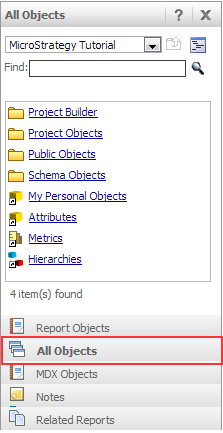
 

ka04W000000Oew9QAC_0EM440000002Gpx.png


CAUSE:
 
This is a known issue with Strategy Web SDK versions 9.2.0 and Later
 
ACTION:
 
Contact Strategy Technical Support for more information regarding this issue.
This issue has been logged as SCOPUS ID 481908 and TQMS ID 442722


Comment

0 comments

Details

Knowledge Article

Published:

June 23, 2017

Last Updated:

June 23, 2017