EducationSoftwareStrategy.com
StrategyCommunity

Knowledge Base

Product

Community

Knowledge Base

TopicsBrowse ArticlesDeveloper Zone

Product

Download SoftwareProduct DocumentationSecurity Hub

Education

Tutorial VideosSolution GalleryEducation courses

Community

GuidelinesGrandmastersEvents
x_social-icon_white.svglinkedin_social-icon_white.svg
Strategy logoCommunity

© Strategy Inc. All Rights Reserved.

LegalTerms of UsePrivacy Policy
  1. Home
  2. Topics

KB3491: What is a Relationship Filter in MicroStrategy Developer 9.4.x-10.x and how is it used?


Stefan Zepeda

Salesforce Solutions Architect • Strategy


Relationship filters are amongst the most powerful features of MicroStrategy Developer 9.4.x-10.x. The relationship filter functionality applies to the Filter Editor, the Report Editor and the Custom Group Editor.

Relationship filters are amongst the most powerful features of Strategy Developer 9.4.x-10.x. The relationship filter functionality applies to the Filter Editor, the Report Editor and the Custom Group Editor.
 
A Relationship filter allows certain attributes to be filtered by their relationship to other attributes. It permits users to create a set of elements from an attribute based on their relationship to another attribute. In essence, the relationship filter is like a result set of a report. However, with a relationship filter, users do not explicitly create this report.
 
Relationship filters can be used in the following examples:

  • A list of catalogs that carry Items A, B and C. Here, a catalog can have one or more Items. An Item can appear in one or more catalogs.
  • A list of Stores that sold products A, B and C. Here, a store can sell more than one product. A product can be sold by more than one store.

Comparison of Relationship Filters to a regular report:
A regular report, that users can create using Report Editor, includes a filter and a template. A relationship filter is also like a report. It has the equivalents of a filter and template in its definition. Users can create a relationship filter qualification using the advanced qualification dialog in the filter section of the Report Editor.
 
The syntax for a relationship filter is the following:
< Relation; (Filter Qualification) > {List of Output Attributes}

  • Filter Qualification: This filter qualification is equivalent to the filter of a regular report, that is used as input-filtering criteria. This can be an attribute qualification or a Metric qualification with an output level or a filter itself.
  • List of Output Attributes: This is equivalent to the template on a regular report. This dictates the contents of the output set of the relationship filter.
  • Relation: This can be a fact or a table or empty. This fact or table has the relationship between the attributes in 'Filter Qualification' and 'List of Output Attributes.' This dictates which table is used during SQL generation.
    If the relationship is empty, the schema is used to pick the appropriate table. If a specific table must be picked for the calculation, it must be specified in the relationship.

Catalog, 'Bed Lounge' and 'Beer-Making Kit':
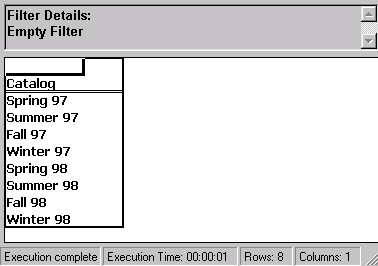
This section details different examples that use relationship filters to find a list of catalogs. The entire list of catalogs is as follows:
ka02R000000kcFvQAI_0EM440000002GLV.gif

 
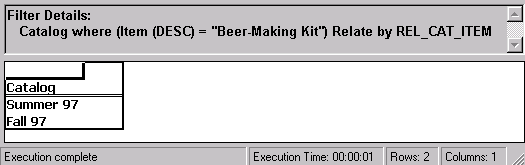
Catalogs with 'Beer-Making Kit':
For a list of catalogs that carry Item, 'Beer-Making Kit,' users can apply the relationship filter with the REL_CAT_ITEM table as the relation and Catalog as the list of output attributes.
ka02R000000kcFvQAI_0EM440000002GLL.gif
  • Filter:
    <REL_CAT_ITEM; (Item@Desc = "Beer-Making Kit")> {Catalog}
  • Template: Catalog
  • SQL:
    select a21. AS CAT_ID,
             a21. AS CAT_DESC
    from a21
    where (exists (select *
         from r21,
             r22
            where r21. = r22.
            and r22. = 'Beer-Making Kit'
             and r21. = a21. ))

 
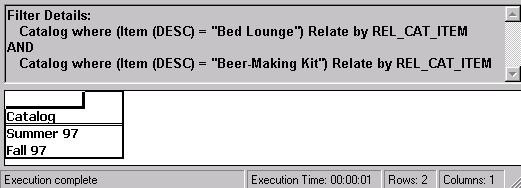
Catalogs that carry 'Bed Lounge' and 'Beer-Making Kit':
To find a list of catalogs that carry Items 'Bed Lounge' and 'Beer-Making Kit,' create two relationship filters, one for each item. Apply the logical operators(AND) to group the sets of data from each of the relationship filters.
ka02R000000kcFvQAI_0EM440000002GLX.gif
  • Filter:
    <REL_CAT_ITEM; (Item@Desc = "Bed Lounge")> {Catalog}
    AND
    <REL_CAT_ITEM; (Item@Desc = "Beer-Making Kit")> {Catalog}
  • Template: Catalog
  • SQL:
    select a21. AS CAT_ID,
        a21. AS CAT_DESC
    from a21
    where ((exists (select *
        from r21,
              r22\
        where r21. = r22.
        and r22. = 'Bed Lounge'
        and r21. = a21. ))
    and (exists (select *
        from r21,
           r22
        where r21. = r22.
        and r22. = 'Beer-Making Kit'
        and r21. = a21. )))

 
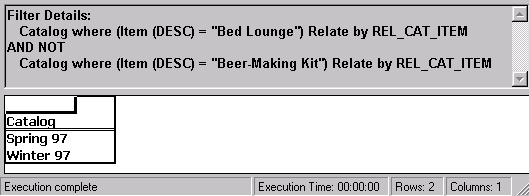
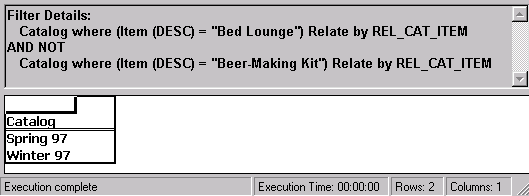
Catalogs that carry 'Bed Lounge' but not 'Beer-Making Kit':
To find a list of catalogs that carry 'Bed Lounge' but not 'Beer-Making Kit,' create two relationship filters, one for each item. Then apply logical operators to eliminate a set of data 'in(Catalogs that carry 'Beer-Making Kit').'
ka02R000000kcFvQAI_0EM440000002GLN.gif
  • Filter:
    <REL_CAT_ITEM; (Item@Desc = "Bed Lounge")> {Catalog}
    AND NOT
    <REL_CAT_ITEM; (Item@Desc = "Beer-Making Kit")> {Catalog}
  • Template: Catalog
  • SQL:
    select a21. AS CAT_ID,
       a21. AS CAT_DESC
    from a21
    where ((not (exists (select *
       from s31
       where (exists (select *
          from r21,
        r22
          where r21. = r22.
          and r22. = 'Beer-Making Kit'
          and r21. = s31. ))
       and s31. = a21. )))
    and (exists (select *
       from r21,
           r22
       where r21. = r22.
       and r22. = 'Bed Lounge'
        and r21. = a21. )))

Intersection operator ('IntersectIn') in Relationship filter:
To create a report that lists catalogs that carry 'Bed Lounge' and 'Beer-Making Kit', two relationship filters are created for this purpose, one for each Item. Moreover, there is a way to create one relationship filter to include many items: the IntersectIn operator. It can create an attribute form list qualification (Item@Desc IntersectIn ("Bed Lounge", "Beer-Making Kit").
ka02R000000kcFvQAI_0EM440000002GLN.gif
  • Filter:
    <REL_CAT_ITEM; (Item@Desc IntersectIn ("Bed Lounge", "Beer-Making Kit")> {Catalog}
  • Template: Catalog
  • SQL: If the Relational Database Management System (RDBMS) supports the Intersect functionality, the bold 'and' in the SQL below is translated to intersect. However, if the RDBMS does not support the intersect statement, the and statement is not translated to intersect, as illustrated below.
    select a21. AS CAT_ID,
       a21. AS CAT_DESC
    from a21
    where ((exists (select *
       from r21,
           r22
       where r21. = r22.
       and r22. = 'Bed Lounge'
        and r21. = a21. ))
    and (exists (select *
       from r21,
           r22
       where r21. = r22.
       and r22. = 'Beer-Making Kit'
        and r21. = a21. )))

Comment

0 comments

Details

Knowledge Article

Published:

May 17, 2017

Last Updated:

May 17, 2017