EducationSoftwareStrategy.com
StrategyCommunity

Knowledge Base

Product

Community

Knowledge Base

TopicsBrowse ArticlesDeveloper Zone

Product

Download SoftwareProduct DocumentationSecurity Hub

Education

Tutorial VideosSolution GalleryEducation courses

Community

GuidelinesGrandmastersEvents
x_social-icon_white.svglinkedin_social-icon_white.svg
Strategy logoCommunity

© Strategy Inc. All Rights Reserved.

LegalTerms of UsePrivacy Policy
  1. Home
  2. Topics

KB34947: "You have an entered an invalid answer. Please enter a value of the correct data type" error message appears when importing a UTF-8 or Unicode text file into an attribute qualification prompt in MicroStrategy Web


Community Admin

• Strategy


"You have an entered an invalid answer. Please enter a value of the correct data type" error message appears when importing a UTF-8 or Unicode text file into an attribute qualification prompt in MicroStrategy Web.

SYMPTOM:
 
In Strategy Web 9.x, when a user tries to import a text file into an attribute qualification prompt, it will only import properly if the text file is saved in ANSI format.  If the text file is saved in Unicode or UTF-8 format, it will give the error below:
 

ka04W000000OgGUQA0_0EM4400000027pM.png

 
You have an entered an invalid answer. Please enter a value of the correct data type 
 
STEPS TO REPRODUCE: 
In Strategy Desktop 9.x:

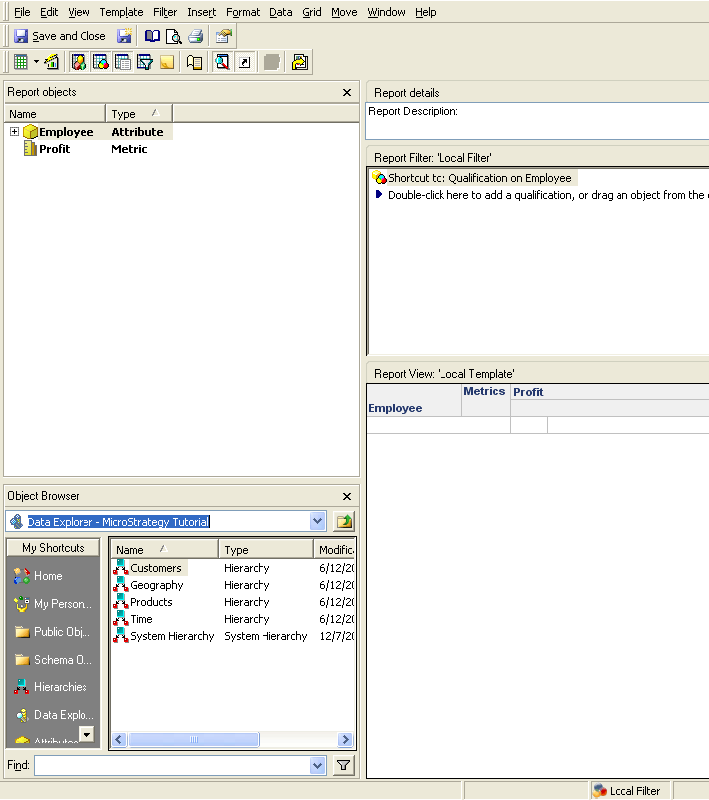
  • Create a report with Employee and Profit.
  • Create an attribute qualification prompt on Employee:
     
ka04W000000OgGUQA0_0EM4400000027pT.png
  • Drag the prompt into the report and save and close
     
ka04W000000OgGUQA0_0EM4400000027pU.png
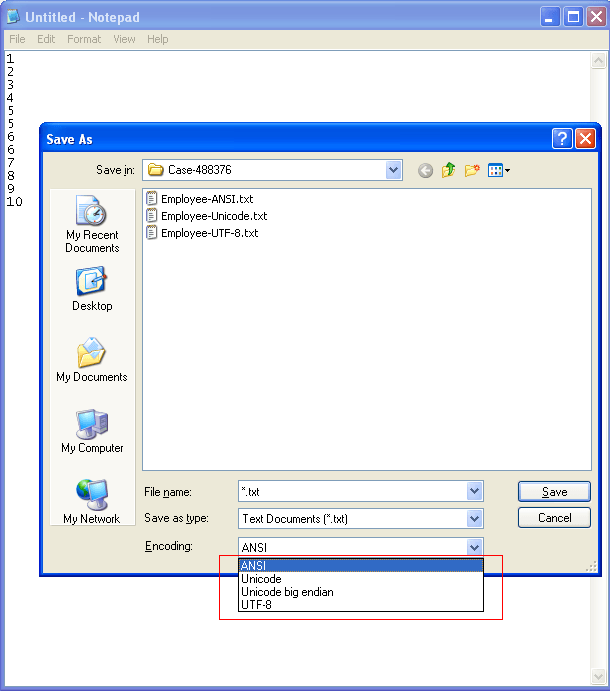
  • Open Notepad and create a text file with 10 digits in vertical order and save three copies: one in ANSI format, one in Unicode format, and one in UTF-8 format.
     
ka04W000000OgGUQA0_0EM4400000027pL.png
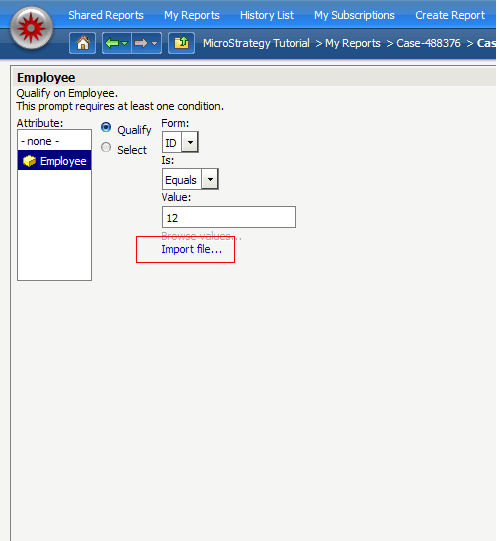
  • Launch Strategy Web and execute the report. When prompted, leave the prompt selection as "Qualify", select the "Employee" attribute, and click on Import File.
     
ka04W000000OgGUQA0_0EM4400000027pS.png
  •  
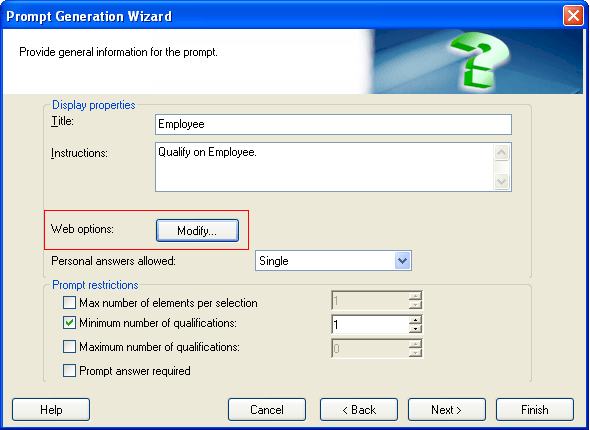
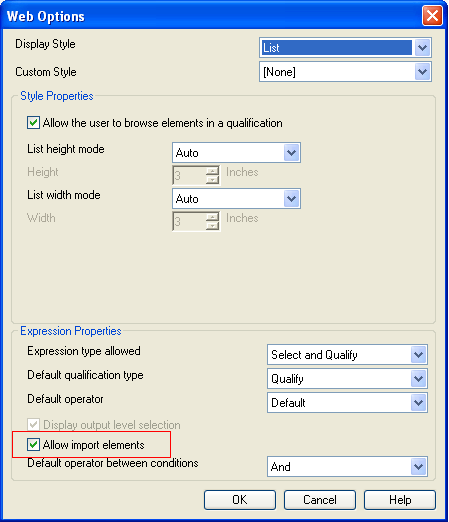
    Note: If the Import File option does not appear, that means that the option for this capability is not enabled. To enable it, make sure that the "Allow import elements" box is checked under the Web Options in the prompt.
     
ka04W000000OgGUQA0_0EM4400000027pQ.png
ka04W000000OgGUQA0_0EM4400000027pB.png
  • If importing a text file saved in Unicode or UTF-8 format, it will give the below error:
     
ka04W000000OgGUQA0_0EM4400000027pK.png
  •  

    You have an entered an invalid answer. Please enter a value of the correct data type 
     

  • If importing an ANSI text file, it imports properly
     
     
ka04W000000OgGUQA0_0EM4400000027pN.png

CAUSE:
This is a known issue in Strategy Web 9.x
 
ACTION:
Contact Strategy Technical Support for an update on this issue.
 
WORKAROUND:
Convert and save all text files to ANSI format.


Comment

0 comments

Details

Knowledge Article

Published:

June 16, 2017

Last Updated:

June 16, 2017