EducationSoftwareStrategy.com
StrategyCommunity

Knowledge Base

Product

Community

Knowledge Base

TopicsBrowse ArticlesDeveloper Zone

Product

Download SoftwareProduct DocumentationSecurity Hub

Education

Tutorial VideosSolution GalleryEducation courses

Community

GuidelinesGrandmastersEvents
x_social-icon_white.svglinkedin_social-icon_white.svg
Strategy logoCommunity

© Strategy Inc. All Rights Reserved.

LegalTerms of UsePrivacy Policy
  1. Home
  2. Topics

KB3513: How to set and troubleshoot color banding in MicroStrategy Developer 9.4.x-10.x


Stefan Zepeda

Salesforce Solutions Architect • Strategy


Color banding is set in the Report Editor, from either the Grid View or the Design View. It cannot be set from the Graph View or the SQL View.

Color banding is set in the Report Editor, from either the Grid View or the Design View. It cannot be set from the Graph View or the SQL View. To access the setting follow the steps below:

  1. From the Grid menu, select Options. The Grid Options window will appear.
  2. Select Custom Banding under the General Tab.
  3. In the Banding Settings window, there are three available banding settings:
    • Banding preference
    • Banding colors
    • Banding criteria

 
Banding preference

  • By rows: Select to band by rows.
  • By columns: Select to band by columns.

Banding colors

  • First color: Click the arrow to select the first color used for banding.
  • Second color: Click the arrow to select the second color used for banding.

Banding criteria

  • By number of columns/rows: Select to band by number of columns or rows. Select the number of columns or rows to apply the first and second color to. The two colors are used alternately.
  • By column/row header: Choose the desired header from the list. The vertical (column)/horizontal (rows) bands on the grid are colored according to the groupings on the selected column or row.

General

  • Apply banding colors to row values: Select to apply the selected banding colors to the row values.

If users only want the headers to be banded, like in the example below, check the option By row headers:
 

ka02R000000kcUmQAI_0EM440000002GLH.gif

 
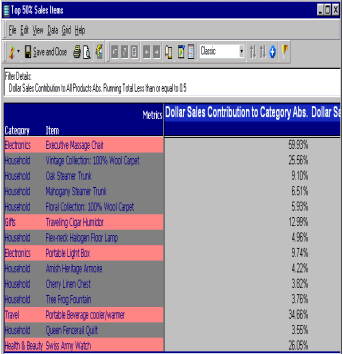
The banding criteria options allow users to set a pattern for banding. For example, to apply banding by number of rows, apply the first color to the first three rows and the second color to the following row. Or, choosing the "by row headers" option by header(in this case, Category), results in the following report:
 

ka02R000000kcUmQAI_0EM440000002GLQ.gif

TROUBLESHOOTING:
If color banding for cells with metric values does not seem to be functioning, ensure that the Pattern box for the metric values format is unchecked. This setting is located on the Metrics tab in the Formatting Options window.


Comment

0 comments

Details

Knowledge Article

Published:

April 17, 2017

Last Updated:

April 17, 2017