EducationSoftwareStrategy.com
StrategyCommunity

Knowledge Base

Product

Community

Knowledge Base

TopicsBrowse ArticlesDeveloper Zone

Product

Download SoftwareProduct DocumentationSecurity Hub

Education

Tutorial VideosSolution GalleryEducation courses

Community

GuidelinesGrandmastersEvents
x_social-icon_white.svglinkedin_social-icon_white.svg
Strategy logoCommunity

© Strategy Inc. All Rights Reserved.

LegalTerms of UsePrivacy Policy
  1. Home
  2. Topics

KB35337: How to hide an object and prevent it from showing up using conditional formatting in a Report Services document in MicroStrategy Web 9.X


Community Admin

• Strategy


How to hide an object and prevent it from showing up using conditional formatting in a Report Services document in MicroStrategy Web 9.X

In Strategy Web 9.x, users can utilize the functionality of conditional formatting to hide objects and prevent them from showing up in a Report Services document, when chosen or targeted by a selector. Below is a scenario that describes how to use this functionality:
 
A user created a report services document in Strategy Tutorial 9.0.1. The document contains 3 panels:
The first panel contains a grid that displays the "Year" and "Quarter" attributes and the "Profit" metric, like shown below.
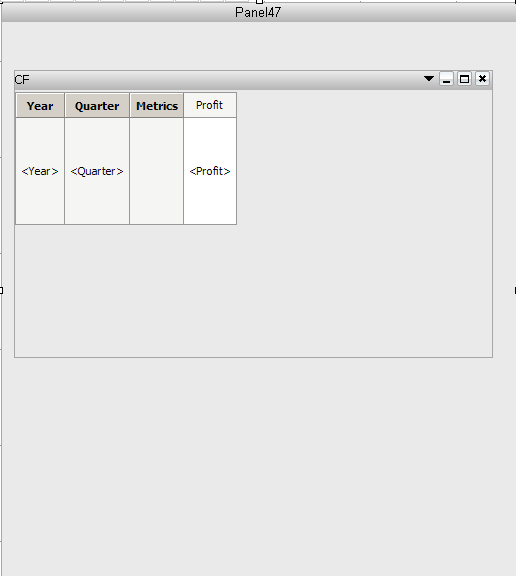
 

ka04W000000OcBbQAK_0EM4400000027mg.png

 
The second panel contains a "Quarter" attribute element 'Check Box' selector that targets the grid in the first panel:
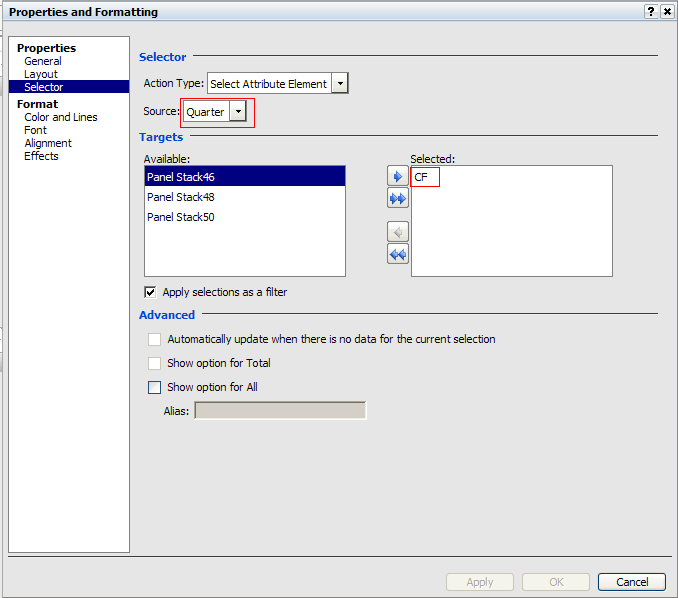
 

ka04W000000OcBbQAK_0EM4400000027mT.png


The third panel contains a "Year" attribute element 'Radio Button' selector that targets the grid in the first panel, and targets the second panel:
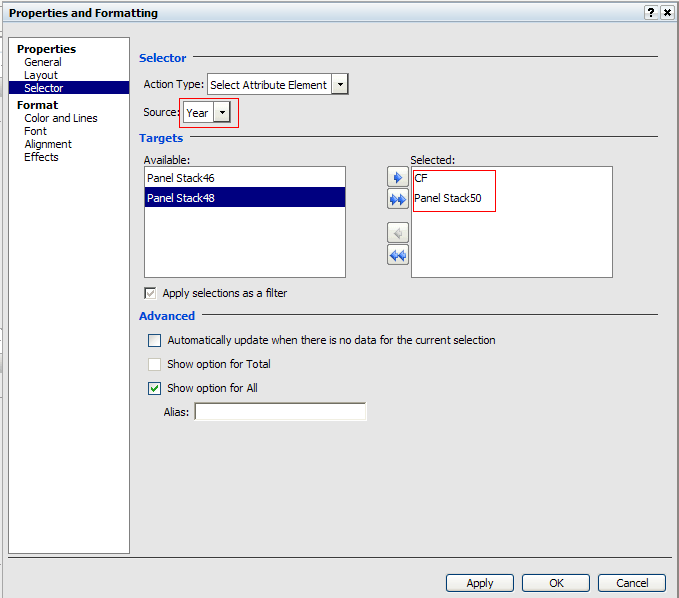


ka04W000000OcBbQAK_0EM4400000027mF.png


In this scenario, there is valid data for all the years except 2010. The user would like to be able to see all of the corresponding Quarters but would like to hide the Quarters of 2010 and prevent them from showing, since there is no data for them.
Example1: User runs the document and choses Year 2008 and Quarters of 2008:
 

ka04W000000OcBbQAK_0EM4400000027mQ.png

 
Example2 : User choses 2010 and Quarters of 2010.  Since there is no data for the Quarters of 2010, the selector doesn't make much sense to be displayed:


ka04W000000OcBbQAK_0EM4400000027me.png

 
ACTION
 
To prevent the "Quarters of 2010" from appearing when the Year 2010 is selected, the user can set conditional formatting on a shape to hide the selector from appearing:
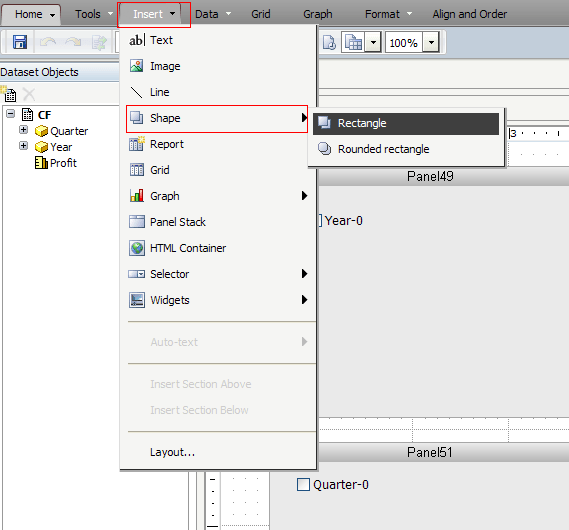
  • In Design mode, click on the 'Insert' option in the menu toolbar and chose 'Shape' and 'Rectangle':
     
ka04W000000OcBbQAK_0EM4400000027mU.png
  • Place the 'Rectangle' on the "Quarter" selector on the second panel and make sure it completely covers the selector box.
     
ka04W000000OcBbQAK_0EM4400000027mC.png
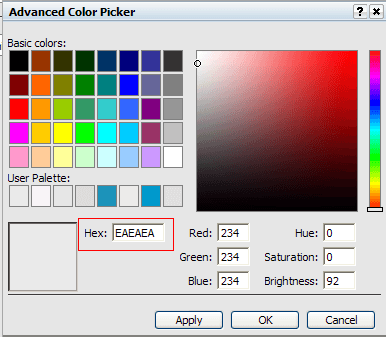
  • Make sure that the 'Rectangle' is the same color as the panel. If the 'Rectangle' is a different color than the panel, first determine the color of the panel.To do so, go to "Properties and Formatting" and go to 'Color and Lines' under 'Format' and click on  the 'Fill' color and click on 'More Colors'.
     
     
ka04W000000OcBbQAK_0EM4400000027mX.png
  • Locate the value in the 'Hex' box and repeat the above steps for the 'Rectangle' shape and change the value of the 'Hex' to match the panels; in this case it is "EAEAEA".
     
ka04W000000OcBbQAK_0EM4400000027mE.png
  •  
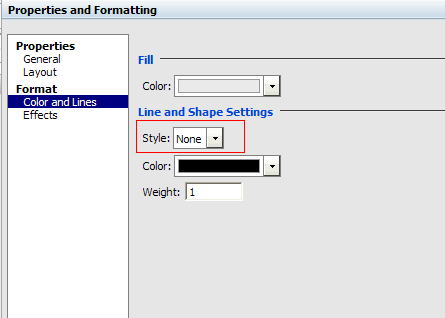
    Note: Also make sure that the 'Style' selection in the 'Line and Shape Settings', below 'Fill' is set to 'None'.
     
ka04W000000OcBbQAK_0EM4400000027mh.png
  • Once the 'Rectangle' is the same color as the panel, right click on it and click on 'Conditonal Formatting' and choose 'Advanced'.
     
ka04W000000OcBbQAK_0EM4400000027ma.png
  • In the 'Conditional Formatting' window, 'Filter on' the 'Year' attribute and click on 'Select' and in the pop-up window, change the selection to 'Not in List' and move the year '2010' to the 'Selected' box .
     
     
ka04W000000OcBbQAK_0EM4400000027mG.png
  • In the 'Conditional Formatting' window, double click on the Threshold box and check the 'Hide Shape' box and click 'Apply' and 'Ok'.
     
ka04W000000OcBbQAK_0EM4400000027mj.png
  • Save close the document and run it. When the 'Year' 2010 is selected, the 'Quarters' for 2010 do not show up.
     
     
ka04W000000OcBbQAK_0EM4400000027mc.png

Images can also be used along with conditional formatting, instead of a shape, to hide objects.


Comment

0 comments

Details

Knowledge Article

Published:

May 19, 2017

Last Updated:

May 19, 2017