EducationSoftwareStrategy.com
StrategyCommunity

Knowledge Base

Product

Community

Knowledge Base

TopicsBrowse ArticlesDeveloper Zone

Product

Download SoftwareProduct DocumentationSecurity Hub

Education

Tutorial VideosSolution GalleryEducation courses

Community

GuidelinesGrandmastersEvents
x_social-icon_white.svglinkedin_social-icon_white.svg
Strategy logoCommunity

© Strategy Inc. All Rights Reserved.

LegalTerms of UsePrivacy Policy
  1. Home
  2. Topics

KB35405: How to create a new subscription address for a user using MicroStrategy Web SDK


Community Admin

• Strategy


How to create a new subscription address for a user using MicroStrategy Web SDK.

The following sample code explains how to create a new subscription address for a user in the user editor using Strategy Web SDK version 9.3.1 - 9.4.x
 
Editing of a user needs an admin session as shown below


 //Create IServer session  
  WebIServerSession isess = WebObjectsFactory.getInstance().getIServerSession();
  isess.setServerName("IServer");
  isess.setLogin("administrator");  
  isess.setPassword("");  
  isess.setServerPort(0);  
  isess.setAuthMode(EnumDSSXMLAuthModes.DssXmlAuthStandard);

 
Create the subscription address and save it as shown below
 

WebObjectSource source = isess.getFactory().getObjectSource();

//Get the user for whom the address needs to be created
WebUser user= (WebUser) source.getObject("05873C524739B624373D648972366580", EnumDSSXMLObjectTypes.DssXmlTypeUser); //Replace the object with user's UID.  

user.populate(); // need to call populate method before manipulating the object.  

//Get the current user addresses
WebSubscriptionUserAddresses _addresses = user.getAddresses();

//Add new address to the addresses list for the required delivery mode
WebSubscriptionAddress subAddr = _addresses.addNewAddress(EnumDSSXMLSubscriptionDeliveryType.DssXmlDeliveryTypeEmail);

//Set the Address Name
subAddr.setName("MyTest");

//Set the Physical Address
subAddr.setValue("myaddr@abc.com");

//Set the device id to generic email
subAddr.setDevice("1D2E6D168A7711D4BE8100B0D04B6F0B");

//Save the address
subAddr.save();
_addresses.saveAddress(subAddr);

//Save the user
source.save(user);

 
The device IDs can be obtained by executing the code shown below

for (int i = 0; i < _addresses.size(); i++) {

   //Get a subscription address from the list of already created addresses
   WebSubscriptionAddress addr = _addresses.get(i);
   addr.populate();

   //Get the device corresponding to the desired address
   WebSubscriptionDevice device = addr.getDevice();

   //Get the deviceID
   String deviceID = device.getID();


}
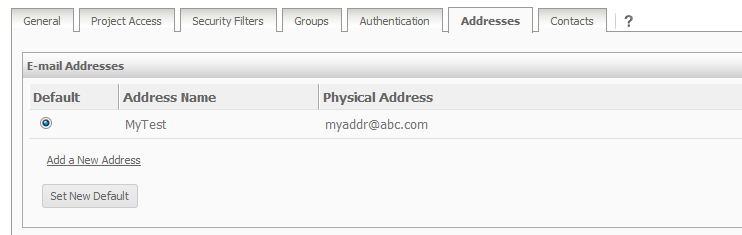
 
 
Once the address is created using the above code it will show up in the user editor as shown below,
 

ka04W000000OeGNQA0_0EM440000002Goq.jpeg

 
NOTE
The size of the addresses for that user is not updated after saving the new address to the user.  If an output for size() from the WebSubscriptionUserAddresses class is called before the address is added and after the address is added, the number does not appear to be changing.  Using the sample above, the following lines would be added before and after adding an address (respectively):


//Output the number of addresses before adding a new address:
System.out.println("# of Addresses before is: " + _addresses.size());

//Output the number of addresses after adding a new address:
System.out.println("# of Addresses after is: " + _addresses.size());


The output would look as follows:
# of Addresses before is: 5
# of Addresses after is: 5
 
After saving the user's email address, the user information has to be repopulated so that the size (number of e-mail addresses) that belongs to the user is updated properly.  Right before outputting the "after" size, the following lines should be added to update the size after the e-mail addition:
 

user= (WebUser) source.getObject("54F3D26011D2896560009A8E67019608", EnumDSSXMLObjectTypes.DssXmlTypeUser);

user.populate();
_addresses = user.getAddresses();


The output would now look as follows: 
# of Addresses before is: 6
# of Addresses after is: 7
 
 
ADDITIONAL INFORMATION:
 
The Strategy SDK allows you to customize the standard Strategy Web interface, and extend and integrate the Strategy business intelligence functionality into other applications. However, before changing the way Strategy Web products look or behave, it is helpful to understand how the application is built. For more information regarding the Strategy Web architecture or the process of customizing Strategy Web, please refer to Strategy Developer Zone (https://resource.microstrategy.com/msdz/).
 
To access the Strategy Developer Zone, you must have access to the Strategy Knowledge Base, you must have purchased the Strategy SDK, and you must be current on your Strategy maintenance agreement. If you are a US-based business and believe that you satisfy all three of these conditions but you do not have access to the Strategy Developer Zone, please contact Strategy Technical Support at support@microstrategy.com or at (703) 848-8700. If you are an international business, please contact Strategy Technical Support at the appropriate email address or phone number found at http://www.microstrategy.com/Support/ContactUs.asp.
 
 
CUSTOMIZATION WARNING:
 
This customization is provided as a convenience to Strategy users and is only directly applicable to the version stated. While this code may apply to other releases directly, Strategy Technical Support makes no guarantees that the code provided will apply to any future or previous builds. In the event of a code change in future builds, Strategy Technical Support makes no guarantee that an updated version of this particular customization will be provided. In the event of a code change in future builds, Strategy may not be able to provide additional code on this matter even though this customization is provided at this time for this specific build. For enhancements to this customization or to incorporate similar functionality into other versions, contact your Account Executive to inquire about Strategy Consulting assistance.


Comment

0 comments

Details

Knowledge Article

Published:

June 12, 2017

Last Updated:

June 12, 2017