EducationSoftwareStrategy.com
StrategyCommunity

Knowledge Base

Product

Community

Knowledge Base

TopicsBrowse ArticlesDeveloper Zone

Product

Download SoftwareProduct DocumentationSecurity Hub

Education

Tutorial VideosSolution GalleryEducation courses

Community

GuidelinesGrandmastersEvents
x_social-icon_white.svglinkedin_social-icon_white.svg
Strategy logoCommunity

© Strategy Inc. All Rights Reserved.

LegalTerms of UsePrivacy Policy
  1. Home
  2. Topics

KB35502: How to configure Trusted authentication with Siteminder on iPad/iPhone devices using MicroStrategy Mobile 9.x


Community Admin

• Strategy


The following steps explain how to configure Trusted authentication with Siteminder on iPad/iPhone devices using MicroStrategy Mobile 9.x

The following steps explain how to configure Trusted authentication with Siteminder on iPad/iPhone devices using Strategy Mobile 9.0.2.
 
Preconfigurations: In order to use Trusted Authentication with iPhone/iPad devices, Siteminder needs to be configured to use Basic authentication and should not redirect users to an HTML login page.
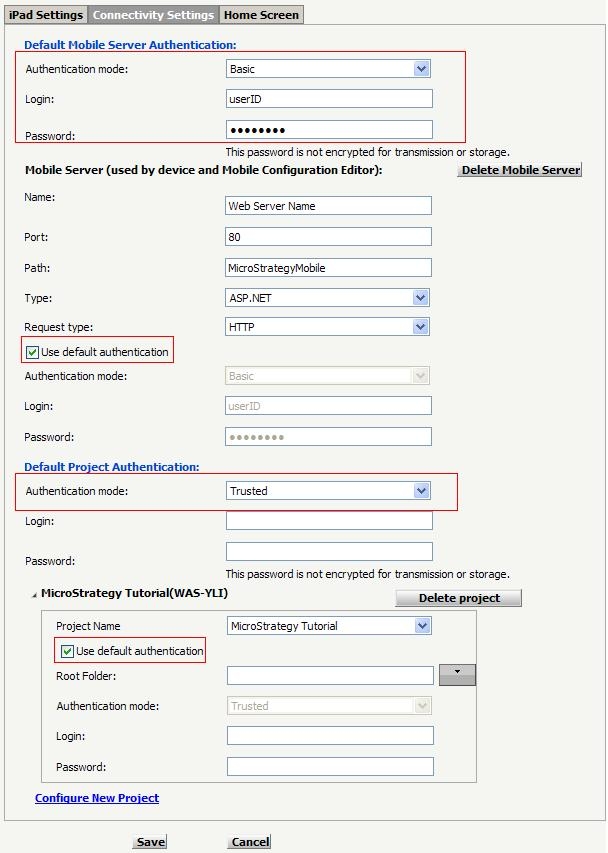
  1. For the Mobile Server Authentication mode, select Basic Authentication.
  2. Fill in all other required settings under Mobile Server.
  3. For the Project Authentication, select Trusted as the authentication mode. The login text boxes will be disabled after Trusted is selected.
  4. Save this configuration and send the URL to iPhone/iPad devices.
ka04W000000OdS3QAK_0EM440000002Gp0.jpeg


Comment

0 comments

Details

Knowledge Article

Published:

June 21, 2017

Last Updated:

June 21, 2017