Using the Strategy Web API Task Framework, it is possible to create a new user object without java coding. This is possible using a bean-based task. In the following example, a new user object is created, then added to a specific group, then saved back to the Metadata.
Perform the following steps to create a new bean-based task using the Web Customization Editor:
Note: Starting in Strategy Web 9.2.1, a createUser task exists in out-of-the-box in the Strategy Task Administrator page.
Note: before following the steps, configure the Web Customization Editor in Eclipse and create a new plugin which will contain the custom task being created below. For more information on how to configure this, navigate the following links:
https://resource.microstrategy.com/MSDZ/MSDL/902/docs/topics/webcusteditor/WCE_Introduction_to_Deployment_Instructions.htm
https://resource.microstrategy.com/MSDZ/MSDL/902/docs/topics/webcusteditor/WCE_Launching_the_Web_Customization_Editor.htm
https://resource.microstrategy.com/MSDZ/MSDL/902/docs/topics/webcusteditor/WCE_MicroStrategy_Preferences.htm
https://resource.microstrategy.com/MSDZ/MSDL/902/docs/topics/webcusteditor/custtasks/WCE_Creating_a_New_Plug-in.htm
1. In the Application Settings tab, expand 'Tasks', right-mouse-click and select 'New Task'
2. In the Task Creation Wizard, select 'Create a Task Using an existing Bean and Event' and click Next.
3. Fill out the appropriate parameters:
Task ID: = createUser
Fully Qualified Task Class: = com.Strategy.web.app.tasks.BeanTask (all bean-based tasks should use this class)
Task Description: = Creates a new User
Bean Name: = ub (this is any name, will be used to reference the bean in the task)
Bean upon which your Task will be based: = UserBean
Style to be used to format the data: = UserEntityEditorGeneralStyle
Expose style as task Parameter: = No
Admin Task: = Check the box
Create Java Class: = Leave checkbox empty

Click Next.
4. The next screen will display a list of events that are based on the bean selected on the previous dialog. Since we selected UserBean, it is normal to see events from its parent beans as well (in this case UserEntityBean).
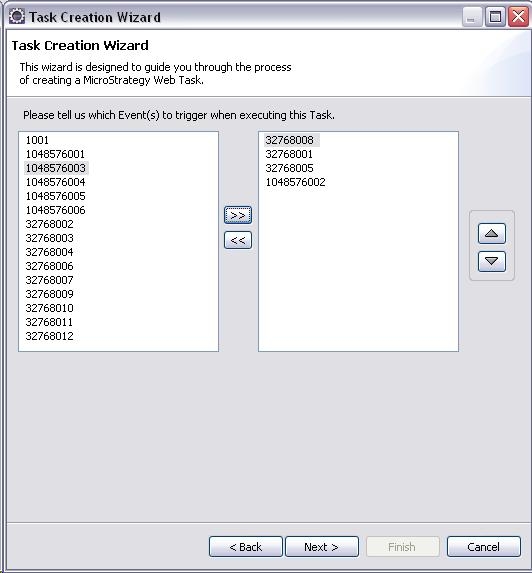
The process of creating a user involves multiple events. The order of events should be the following:
32768008 - create new user object
32768001 - modify basic user information
32768005 - modify parent group information
1048576002 - save the user object
Select these events in the wizard (remember that order matters. For example, the user object must be created first before modifying its information):
It is possible to change/modify other user information such as authentication, security filter, etc. The following is a list of what other events are available to modify the user:
https://resource.microstrategy.com/MSDZ/MSDL/902/docs/ReferenceFiles/com/microstrategy/web/beans/EnumUserEntityBeanEvents.html
com.Strategy.web.beans.EnumUserEntityBeanEvents
public static final int USER_ENTITY_EVENT_DELETE 32768006
public static final int USER_ENTITY_EVENT_DUPLICATE 32768009
public static final int USER_ENTITY_EVENT_INIT_AS_NEW 32768008
public static final int USER_ENTITY_EVENT_MODIFY_ALL 32768013
public static final int USER_ENTITY_EVENT_MODIFY_AUTH 32768002
public static final int USER_ENTITY_EVENT_MODIFY_BASIC 32768001
public static final int USER_ENTITY_EVENT_MODIFY_PARENTS 32768005
public static final int USER_ENTITY_EVENT_MODIFY_PRIVILEGES 32768003
public static final int USER_ENTITY_EVENT_MODIFY_PRIVILEGES_ONLY 32768011
public static final int USER_ENTITY_EVENT_MODIFY_SECURITY_FILTER 32768004
public static final int USER_ENTITY_EVENT_MODIFY_SECURITY_ROLES 32768012
public static final int USER_ENTITY_EVENT_REFRESH 32678010
public static final int USER_ENTITY_EVENT_SAVE 32768007
https://resource.microstrategy.com/MSDZ/MSDL/902/docs/ReferenceFiles/com/microstrategy/web/beans/EnumEditableObjectBeanEvents.html
com.Strategy.web.beans.EnumEditableObjectBeanEvents
public static final int EDITABLE_OBJECT_EVENT_DELETE 1048576001
public static final int EDITABLE_OBJECT_EVENT_DUPLICATE 1048576004
public static final int EDITABLE_OBJECT_EVENT_INIT_AS_NEW 1048576003
public static final int EDITABLE_OBJECT_EVENT_REFRESH 1048576005
public static final int EDITABLE_OBJECT_EVENT_SAVE 1048576002
public static final int EDITABLE_OBJECT_EVENT_SET_NAME 1048576006
5. Click Next in the Task Creation Wizard. The next dialog will display a list of optional and required arguments based on the events selected in the previous screen. Select the following event arguments:

6. Click Next. The next dialog will show a list of style parameters based on the style that was selected. In this example, the default display is appropriate, click Next to continue.
7. On the 'Additional parameters' dialog, its possible to create custom parameters In situations where a custom Task class was used to handle custom logic. Since the default task class is being used in this example. Click Next, then Finish.
8. Restart the Application Server and test running the new task using the Strategy Task Administrator page:
Web Universal:
http://AppServer:Port/MicroStrategy/servlet/taskAdmin
Web ASP.Net:
http://WebServer/MicroStrategy/asp/taskAdmin.aspx
9. On the Builder tab, select the new task just created and specify the arguments to build the Task URL. Open a new browser and test invoking the URL which will resemble the following:
http://AppServer:Port/MicroStrategy/servlet/taskAdmin?taskId=createUser&taskEnv=html&taskContentType=html&sessionState=ACTIVESESSION&loginName=abrady1&fullName=Allen+Brady1&description=power+user&passwordConfirmed=test&saveNow=1&parents=C147E8EB4DCD29F1D965D09E543657D3&password=test
(Parents is the object ID for the user group he should be added to.)
The example provided in this document is provided “as-is” and user has read the following customization warning:
ADDITIONAL INFORMATION:
The Strategy SDK allows you to customize several Strategy products and extend and integrate the Strategy business intelligence functionality into other applications. However, before changing the way Strategy products look or behave, it is helpful to understand how the application is built. For more information regarding the Strategy products or the process of customizing Strategy products, please refer to Strategy Developer Zone (https://developer.microstrategy.com).
To access the Strategy Developer Zone, you must have access to the Strategy Knowledge Base, you must have purchased the Strategy SDK, and you must be current on your Strategy maintenance agreement. If you are a US-based business and believe that you satisfy all three of these conditions but you do not have access to the Strategy Developer Zone, please contact Strategy Technical Support at support@microstrategy.com or at (703) 848-8700. If you are an international business, please contact Strategy Technical Support at the appropriate email address or phone number found at https://www.microstrategy.com/us/services/support/contact.
CUSTOMIZATION WARNING:
This customization is provided as a convenience to Strategy users and is only directly applicable to the version stated. While this code may apply to other releases directly, Strategy Technical Support makes no guarantees that the code provided will apply to any future or previous builds. In the event of a code change in future builds, Strategy Technical Support makes no guarantee that an updated version of this particular customization will be provided. In the event of a code change in future builds, Strategy may not be able to provide additional code on this matter even though this customization is provided at this time for this specific build. For enhancements to this customization or to incorporate similar functionality into other versions, contact your Account Executive to inquire about Strategy Consulting assistance.
