EducationSoftwareStrategy.com
StrategyCommunity

Knowledge Base

Product

Community

Knowledge Base

TopicsBrowse ArticlesDeveloper Zone

Product

Download SoftwareProduct DocumentationSecurity Hub

Education

Tutorial VideosSolution GalleryEducation courses

Community

GuidelinesGrandmastersEvents
x_social-icon_white.svglinkedin_social-icon_white.svg
Strategy logoCommunity

© Strategy Inc. All Rights Reserved.

LegalTerms of UsePrivacy Policy
  1. Home
  2. Topics

KB35542: How to remove sections on the MicroStrategy Web Preferences Page using the MicroStrategy Web SDK 10.9


Community Admin

• Strategy


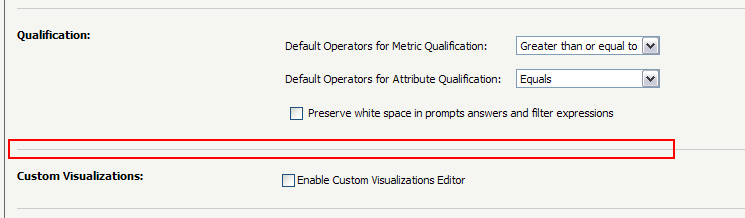
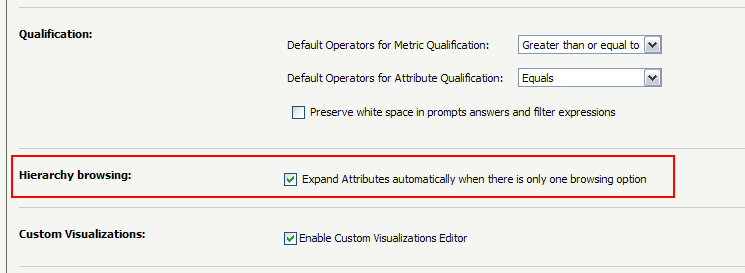
On the MicroStrategy Preferences Page, sections can be removed at both the user level (User Preferences) and at the administrative level (Project Defaults). In the following customization example below, the Hierarchy browsing section on the General Preferences Page at the administrative level has been removed using the Web Customization editor

On the Strategy Web Preferences Page, sections can be removed at both the user level (User Preferences) and at the administrative level (Project Defaults).  In the following customization example below, the Hierarchy browsing section on the General Preferences Page at the administrative level has been removed.
 
Before Customization: 
 

ka04W000000Ofh5QAC_0EM440000002God.gif

 
After Customization:

ka04W000000Ofh5QAC_0EM440000002GoW.gif

This customization can be accomplished by using the Web Customization Editor to create a plug-in, although determining the details of the steps will involve reading some built-in XML files.

Locating the Correct Style to Customize

  • Each preferences section has a dedicated XML layout.
  • Each layout is associated with a dedicated style.
  • The list of XML layouts used for the Web Preferences can be found in the following folder: StrategyWebPath/WEB-INF/xml/layouts/preferences/
  • Once the XML layout file of interest has been found, the corresponding style can be found using the styleCatalog:
    • Navigate to: StrategyWebPath/WEB-INF/xml/
    • Open the styleCatalog.xml file in a plain text editor.
    • Search for the name of the XML layout, for example: AdminGeneral.xml
    • This should locate a specific <style /> tag that has a reference to this layout XML.
    • The name property of the <style /> tag represents the style used to render this layout. For example:


		<Style description="Displays general project preferences" name="GeneralAdminPreferencesStyle"
			transform="PreferencesGeneralTransform">
			<Layouts>
				<Layout layout_source="AppLayoutSourceFile" order="1"><![CDATA[/WEB-INF/xml/layouts/preferences/AdminGeneral.xml]]></Layout>
			</Layouts>
		</Style>

  • The above example shows that the AdminGeneral.xml layout is used by the style called GeneralAdminPreferencesStyle. 

Important Note 


Do not edit original files used by Strategy Web. The following example demonstrates how to safely customize one of these layouts while following best practices.

Using the Web Customization Editor to create a plug-in

Strategy SDK provides a Web Customization Editor that can be used to create a customization plug-in. The following steps show how to create the plug-in and deploy.

  1. Launch the Web Customization Editor.
  2. Create a new plug-in and give it a meaningful name. 
  3. Expand on Styles inside the Application Settings view to expand the hierarchical tree. The expanded list comprises the different styles that can be modified to perform customizations.
  4. Locate and double-click the style matching the previously found style name, for example GeneralAdminPreferencesStyle.
  5. The Style Properties should now be visible. Using the tabs at the bottom, change the view to display the Style Layouts.
  6. The layout definition here matches what was seen in the styleCatalog.xml. Click Edit Layout to begin the customization process.
  7. A popup will appear, asking to copy the file to the plugin. This is essential to perform this customization while following best practices. Click yes to continue.
  8. The contents of the XML file will now display. At the bottom of the current view, the XML can be edited in either Design or Source view. The rest of this example demonstrates a simplified example leveraging the source view.
  9. Edit the AdminGeneral.xml file using any text editor.
  10. Remove the following code in that file (the following code represents the hierarchy browsing section, as well as one horizontal bar that separates the sections on the Preference Page): 
    
              <tr>
                <td colspan="2">
                  <hr style="height: 1px;"/>
                </td>
              </tr>
              <tr>
                <td valign="top">
                  <span class="prefs-input">
                    <mstrlayout:render name="descriptor"> <!-- Hierarchy browsing: -->
                      <mstrlayout:argument type="String" value="mstrWeb.5530"/>
                    </mstrlayout:render>
                  </span>
                </td>
                <td>
                  <mstrlayout:render name="AsCheckBox">
                    <mstrlayout:argument type="string" value="com.Strategy.web.objects.EnumWebPreferences.WebPreferenceAutoExpandAttributeInHierarchy" />
                    <mstrlayout:argument type="string" value="mstrWeb.5433" /> <!--Descriptor:Expand Attributes automatically when there is only one browsing option-->
                  </mstrlayout:render>
                </td>
              </tr>
              <tr>
                <td colspan="2">
                  <hr style="height: 1px;"/>
                </td>
              </tr>

  11. Save the changes.
  12. Exit the Web Customization Editor. 
  13. Restart the Web Server. 
  14. Launch Strategy Web to view the customization. Note that server and browser caches may need to be cleared for the changes to take immediate effect.

CUSTOMIZATION WARNING:
This customization is provided as a convenience to Strategy users and is only directly applicable to the version stated. While this code may apply to other releases directly, Strategy Technical Support makes no guarantees that the code provided will apply to any future or previous builds. In the event of a code change in future builds, Strategy Technical Support makes no guarantee that an updated version of this particular customization will be provided. In the event of a code change in future builds, Strategy may not be able to provide additional code on this matter even though this customization is provided at this time for this specific build. For enhancements to this customization or to incorporate similar functionality into other versions, contact your Account Executive to inquire about Strategy Consulting assistance.


Comment

0 comments

Details

Knowledge Article

Published:

June 23, 2017

Last Updated:

October 23, 2017