EducationSoftwareStrategy.com
StrategyCommunity

Knowledge Base

Product

Community

Knowledge Base

TopicsBrowse ArticlesDeveloper Zone

Product

Download SoftwareProduct DocumentationSecurity Hub

Education

Tutorial VideosSolution GalleryEducation courses

Community

GuidelinesGrandmastersEvents
x_social-icon_white.svglinkedin_social-icon_white.svg
Strategy logoCommunity

© Strategy Inc. All Rights Reserved.

LegalTerms of UsePrivacy Policy
  1. Home
  2. Topics

KB35546: How to wire a function plug-in and a stored procedure in MicroStrategy Desktop 9.x


Stefan Zepeda

Salesforce Solutions Architect • Strategy


How to wire a function plug-in and a stored procedure in MicroStrategy Desktop 9.x

When a stored procedure (or user-defined function) is implemented in the data warehouse and the same function is used for Intelligent Cubes or derived metrics, a function plug-in needs to be implemented. The stored procedure and the function plug-in can be wired together to make the integration seamless. With one Strategy function in the metadata, Strategy Intelligence Server can automatically invoke either a stored procedure or a function plug-in, depending on the usage and performance. The instructions below explain how to wire a function plug-in and a stored procedure, assuming a function plug-in and a stored procedure with same functionality are available.
 
SQL Pattern
 
SQL Pattern is a Strategy function property. It determines how SQL is generated for the function. It is the "wire" we use and is normally in one of the following forms:
 
function_name(#0, #1, ...)

  • #1 operator #2
  • #0, #1, etc are the input parameters, starting with 0.

Adding SQL Pattern to an existing Function Plug-in
 
The following steps are for a use scenario: "And" Bitwise Operation. This bitwise operator is available in the database.
 

ka02R000000kXzaQAE_0EM440000002Dlu.png

 
A function plug-in is implemented to support this same functionality in Strategy. After importing the function plug-in into the metadata (using the Import Functions feature located in Desktop under Schema), the BitAnd function is displayed in Desktop as shown below.
 

ka02R000000kXzaQAE_0EM440000002Dld.png

The following steps are to wire the "&" operation in the database with the "BitAnd" function in the metadata.
 

ka02R000000kXzaQAE_0EM440000002Dlq.png


ka02R000000kXzaQAE_0EM440000002Dls.png


ka02R000000kXzaQAE_0EM440000002Dlm.png


ka02R000000kXzaQAE_0EM440000002Dlw.png


ka02R000000kXzaQAE_0EM440000002Dlt.png


ka02R000000kXzaQAE_0EM440000002Dlv.png


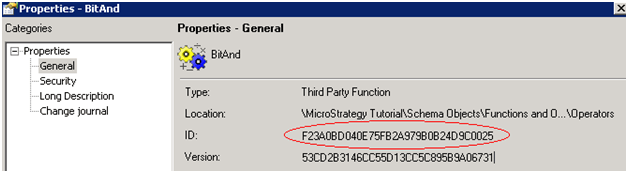
  1. From the sample SQL above, we know that the SQL pattern of the "&" operation should be "#0 & #1". Right-click the BitAnd function and select Properties to get the GUID.
  2. Open DATABASE.PDS, normally located under C:\Program Files\Common Files\Strategy, in a text editor and find the type of database in use. For these instructions, we will use Microsoft Access 2003.
  3. Within the Access 2000/2002/2003 tag, scroll down to the FUNCTION_REF tag and add a new tag as shown below. When done, save and close DATABASE.PDS. Note: We use the GUID from the BitAnd function and SQLPattern from the "&" operation. Also note that "&" is the escape sequence for the "&" character.
  4. Right-click the project and go to Project Configuration > Database Instances > SQL Data Warehouses. Select the Database Instance that points to the database with the "&" operator and click Modify.
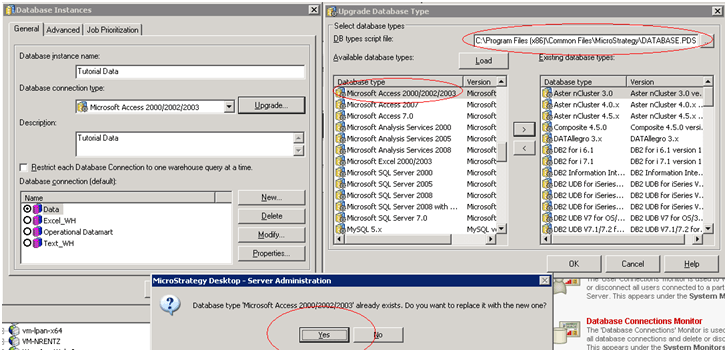
  5. In the Database Instances editor, click Upgrade. In the pop-up window, click Load to load DATABASE.PDS. Add MS Access 2000/2002/2003 to the Existing database types and click Yes when asked for confirmation.
  6. Run a schema update or simply restart the Intelligence Server. The function is now ready to use. For example, define a metric as: BitAnd(Cost, Revenue). Put Year and the metric in a report and the SQL is:


Comment

0 comments

Details

Knowledge Article

Published:

June 12, 2017

Last Updated:

June 12, 2017