EducationSoftwareStrategy.com
StrategyCommunity

Knowledge Base

Product

Community

Knowledge Base

TopicsBrowse ArticlesDeveloper Zone

Product

Download SoftwareProduct DocumentationSecurity Hub

Education

Tutorial VideosSolution GalleryEducation courses

Community

GuidelinesGrandmastersEvents
x_social-icon_white.svglinkedin_social-icon_white.svg
Strategy logoCommunity

© Strategy Inc. All Rights Reserved.

LegalTerms of UsePrivacy Policy
  1. Home
  2. Topics

KB35852: Alignment between two grid columns is lost when the header for the bottom grid is hidden and the headers on both grids have thicker vertical borders than the rest of the grid in a Report Services Document in MicroStrategy Web 9.x.


Community Admin

• Strategy


Alignment between two grid columns is lost when the header for the bottom grid is hidden and the headers on both grids have thicker vertical borders than the rest of the grid in a Report Services Document in MicroStrategy Web 9.x.

SYMPTOM
The alignment in a Report Services Document in Strategy Web 9.0.x is lost when formatting for the grid headers is thicker in Strategy Web 9.0.x.
 
STEPS TO REPRODUCE
Execute the following in Strategy Tutorial: 
 
Create the following objects:

  • Custom Group 1 with the following elements:  Region filter on North, Call Center  filter on New Orleans, and Distribution Center filter on Miami.
  • Custom Group 2 - Category filter on Books.
  • Report A - Custom Group 1 and the following metrics in the columns: Profit, Profit margin, Revenue, Units Sold.
  • Report B - Custom Group 2 and the following metrics in the columns: Profit, Profit margin, Revenue, Units Sold.

These reports are placed in a new Report Services Document. These reports are formatted as follows so that the columns in A and B are aligned when the report is executed.
 
Steps to format:

  1. Open report A in design mode and from Grid on the toolbar, select Options and under Columns and Rows tab, pick Fixed for columns, and then set the width for Custom Group to 200 pixels, and for each of the metrics to 100 pixels.  Open Report B and do the same in that report.
  2. Open the Document in Design mode in Web.
  3. Click on the upper grid and right-mouse-click and select Properties and Formatting.
  4. In the dialog box which opens, Grid -> check box for show headers, and then Format -> Colors and Lines.
    Select the metrics and Header from the two drop down menus.  Select Custom and here the border thickness can be defined. Define thick for the last metric on the right, right border.
  5. Repeat above steps for lower grid.

Now when the the Document is viewed in Flash view mode the columns are aligned:
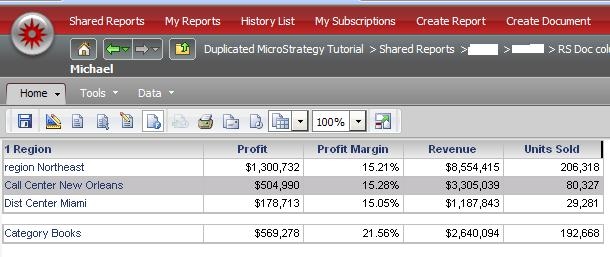


ka04W000000OgxtQAC_0EM4400000027j0.jpeg

View the document in Design Mode and for lower grid, hide headers. In Editable and Interactive mode the column alignment shifts as shown below:


ka04W000000OgxtQAC_0EM4400000027in.jpeg

 
CAUSE:
This is a known issue in Strategy Web 9.x
  
ACTION
Contact Strategy Technical Support for an update regarding this issue.
 
WORKAROUND
Set the default borders on the column headers which will resolve the issue.


Comment

0 comments

Details

Knowledge Article

Published:

June 7, 2017

Last Updated:

June 7, 2017