EducationSoftwareStrategy.com
StrategyCommunity

Knowledge Base

Product

Community

Knowledge Base

TopicsBrowse ArticlesDeveloper Zone

Product

Download SoftwareProduct DocumentationSecurity Hub

Education

Tutorial VideosSolution GalleryEducation courses

Community

GuidelinesGrandmastersEvents
x_social-icon_white.svglinkedin_social-icon_white.svg
Strategy logoCommunity

© Strategy Inc. All Rights Reserved.

LegalTerms of UsePrivacy Policy
  1. Home
  2. Topics

KB35901: After running an Alter Folder ACL Outline from Command Manager, ACLs do not behave correctly in MicroStrategy Developer 9.x and MicroStrategy Web 9.x.


Stefan Zepeda

Salesforce Solutions Architect • Strategy


After running an Alter Folder ACL Outline from Command Manager, ACLs do not behave correctly in MicroStrategy Developer 9.x and MicroStrategy Web 9.x.

SYMPTOM
 
After running the following Alter Folder ACL Outline from Command Manager, Strategy Web and Developer 9.x. users may observe incorrect behavior with ACLs. These behaviors will differ between Developer users and Web users.
 
Sample Code/Error
ALTER ACL FOR FOLDER "<folder_name>" IN FOLDER "<location_path>" PROPAGATE OVERWRITE RECURSIVELY FOR PROJECT "<project_name>";
 
STEPS TO REPRODUCE
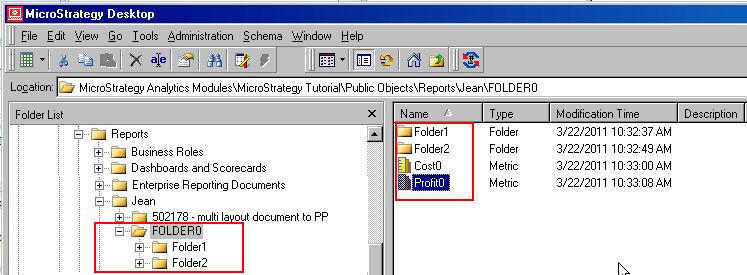
  • Create a folder structure that contains objects to be used as report objects. This folder should also contain other folders that also contain additional objects to be used as report objects. See example in screen shot below:
     
ka02R000000kX5qQAE_0EM440000002DnH.png
  • At this point, the Everyone group has View permissions on all folders and objects in this structure. Any user is able to run and create reports containing these metrics in both Developer and Web.

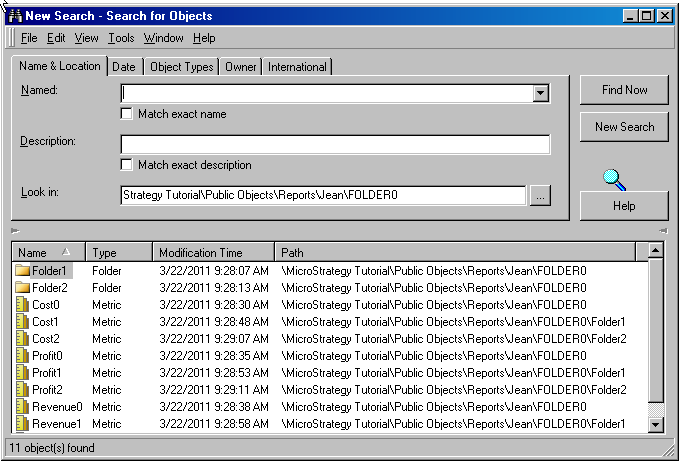
    Note that in Developer, a search by a non-Administrator user for all objects within FOLDER0 returns all objects contained in that folder, as well as all objects contained in the children folders. See screen shot below.
     
ka02R000000kX5qQAE_0EM440000002DnO.png
  •  
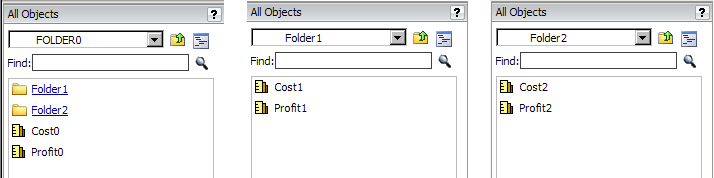
    In Web, non-Administrator users are able to browse and see all objects within FOLDER0 when creating a report. See screen shots below.
     
ka02R000000kX5qQAE_0EM440000002DnI.png
  • In Command Manager, run the Alter Folder ACL Outline from above. In this example, this would be:
     

    Sample Code/Error
    ALTER ACL FOR FOLDER "FOLDER0" IN FOLDER "\Public Objects\Reports\Jean" PROPAGATE OVERWRITE RECURSIVELY FOR PROJECT "Strategy Tutorial";

     
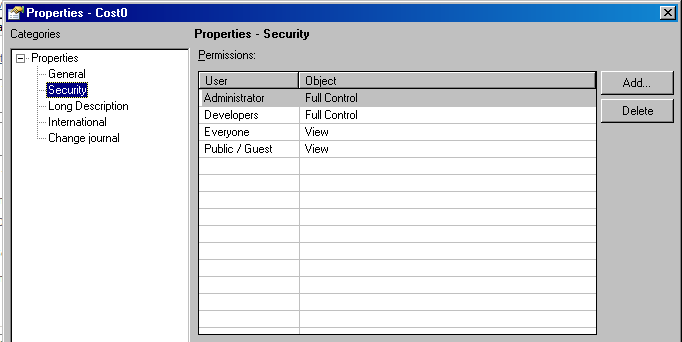
  •  Verify that the ACLs are identical for the top level folder, and all its children folders and objects. The screen shots below show that the ACLS are identical for FOLDER0 and an object within a child folder, Cost1.

ka02R000000kX5qQAE_0EM440000002DnM.png
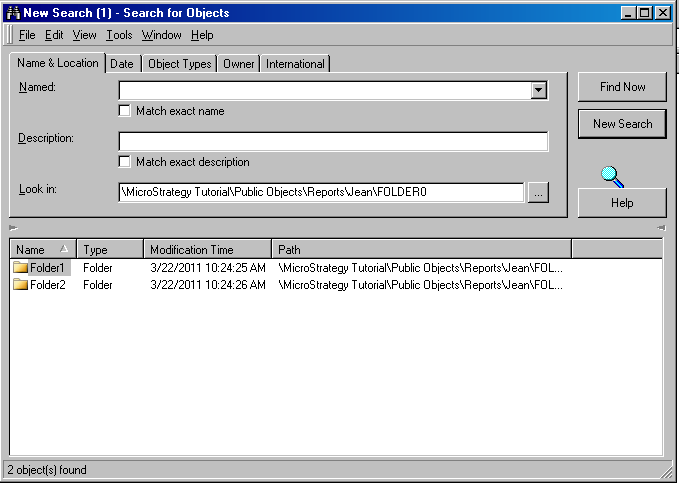
  • Developer users will still be able to browse and see all objects within FOLDER0, but now a search of these objects returns only the folders and excludes all other non-folder objects. See screen shot below.

ka02R000000kX5qQAE_0EM440000002DnD.png
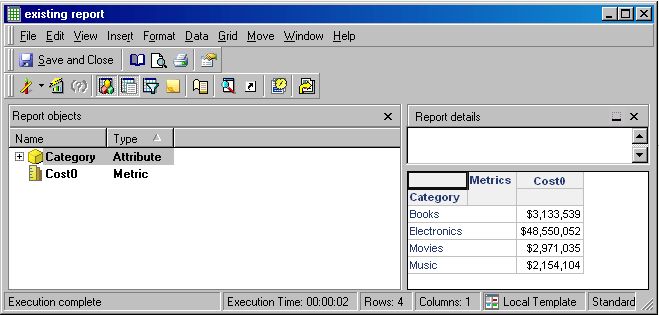
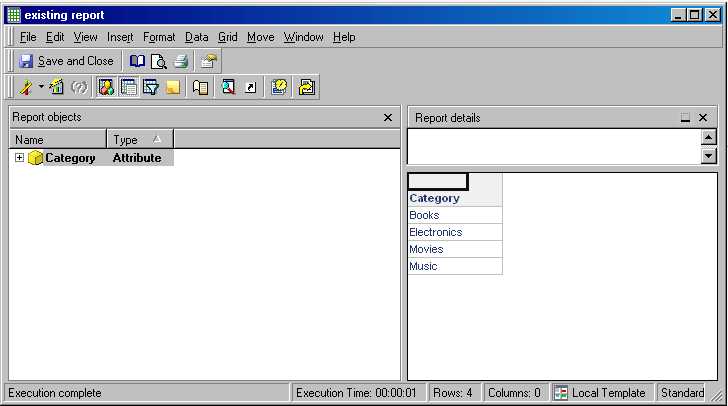
  • Also, Developer users will no longer be able to see those objects within existing reports upon execution. Below is a screen shot of the report when run by the Administrator, and a screen shot of the same report when run by a non-Administrator user.

ka02R000000kX5qQAE_0EM440000002DnL.png
ka02R000000kX5qQAE_0EM440000002DnG.png
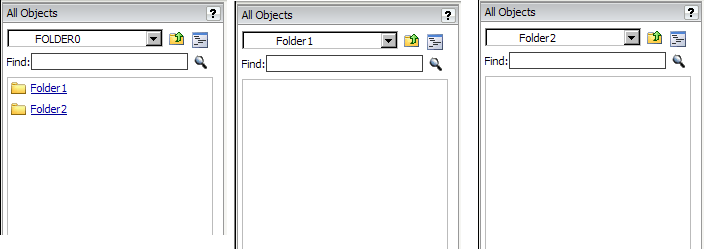
  • Web users will not be able to browse see non-folder objects when browsing through the folders. See screen shots below.

ka02R000000kX5qQAE_0EM440000002DnJ.png

CAUSE
 
This is a known issue in Strategy Developer and Web 9.x.
 
ACTION
 
Strategy will continue to investigate and post updates as soon as they are available.
 
WORKAROUND
 
Recursively propagate and overwrite ACLs from the parent folder to all child objects manually through Developer as shown below.
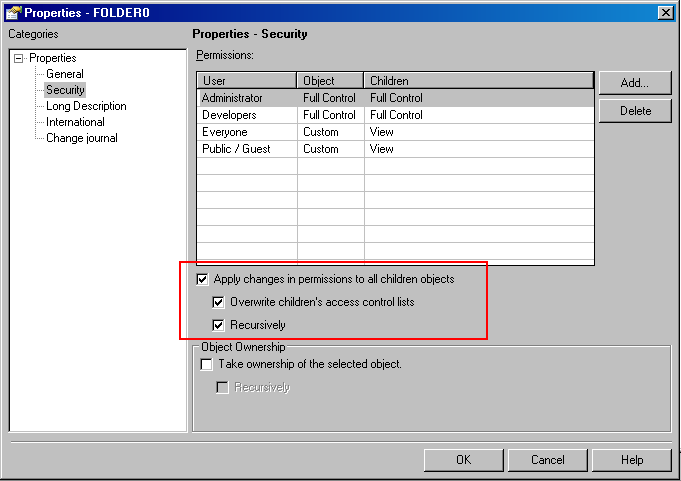
ka02R000000kX5qQAE_0EM440000002DnQ.png


Comment

0 comments

Details

Knowledge Article

Published:

April 10, 2017

Last Updated:

April 10, 2017