EducationSoftwareStrategy.com
StrategyCommunity

Knowledge Base

Product

Community

Knowledge Base

TopicsBrowse ArticlesDeveloper Zone

Product

Download SoftwareProduct DocumentationSecurity Hub

Education

Tutorial VideosSolution GalleryEducation courses

Community

GuidelinesGrandmastersEvents
x_social-icon_white.svglinkedin_social-icon_white.svg
Strategy logoCommunity

© Strategy Inc. All Rights Reserved.

LegalTerms of UsePrivacy Policy
  1. Home
  2. Topics

KB3600: How to define an attribute form as an HTML tag in MicroStrategy Developer 9.X to be seen in MicroStrategy Web 9.X


Stefan Zepeda

Salesforce Solutions Architect • Strategy


How to define an attribute form as an HTML tag in MicroStrategy Developer 9.X to be seen in MicroStrategy Web 9.X

Users can define an attribute form as an HTML tag to get additional functionality in Strategy Web.
 
In order to create an HTML tag form, define the following form as an "HTML tag".
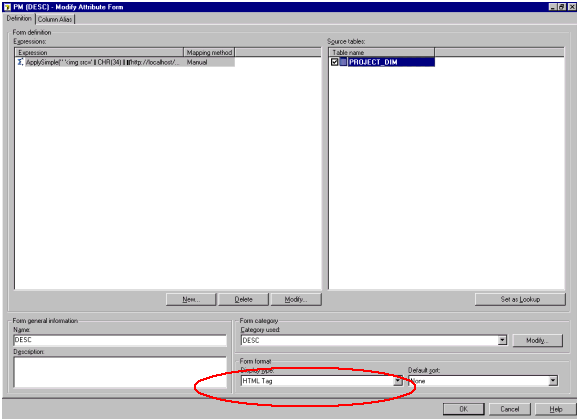
ka02R000000kYDFQA2_0EM440000002GLG.gif

 
EXAMPLE:
To implement the following functionality: Display the attribute name with an icon next to it, so that when the attribute name is clicked on, a JavaScript alert is launched displaying the name of the attribute. (This is an example of how the Strategy HTML interface incorporates JavaScript.)
 
In HTML, the syntax for this type of tag is as follows:


<img src="http://localhost/webserver/arrow.gif" OnClick="Javascript:alert('ATTRIBUTE_NAME')"> 

The following steps outline how to implement the same type of functionality in the Strategy Desktop attribute forms editor. This document assumes the use of SQL Server as a warehouse.

  • In Strategy Desktop, double-click on the attribute to be modified. Select the attribute form to be displayed with a link.
  • Use the ApplySimple pass-through expression to create the HTML tag expression. The syntax of the ApplySimple expression is as follows:
    
    ApplySimple ("expression using #0",ATTRIBUTE_NAME) 

    Here #0 is a variable that represents the attribute itself, which is replaced by ATTRIBUTE_NAME at runtime.
     
    NOTE: The separator is a comma (,) in this case, but depending on the machine's regional settings, it could also be a semi-colon)
     
     
  • In this case, the expression would be the following:
    
    ApplySimple ("<img src="http://localhost/webserver/arrow.gif" OnClick="Javascript:alert('#0')"> #0", ATTRIBUTE_NAME) 

    However, the attribute forms editor does not allow double quotes (") within the HTML tag expression, and the syntax '#0' does not evaluate properly. A database specific function that will be accepted by the attribute forms editor AND evaluate to a double quote (") and single quote (') at runtime is necessary.
     
    For SQL Server, char(N) is a function that accepts an ASCII code and returns a character. For example, char(34)= " and char(39)= '.
     
    The SQL Server concatenation string (+) must be used to join the different pieces of the entire expression together.


  • Using these rules, the expression is modified from the following:
    
    ApplySimple ("<img src="http://localhost/webserver/arrow.gif" OnClick="Javascript:alert('#0')"> #0", ATTRIBUTE_NAME) 

    To the one below:
    
    ApplySimple(" '<img src=' + CHAR(34) + 'http://localhost/webserver/arrow.gif' + CHAR(34) + ' ' + 'OnClick=' + CHAR(34) + 'Javascript:alert(' + CHAR(39) + #0 + CHAR(39) + ')' + CHAR(34) + '>' + ' ' + #0", ATTRIBUTE_NAME) 
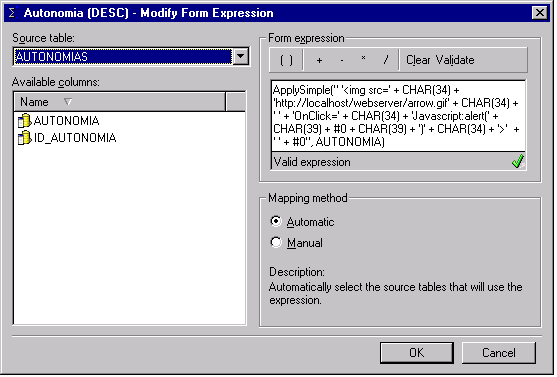
ka02R000000kYDFQA2_0EM440000002GLT.gif
  •  
    NOTE: Update the schema after altering the attribute form expression, run the report and view the changes made to the attribute.
     
     
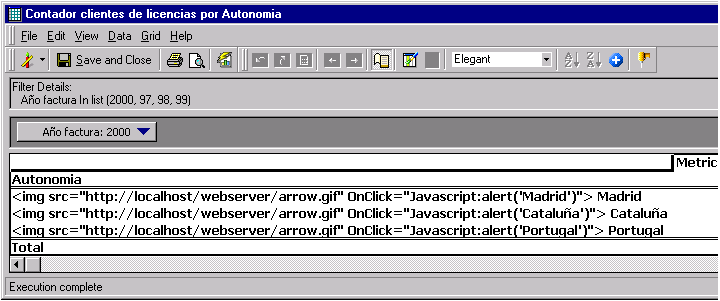
  • Check the results. The report as shown in Strategy Desktop:
     
ka02R000000kYDFQA2_0EM440000002GLJ.gif
  •  
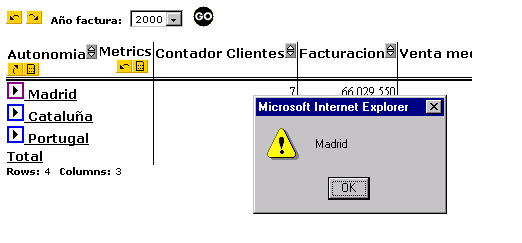
    And finally, the report as seen in Strategy Web. After clicking on the arrow icon, the attribute name is displayed in a JavaScript alert:
     
ka02R000000kYDFQA2_0EM440000002GLI.gif

NOTE: The ASCII-to-character function ('char(N)' in SQL Server 7) and concatenation symbol ('+' in SQL Server 7) are Relational Database Management System (RDBMS) specific. In the case of DB2, for example, the conversion function is x'NN'. Here NN is a hexadecimal value. Therefore,


X'7f'= " and   x'7d'= '

and the concatenation symbol is
 
The same expression we used in the example has the following syntax in DB2:

ApplySimple("'<img src=' x'7f' 'http://172.26.18.10/WEBSERVER/arrow.gif' x' 7f' ' OnClick=' x'7f' 'Javascript:alert(' x'7D' #0 x'7D' ') ' x'7f' '>' " #0; ATTRIBUTE_NAME) 

 
The same expression we used in the example has the following syntax in Oracle 8:

ApplySimple(" '<img src=' CHR(34) 'http://localhost/webserver/arrow.gif' CHR(34) ' ' 'OnClick=' CHR(34) 'Javascript:alert(' CHR(39) #0 CHR(39) ')' CHR(34) '>' ' ' #0", )

For general information about pass-through expressions in Strategy 7, please refer to the Project Designer manual, Appendix A.


Comment

0 comments

Details

Knowledge Article

Published:

June 9, 2017

Last Updated:

June 9, 2017