To render the "Run Report" and "Cancel" buttons from the bottom to the top of the prompts page in Strategy Web 9.0.2
Before Customization
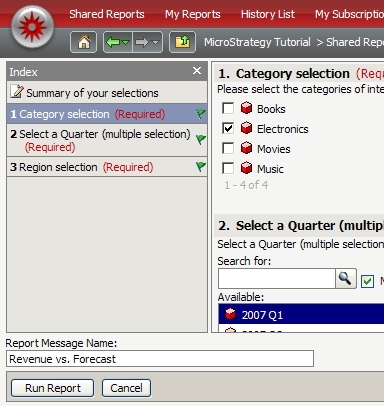
After customization

Using the customizations editor, open Client-side layouts --> mstr --> layouts --> promptEditor, edit the file and move the row where the buttons are being rendered to the top of the table. The buttons will then render at the top of the prompts page.
Section to be moved:
Sample Code/Error
<tr>
<td class="{@cssPrefix}{@cssClass}CellNavToolbar" colspan="2">
<mstrlayout:wRender name="closeSummaryButton">
</mstrlayout:wRender>
<mstrlayout:wRender name="previousButton">
</mstrlayout:wRender>
<mstrlayout:wRender name="nextButton">
</mstrlayout:wRender>
<mstrlayout:wRender name="finishButton">
</mstrlayout:wRender>
<mstrlayout:wRender name="saveButton">
</mstrlayout:wRender>
<mstrlayout:wRender name="cancelButton">
</mstrlayout:wRender>
</td>
</tr>
After customization:
(Code snipped)
Sample Code/Error
...
<table title="{@tooltip}"
cellspacing="3"
style="{@cssText}"
cellpadding="0"
class="{@cssPrefix}{@cssClass}"
id="{@id}">
<tbody>
<tr>
<td class="{@cssPrefix}{@cssClass}CellNavToolbar" colspan="2">
<mstrlayout:wRender name="closeSummaryButton">
</mstrlayout:wRender>
<mstrlayout:wRender name="previousButton">
</mstrlayout:wRender>
<mstrlayout:wRender name="nextButton">
</mstrlayout:wRender>
<mstrlayout:wRender name="finishButton">
</mstrlayout:wRender>
<mstrlayout:wRender name="saveButton">
</mstrlayout:wRender>
<mstrlayout:wRender name="cancelButton">
</mstrlayout:wRender>
</td>
</tr>
<tr>
<td class="{@cssPrefix}{@cssClass}CellTOC">
<mstrlayout:wRender name="toc">
</mstrlayout:wRender>
</td>
<td class="{@cssPrefix}{@cssClass}CellBook">
...
CUSTOMIZATION WARNING
This customization is provided as a convenience to Strategy users and is only directly applicable to the version stated. While this code may apply to other releases directly, Strategy Technical Support makes no guarantees that the code provided will apply to any future or previous builds. In the event of a code change in future builds, Strategy Technical Support makes no guarantee that an updated version of this particular customization will be provided. In the event of a code change in future builds, Strategy may not be able to provide additional code on this matter even though this customization is provided at this time for this specific build. For enhancements to this customization or to incorporate similar functionality into other versions, contact your Account Executive to inquire about Strategy consulting assistance.
