SYMPTOM:
When connecting to an IBM Cognos TM1 source through Strategy Desktop 9.x, an "XMLA Discover failed" error message appears as shown below.
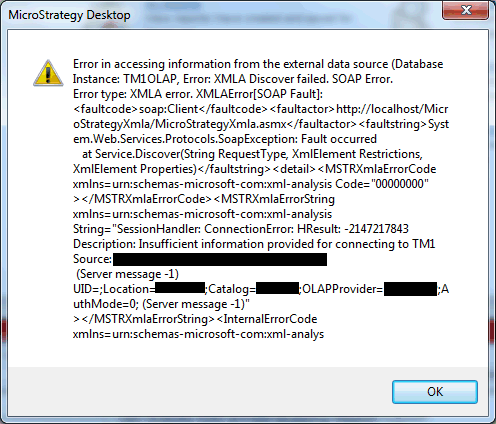
Error in accessing information from the external data source (Database Instance: TM1OLAP, Error: XMLA Discover failed. SOAP Error. Error type: XMLA error. XMLAerror: <faultcode>soap:Client</faultcode><faultactor>http://localhost/StrategyXmla/StrategyXmla.asmx</faultactor><faultstring>System.Web.Services.Protocols.SoapException: Fault occurred at Service.Discover(String RequestType, XmlElement Restrictions, XmlElement Properties)</faultstring><detail><MSTRXmlaErrorCode xmlns=urn:schemas-microsoft-com:xml-analysis-code="00000000"></MSTRXmlaErrorCode><MSTRXmlaErrorString xmlns=urn:schemas-microsoft-com:xml-analysis String="SessionHandler: ConnectionError: HResult: -2147217843 Description: Insufficient information provided for connecting to TM1 Source Source: <Source> (Server message -1) UID=;Location=<location>;Catalog=<catalog>;OLAPProvider=<tm1_olapprovider>;AuthMode=0; (Server message -1)"></MSTRXmlaErrorString><InternalErrorCode xmlns=urn:schemas-microsoft-com:xml-analys...
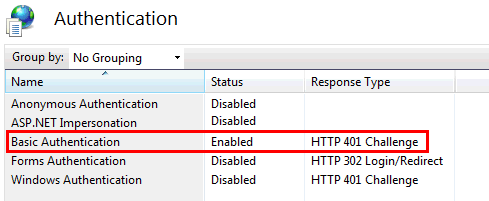
2. Specify a Database Login (Login ID and password) for the TM1 Database Connection (through Desktop under Project Source > Administration > Configuration Managers > Database Instances > TM1 Database Instance > Database connection > Default database login name).
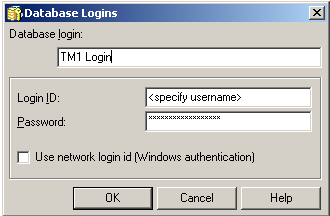
3. On the TM1 Connector Windows machine, create a Windows user with the same username and password as the Strategy Database Login (created in step 2).
Note: If "Use network login id (Windows authentication)" is selected, "Windows Authentication" has to be enabled in IIS.
