Very Large Database (VLDB) properties are settings in charge of performing database specific optimizations (customizing Structured Query Language (SQL)). They can be set at different levels throughout a project to establish a specific behavior regarding the object type. See the screenshot below:
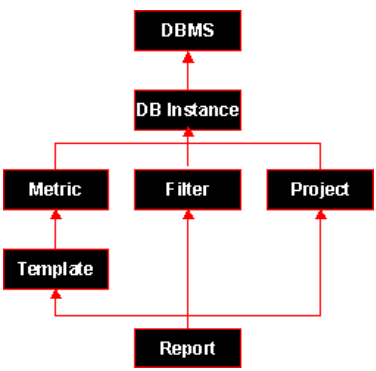
By default, all objects in a project, including the project itself, have the following flag enabled for all the VLDB properties:
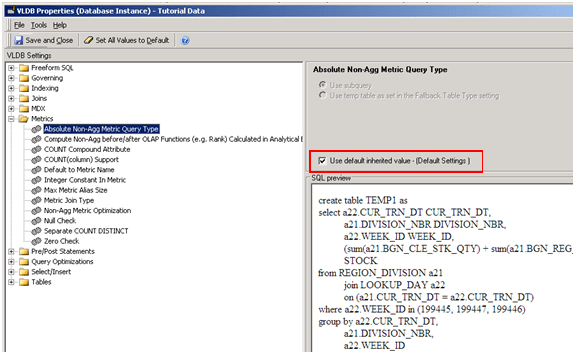
This means that the object takes the immediate higher level object VLDB setting value with a checked flag. This is done in a recursive fashion, up to the Database Management System (DBMS) object.
If the 'Use default inherited value' checkbox is unchecked, the value of the setting at current level affects the characteristics of the object and all the levels under it.
A change at a higher level affects all new and existing objects with a lower level that have the flag checked.
The DBMS level is set whenever a new project is created. The settings are copied from the database.pds file into the metadata. The default values that Strategy supplies for the DBMS objects are optimized for the database type and version and they have been thoroughly tested.
The project and Database (DB) Instance are merged together since only one DB Instance (or DB Role) can be used for each project. In future versions this approach may change.
Example:
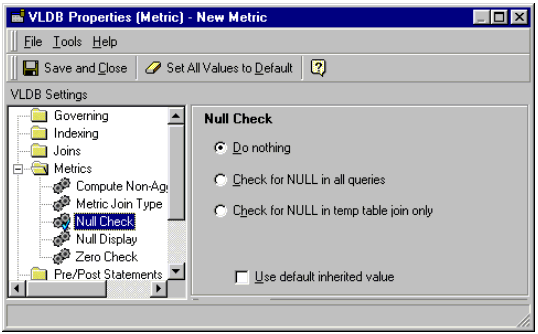
Assume that the following value is set for the 'Null Check' setting at the metric level:
And that the following value is set at the report level for a report that contains the previous metric:
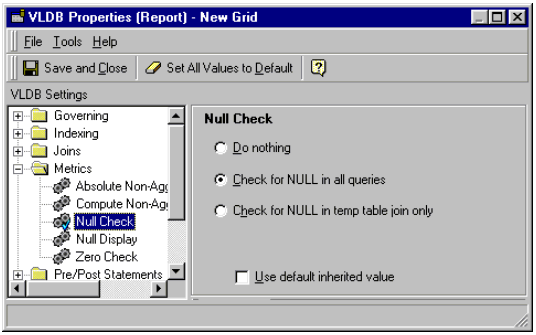
When running the report, the generated SQL is:
select a22.OPTION_ID OPTION_ID,
max(a23.OPTION_DESC) OPTION_DESC,
ISNULL((sum(a21.SALES_AMT) / NULLIF(10, 0)), 0) NEWMETRIC
from GM_FACT1 a21
join RELATE_VEHICLE_OPTION a22
on (a21.VEHICLE_ID = a22.VEHICLE_ID)
join LU_OPTION a23
on (a22.OPTION_ID = a23.OPTION_ID)
group by a22.OPTION_ID
If the 'Use default inherited value' flag at the report level is checked back again, the query changes to:
select a22.OPTION_ID OPTION_ID,
max(a23.OPTION_DESC) OPTION_DESC,
(sum(a21.SALES_AMT) / NULLIF(10, 0)) NEWMETRIC
from GM_FACT1 a21
join RELATE_VEHICLE_OPTION a22
on (a21.VEHICLE_ID = a22.VEHICLE_ID)
join LU_OPTION a23
on (a22.OPTION_ID = a23.OPTION_ID)
group by a22.OPTION_ID
NOTE: The ISNULL function is not being applied.
The default metric value for the 'Null Check' setting was set to 'Do nothing'. So when the value was changed to 'Check for NULL in all queries' at the report level, the Strategy SQL Generation Engine issued a NULL validation for the metric. When the 'Use inherited value' flag was checked for the setting at the report level, it went back to the higher object with an unchecked flag (the metric level) and used that value to generate the query.
