Customer often likes to re-brand or customize Strategy Mobile Application according to their business need. In this case, customer will need to distribute the re-branded app internally within their organization instead of downloading the Strategy Mobile app from Apple App Store.To distribue mobile app internally, customer needs to first enroll in Apple's iOS Developer Enterprise Program:http://developer.apple.com/programs/ios/enterprise/
Important Note: The following information is based on Apple’s documentation such as iPhone OS Enterprise Deployment Guide and iPhone Development Guide on Apple's Web site. Always refer to Apple’s iOS Dev Center for the most recent information.
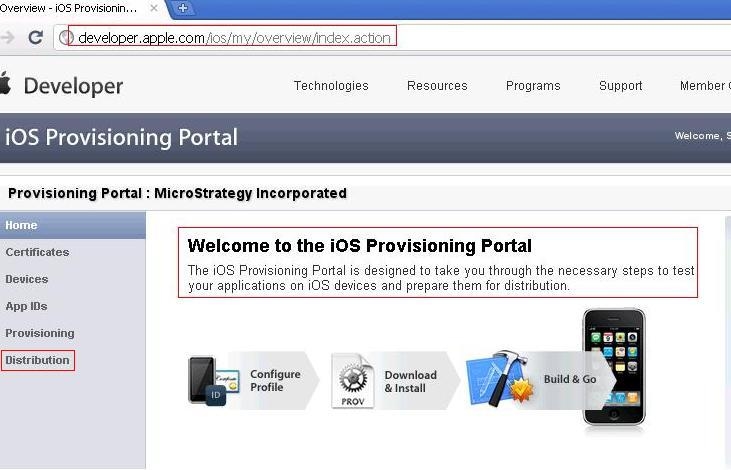
After obtaining the iOS Developer Enterprise ID, customer will need to log into iOS Provisioning Portal within Apple Member Center and follow the instructions under the Distribution section in order to distribute the app internally within their organization. The following image illustrates how to access iOS Provisioning Portal (Requires Apple Developer ID or Enterprise ID to access)
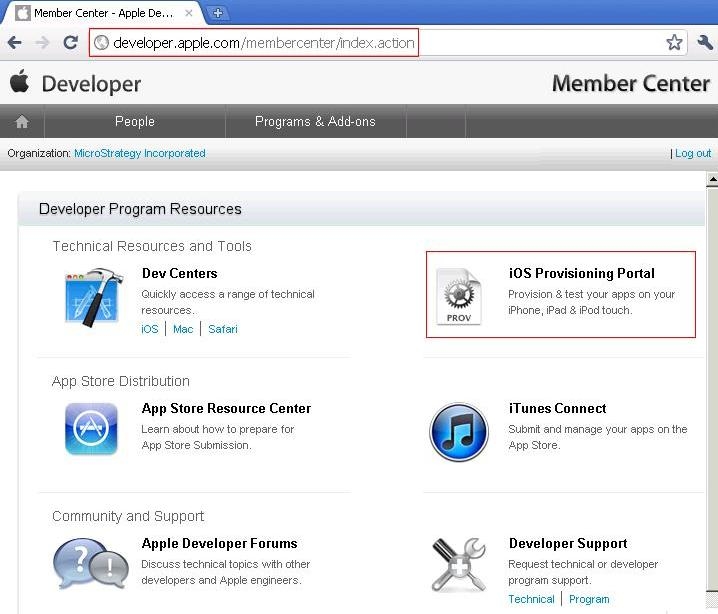
This is the iOS Provisioning Portal page that contains all the instructions on how to distribute applications within a company (Requires Apple Developer ID or Enterprise ID to access)
The following describes the high level steps required for Enterprise Distribution. For detailed instruction, please refer to iOS Dev Center.
1. Creating an Application ID (also called App ID)
2. Requesting a Distribution Certificate
3. Creating a Distribution Provisioning Profile
4. Setup and Configure the Strategy Mobile Project
5. Deploying Application to Devices
The creation of the above digital items involves the use of several facilities provided by Apple on either the Mac platform or via the Web-based iOS Dev Center. The following diagram provides an overview of the process for creating the above items.
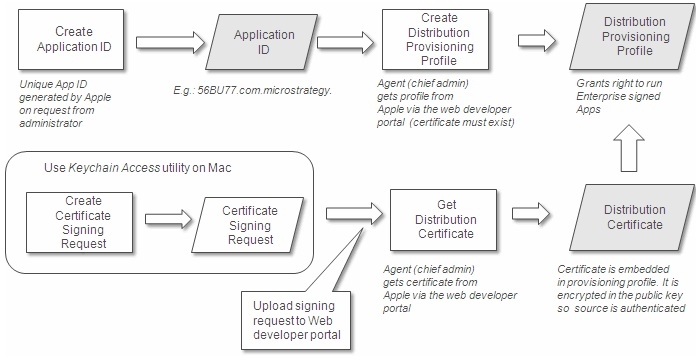
The first step is to create an Application ID (also called App ID). The iPhone OS identifies programs by their Application ID. This step can be performed by any administrator identified on the iPhone Dev Center. An Application ID can represent a single application or a set of related applications.
The iPhone Provisioning Portal accessible from the iPhone Dev Center has detailed documentation on completing this step.
The next step is to request a distribution certificate. This request must be made by the “Agent” identified for the Enterprise Developer License. This person is the “chief administrator” and has unique privileges to obtain a certificate and create a provisioning profile that can be used for enterprise-wide deployment.
To request a distribution certificate, the Agent must use the “Keychain Access” utility on the Mac. This program is used to create a Certificate Signing Request (CSR). Once the CSR has been generated, it is then uploaded by the Agent to the iPhone Dev Center. The iPhone Dev Center allows the Agent to use the CSR to request the distribution certificate. Once this is done, a distribution certificate is generated by Apple and can be accessed via the iPhone Dev Center.
The iPhone Provisioning Portal accessible from the iPhone Dev Center has detailed documentation on completing this step.
The final step is to create a distribution provisioning profile that allows any device within the enterprise to use a particular application (or applications). Thus, the provisioning profile associates the Application ID, and the certificate. The facility for creating a provisioning profile is provided only for the Agent on the iPhone Dev Center. Note that this is different from provisioning profiles that may be created by administrators such that this particular provisioning profile does not need to specify any devices. Any device that loads this particular provisioning profile will be able to run any application that is associated with it.
The iPhone Provisioning Portal accessible from the iPhone Dev Center has detailed documentation on completing this step.
To build the custom Strategy Mobile application that will be deployed to the devices, perform the following steps:
1. Install the appropriate xCode development environment on the Mac machine (check Strategy Mobile readme for correct version).
2. Download and install Strategy Mobile SDK (packaged as a DMG file)
Installing the Mobile SDK
3. Configure the Strategy Mobile project to update the Bundle Identifier to match the Application ID created in the previous sections:
Setting up the mobile project
4. Optionally perform additional rebranding scenarios (changing icon, preconfiguring to point to a specific mobile server, change splash screen, etc):
Customization Scenarios
Once all the steps have been successfully completed, the iPhone application can then be deployed to devices in the enterprise. The following diagram depicts the distribution process.
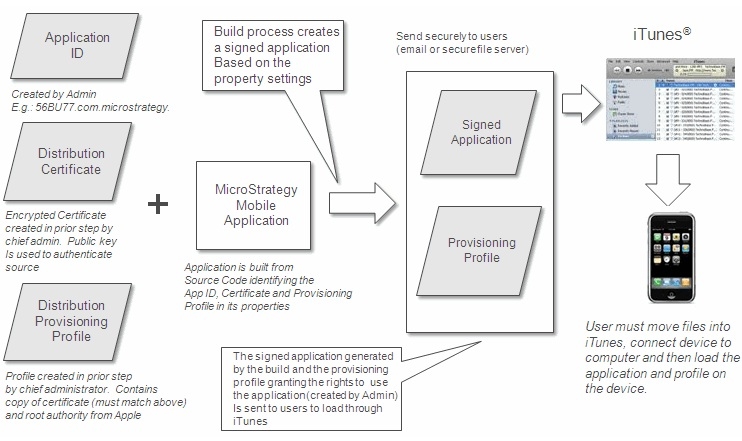
Once the Application ID has been created, any person with access to the iPhone Dev Center can use this Application ID with an associated program. The Agent must supply the distribution certificate and provisioning profile to a developer responsible for signing and building the application.
Using Xcode, the developer sets the program properties to use the provisioning profile and the distribution certificate. The build then produces a signed application bundle that can then be distributed. Distribution of the application bundle can be accomplished via Web download or by placing it on a common file server. The distribution provisioning profile can be emailed as it is relatively small.
For a particular device to use the newly built and signed application, the device must be loaded with the signed application bundle and the provisioning profile. The application bundle is provided in the form of a directory structure and the provisioning profile is a single file. There are two methods to load these items onto the device.
Since the distribution provisioning profile will be valid as long as the associated distribution certificate is valid, the device only needs to be loaded once with the provisioning profile. It can remain on the device until it is necessary to update it when the distribution certificate expires. Thus, to add new or updated applications the user only needs to load the application bundle via iTunes or the Configuration Utility.
KB36413
