EducationSoftwareStrategy.com
StrategyCommunity

Knowledge Base

Product

Community

Knowledge Base

TopicsBrowse ArticlesDeveloper Zone

Product

Download SoftwareProduct DocumentationSecurity Hub

Education

Tutorial VideosSolution GalleryEducation courses

Community

GuidelinesGrandmastersEvents
x_social-icon_white.svglinkedin_social-icon_white.svg
Strategy logoCommunity

© Strategy Inc. All Rights Reserved.

LegalTerms of UsePrivacy Policy
  1. Home
  2. Topics

KB36422: How to check if a MicroStrategy Enterprise Manager 9.x data load is running or hanging


Community Admin

• Strategy


This document provides recommendations on how to check if a MicroStrategy Enterprise Manager 9.x data load is running or hanging

Strategy Enterprise Manager 9.x data loads can take a long time to complete. Some of the steps and may appear to be hanging on certain phases of the load but are really still processing.  To check if a data load is in fact running or it is hanging, there several things that can be checked:
 

  • The first thing to check is to see if the Strategy Enterprise Manager 9.x data load is submitting new SQL to the Database. To check this enable the SQL trace in the console.
    The following procedure describes how to enable the SQL trace to see if the data load is running: 
    • Navigate to 'Enterprise Manager Console'. Start > All Programs > Strategy > Enterprise Manager
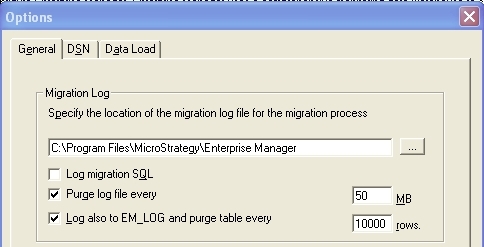
    • Inside EM Console navigate to Tools > Options > General Tab.  Select 'Log migration SQL'.
ka04W00000147ptQAA_0EM440000002AeD.jpeg
    • Navigate to the migration SQL log at the location specified in the above screenshot.
    • Check the log periodically to see if it is getting populated with new SQL. If it is then the data load is running. If it is not proceed to step 2 below. 
  • If a particular SQL pass seems to be taking a long time check the database to see if the database is still processing the SQL statement. If you are not sure on how to check if the database has processed the SQL statement contact your DBA. If the database has completed processing of the SQL statement and the Strategy Enterprise Manager 9.x has not submitted new SQL for a long time move to the next step.
     
  • Check the CPU usage of the machine running the Strategy Enterprise Manager 9.x data load to see if the data load process is using CPU and if so at what rate.
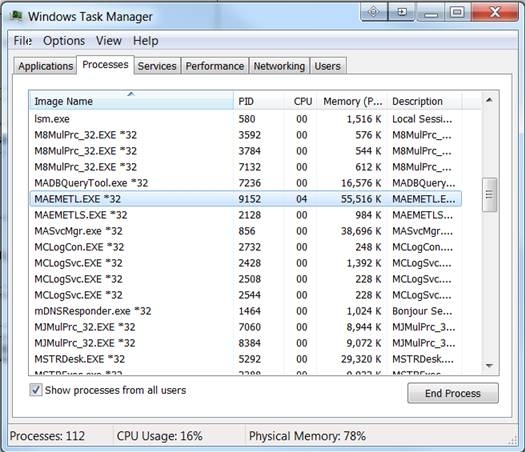
    • Open 'Task Manager' and click on the 'Processes' tab.
    • Make sure the checkbox to 'Show processes from all users' is selected.
    • Locate the Data Load process: MAEMETL.EXE
    • Monitor the CPU usage:
ka04W00000147ptQAA_0EM440000002AeE.jpeg

​

  • If the CPU is constantly at '0' for several minutes then the program is possibly hanging, if it is not waiting for data from the database.
  • If the CPU is constantly at a high number maxing out the CPU resources the program could be stuck in some type of loop.
  • If the CPU is changing the program is probably not hanging and is simply performing normal functions.
  • If the CPU is constantly at a low number give the program some more time, around 5 - 10 minutes, to see if the CPU usage changes.

 
If it is still suspected that the Strategy Enterprise Manager 9.x data load is hanging after following all of these steps without a clear indication of a cause, contact Strategy Technical Support for further assistance.


Comment

0 comments

Details

Knowledge Article

Published:

March 29, 2017

Last Updated:

March 29, 2017