Delivery email notifications are designed to alert administrators when subscriptions have problems. However, sometimes, those delivery notification emails themselves have problems. When this happens the following steps can be taken to attempt to locate the cause of why the notification emails are not being received:
Check the settings at the Project level
To do this, right click on a project in Desktop, and select Project Configuration. On the left side under Categories, find deliveries, and check the settings for each type of delivery.
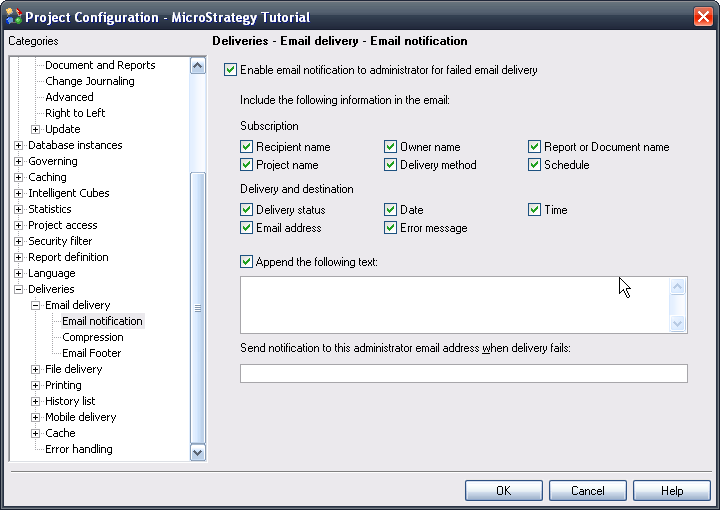
Make sure the email address specified here is correct and that the notification is turned on.
Check the Transmitter for Email
Delivery notifications use the default 'Email' transmitter provided out of the box. In order to check this object, log into a 3-tier project source, then go to Administration > Delivery Managers > Transmitters.
Editing the transmitter will display the email addresses used for the From and optional Reply-to fields specified when sending the notification emails. Some mail servers have access controls that prevent certain email addresses from sending mail. Ensure that the addresses specified here are valid.
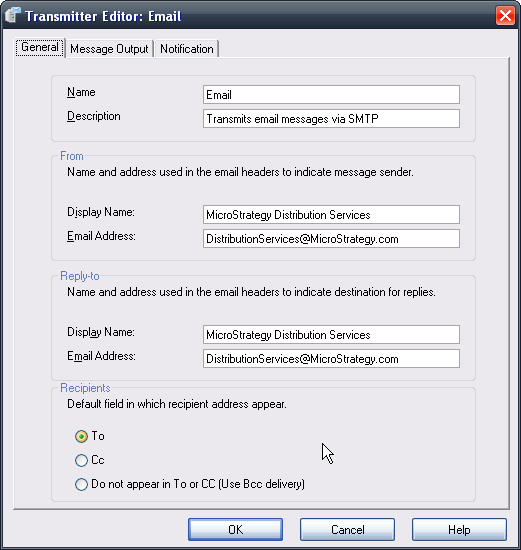
On the 'Message Output' tab, check and verify that the transmitter is configured to actually send the email by ensuring the option 'Send messages to recipients via SMTP' is checked. If this option is not checked, then no emails will be sent over the network.

Check the settings for the Generic email Device
The device used by all delivery notifications is the default 'Generic email' device; this cannot be changed. Edit this device by connecting to a 3-tier project source, going to Administration > Delivery Managers > Devices.
If the network requires a mail relay server to be configured, ensure that the proper IP address or server name and port number are set under the 'Smart Host' section:
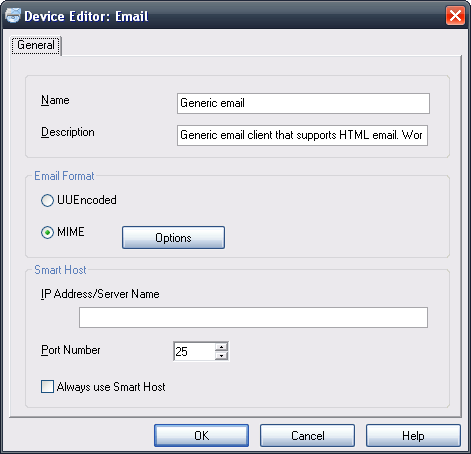
Also, try enabling 'Always use Smart Host' to ensure that this relay address is used. The smart host feature is used to designate a server through which all outgoing messages are routed. The smart host then makes the remote connection outside or inside the network as necessary. If a smart host is designated, Strategy transmits to the smart host server, instead of attempting to contact the domain of the email address specified at the project level. If a Smart Host, relay, server is used, check with the administrator of this machine to verify that there are not problems at this level which would be outside the scope of what the Strategy product can see.
Enable SMTP Tracing
If all of the above settings have been verified and emails are still not being delivered then detailed SMTP level tracing can be enabled.
This level of tracing will show what happens when Strategy tries to send the notification email. To turn this on, go to the Strategy Diagnosis Configuration (Strategy Diagnosis and Performance logging Tool) on the Intelligence Server machine. For 'Select Configuration' make sure that the 'CastorServer instance' option is selected. Under the 'Component' column find 'SMTPSender' and then locate the associated 'Trace' under 'Dispatcher'. Select a new file or existing log under 'File Log' to log this information to.

The output for the log will be similar to below:
Local machine domain: HOST
Processing destination domain: Strategy.com
Connecting to domain: Strategy.com
Connecting to ip address: 641.514.702.421
Establishing handshake via Hello on domain: Strategy.com
Checking recipients
Recipient address example@Strategy.com accepted
Sending email
Email sent. Waiting for acknowledge
Email send acknowledged
