EducationSoftwareStrategy.com
StrategyCommunity

Knowledge Base

Product

Community

Knowledge Base

TopicsBrowse ArticlesDeveloper Zone

Product

Download SoftwareProduct DocumentationSecurity Hub

Education

Tutorial VideosSolution GalleryEducation courses

Community

GuidelinesGrandmastersEvents
x_social-icon_white.svglinkedin_social-icon_white.svg
Strategy logoCommunity

© Strategy Inc. All Rights Reserved.

LegalTerms of UsePrivacy Policy
  1. Home
  2. Topics

KB36627: How to create a report to trace report usage for a group of users within a particular folder in MicroStrategy Enterprise Manager 9.x and 10.x?


Community Admin

• Strategy


How to create a report to trace report usage for a group of users within a particular folder in MicroStrategy Enterprise Manager 9.x and 10.x?

In Strategy Enterprise Manager 9.x and 10.x, there is no out-of-the-box report to trace the report usage in a particular folder for a particular group of users.
In order to create a Strategy Enterprise Manager report which returns the underlying report usage for a group of users within a particular folder, follow the steps below:
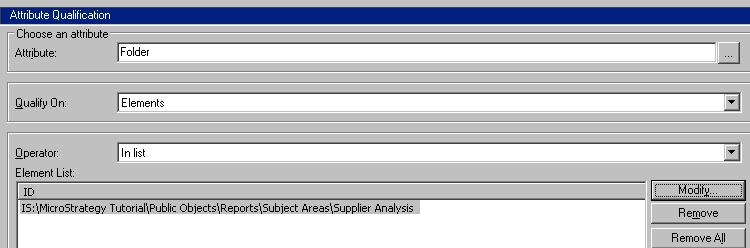


  • Create a report with the attribute 'Folder' (under Attribute> Configuration Objects) in the row.
  • Create an attribute qualification filter in this report on the Folder attribute with the following definition:
     
ka04W000000Ogh2QAC_0EM440000002AdH.jpeg
  • Add the attribute 'Report' (under Attribute> Application Objects) to the report template.
  • Add the attribute 'User' (under Attribute> Configuration Objects) to the report template.
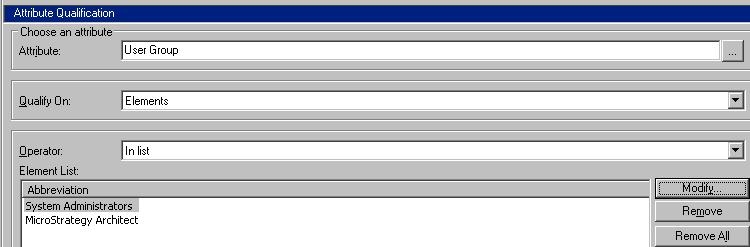
  • Create an attribute qualification filter in this report on the User attribute with the following definition:
     
ka04W000000Ogh2QAC_0EM440000002AdF.jpeg
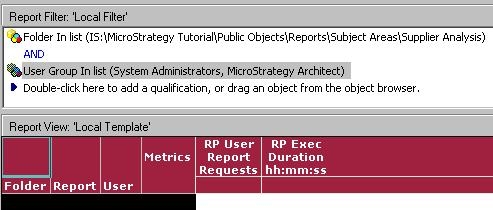
  • Add the metric 'RP User Report Requests' and 'RP Exec Duration hh:mm:ss' (under Public Objects> Metrics> Report Processing Analysis) in the column, the report is as shown below:                                                                              
     
ka04W000000Ogh2QAC_0EM440000002AdE.jpeg
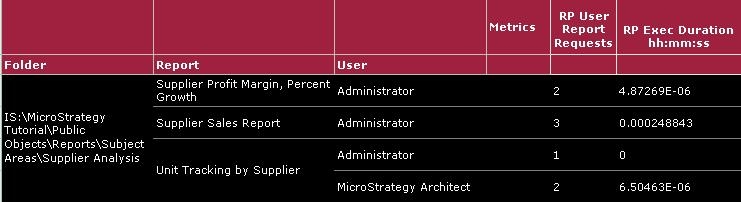
  • Execute the report, as shown below:
     
ka04W000000Ogh2QAC_0EM440000002AdG.jpeg


Comment

0 comments

Details

Knowledge Article

Published:

June 13, 2017

Last Updated:

June 13, 2017