SYMPTOM:
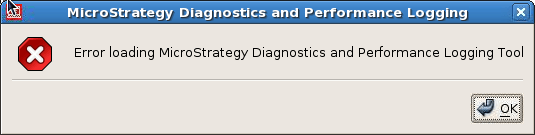
When lauching the Strategy Diagnosis and Performance Logging Tool 9.x (mstrdiag) in a graphical (GUI) setting on Linux, the following error appears:
Sample Code/Error
‘Error loading Strategy Diagnostics and Performance Logging Tool’
After clicking 'OK', the tool displays but everything is disabled / greyed out:
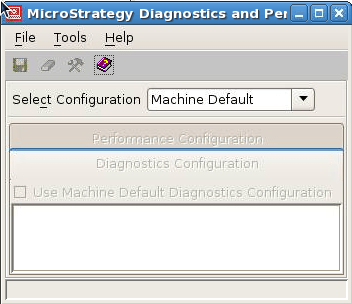
If the Diagnosis and Performance Tool was executed in a terminal window, the following stack trace appears:
Java
$ ./mstrdiag
java.lang.IllegalArgumentException: Destination with name DSSPerformanceCounters not found
at com.Strategy.web.objects.admin.serverconfig.LogDestinationsImpl.getItemByName(Unknown Source)
at com.Strategy.web.objects.admin.serverconfig.PerformanceLoggingConfigurationImpl.getDestination(Unknown Source)
at com.Strategy.tools.madpcfg.DiagPerfLogging.populatePerfTableData(Unknown Source)
at com.Strategy.tools.madpcfg.DiagPerfLogging.updatePerformance(Unknown Source)
at com.Strategy.tools.madpcfg.DiagPerfLogging.updateTabs(Unknown Source)
at com.Strategy.tools.madpcfg.DiagPerfLogging.loadForm(Unknown Source)
at com.Strategy.tools.madpcfg.DiagPerfLogging.<init>(Unknown Source)
at com.Strategy.tools.madpcfg.MADPCfg.<init>(Unknown Source)
at com.Strategy.tools.madpcfg.MADPCfg.main2(Unknown Source)
at com.Strategy.tools.madpcfg.MADPCfg$1.run(Unknown Source)
at java.lang.Thread.run(Unknown Source)
CAUSE:
Per the stack trace, the a configuration for the listed destination, in this example 'DSSPerformanceCounters', either does not exist or cannot be found. This file is used by the Strategy Diagnostics and Performance Logging Tool to load the settings. If it does not exist or is missing, the tool does not load.
ACTION:
To resolve the issue, the offending log destination just needs to be added to the configuration. This can be accomplished by running the following command:
Sample Code/Error
mstrctl -s IntelligenceServer ssc
This will provide an empty line to start entering the configuration information. Add the following substituting the 'n' value listed below with the name of the offending destination from the stack trace:
Sample Code/Error
<configuration>
<log_destinations>
<log_destination n="DSSPerformanceCounters" tp="4" max_size="2048" callstack_message_ids=""/>
</log_destinations>
</configuration>
This will add the log entry to the appropriate place in configuration so that the Strategy Diagnostics and Performance Logging Tool can run. For more information about using the command line for changing logging destinations and settings refer to the following Strategy Knowledge Base technical notes:
