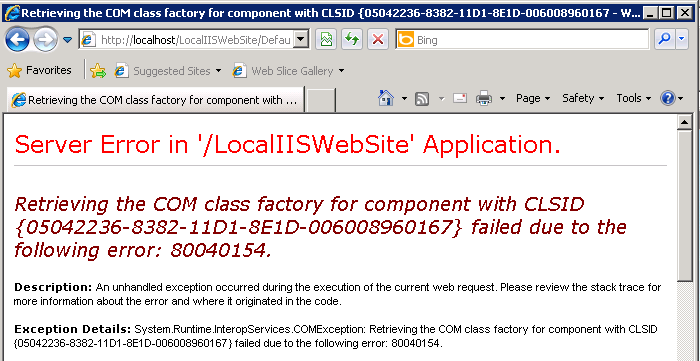
Users receive the following error when they deploy Visual Studio .Net code to IIS Web Application and try to run the application in a 64 bit environment.
1. On a Windows 64 bit machine create a New Web Site in Visual Studio .Net as explained in the following Microsoft document
http://msdn.microsoft.com/en-us/library/879kf95c(v=vs.80).aspx
2. Add any control like a button or text box to the new aspx page.
4. Click on the button to open the corresponding aspx.vb page and place Strategy COM code in the function. Make sure a reference to the M5TYPLIB.dll has been added to the web site.
5. Now run the application by clicking CTRL+F5 and then try to execute the code by clicking on the button control.
6. Users will see the following error message displayed in the browser
COM error when we create object for DSSCOMMasterLib - Retrieving the COM class factory for component with CLSID {05042236-8382-11D1-8E1D-006008960167} failed due to the following error: 80040154
This issue happens because the M5TYPLIB.dll file gets stored to the 32 bit location instead of 64 bit by default and IIS cannot locate the dll under the 64 bit registry files.
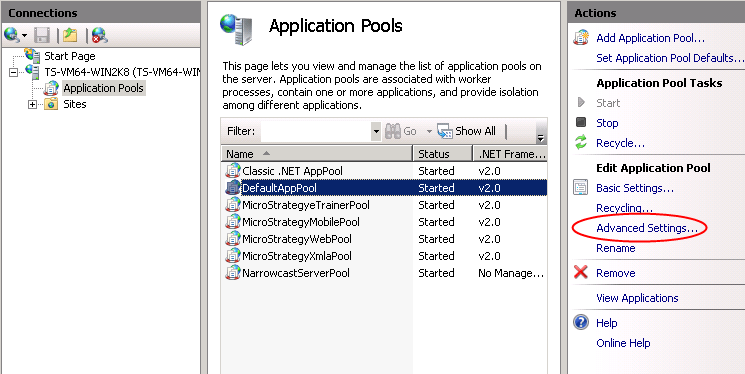
Open the 'Applications Pools' section under the IIS Manager and select the Application Pool that hosts the custom web site. Click on the Advanced Settings button as shown below
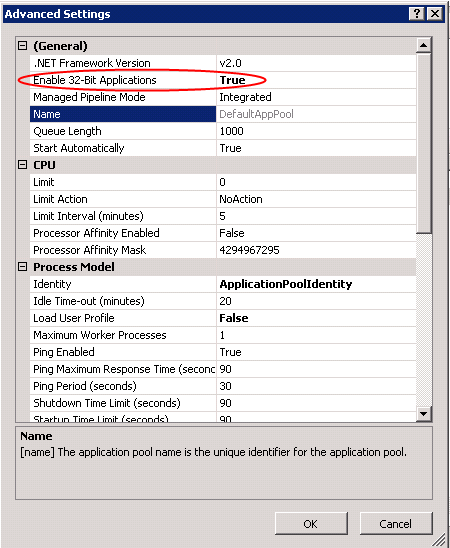
In the advanced settings window set Enable 32-Bit Applications to True as shown below,