SYMPTOM:
When users try to modify the root folder from Attributes to a custom folder for the Custom Group browse folders,
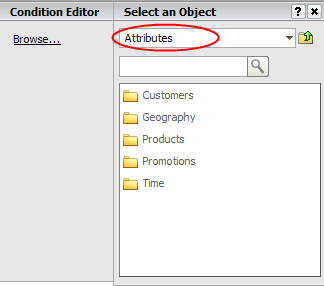
They receive the following error message

STEPS TO REPRODUCE:
1. Open the Web Customization Editor and click on the Application tab.
2. Browse to Strategy Web Configuration - Folder Links.
3. Right click on "browse objects for custom group" and choose to open in editor.
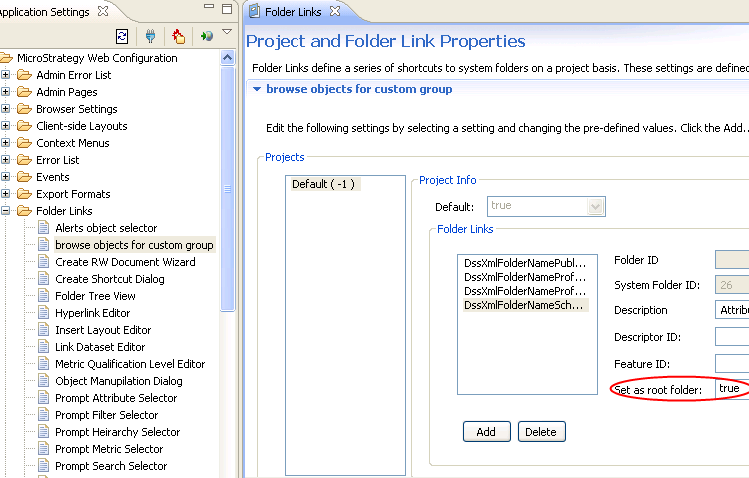
4. On the Project and Folder Link Properties page click on the Add button under Folder Links and add a custom folder ID as shown below.
5. Select the "Set as root folder" option to be true as shown below,
6. Save the changes and restart the Web Application Server.
7. Login to MicroStratergy Web and select to create custom group. Click on the browse link in the Custom group editor.
8. Note that the changes applied before do not apply and the root folder is still the Attributes folder.
9. Now modify the original folderLinks.xml file located under the XML\Config folder by changing the root folder for the context ID = 23 by replacing the
<folder-link sys-folder-id="26" desc="Attributes" is-root="true"/>
with
<folder-link desc="" desc-id="" id="3DAA9D4D462CF4CE3708B6835E416591" is-root="true"/>
10. Save the file and restart the application server.
11. Test the browse link for Custom Group creation. Now you will see the following error
The task 'searchMetadata could not be completed due to an event handling error: (The folder name is unknown to the server).
CAUSE:
This is a known issue with Strategy Web SDK version 9.0.2.
ACTION:
Contact Strategy Technical Support for an update on this issue.
