EducationSoftwareStrategy.com
StrategyCommunity

Knowledge Base

Product

Community

Knowledge Base

TopicsBrowse ArticlesDeveloper Zone

Product

Download SoftwareProduct DocumentationSecurity Hub

Education

Tutorial VideosSolution GalleryEducation courses

Community

GuidelinesGrandmastersEvents
x_social-icon_white.svglinkedin_social-icon_white.svg
Strategy logoCommunity

© Strategy Inc. All Rights Reserved.

LegalTerms of UsePrivacy Policy
  1. Home
  2. Topics

KB37083: How to view the contents of a package created in MicroStrategy Object Manager 9.4.1 - 10.x


Community Admin

• Strategy


This article describes how to view the contents of a package created in MicroStrategy Object Manager 9.4.1 - 10.x

This Technical Note describes how the contents of a package created in Strategy Object Manager 9.4.1 - 10.x and above can be viewed and edited if required.

  1. In Strategy Object Manager, log into a Project Source and connect to a Project.
  2. From Tools select Create Package and in the Create Package editor, click on the 'Add' button.
  3. Select the 'Import Selected Objects' option and select a report which has dependencies. Click on the 'Add all used dependencies' button. Click on 'Proceed'. A package has been created.
  4. From Tools select Import Package and in the Import Package editor it is seen that the 'Edit' button is grayed out.


ka04W000000OefrQAC_0EM440000002Df0.jpeg

 
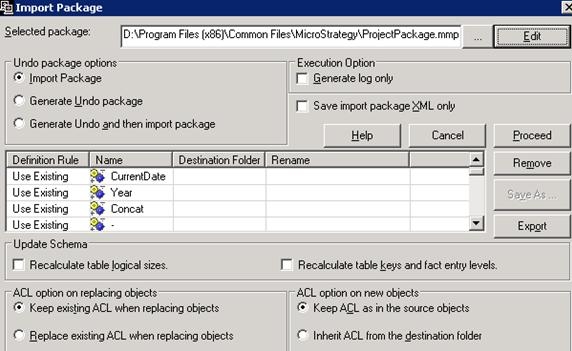
Navigate to the package created above and on its selection, the 'Edit' button in the editor gets activated.
             

ka04W000000OefrQAC_0EM440000002Df2.jpeg

 
Clicking on the 'Edit' button now displays the contents of the package to be imported and allows the package to be edited, if required.
             

ka04W000000OefrQAC_0EM440000002Dew.jpeg

Comment

0 comments

Details

Knowledge Article

Published:

June 8, 2017

Last Updated:

June 8, 2017